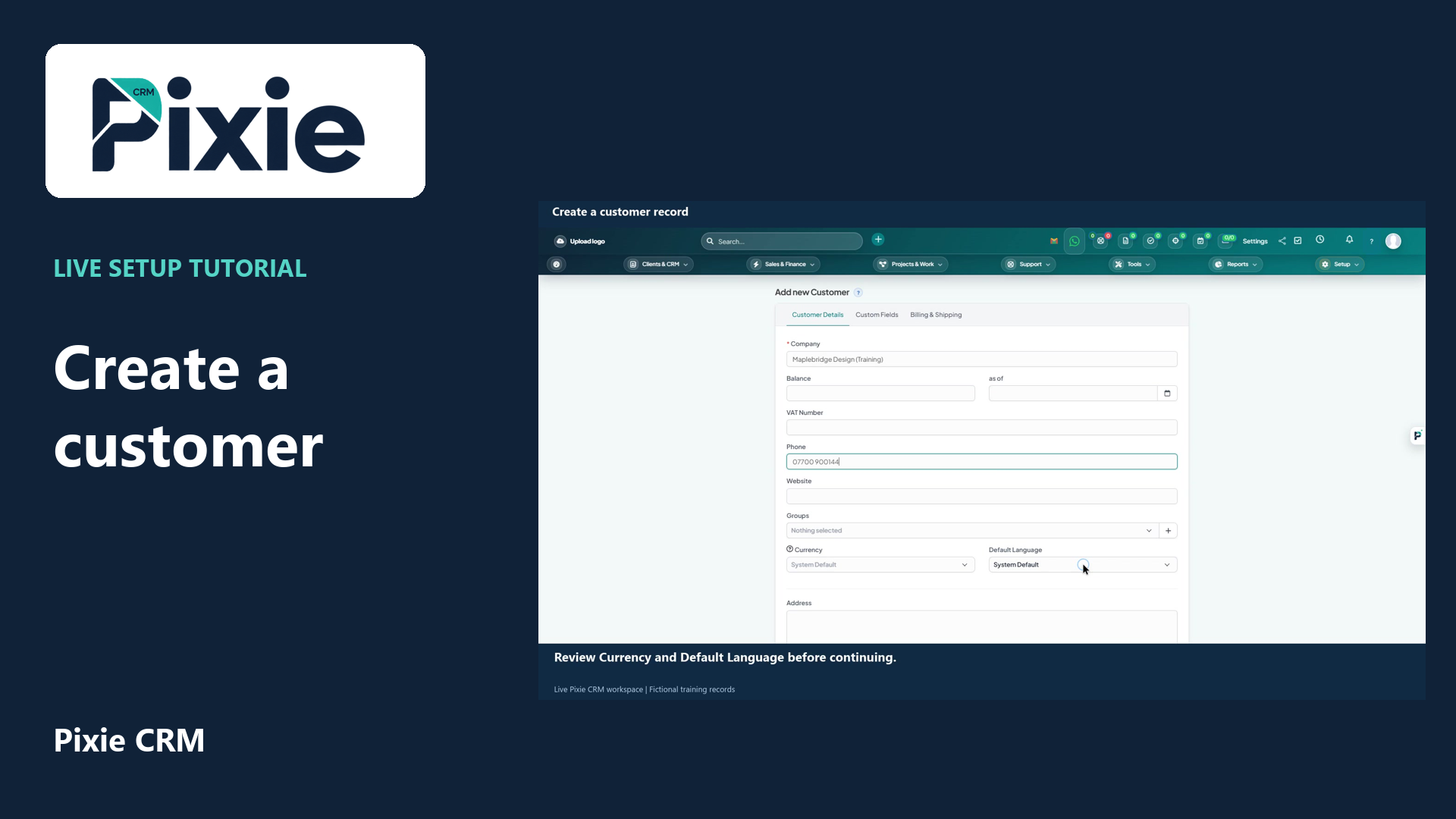
Create a customer record in Pixie CRM
Create a Pixie CRM customer record with live clicks. Enter the company, phone, language and address, save the record and confirm the saved customer details.
Customer work, connected.

Platform capabilities
Customer management is the work of keeping a relationship understandable as more people become involved. A new salesperson, a project manager or a support colleague should be able to find the relevant context without asking the customer to start again. Pixie CRM connects that information around the customer record.
Learn with Pixie CRM
Follow real application screens at your own pace, with English captions and a matching written guide.
Create a Pixie CRM customer record with live clicks. Enter the company, phone, language and address, save the record and confirm the saved customer details.
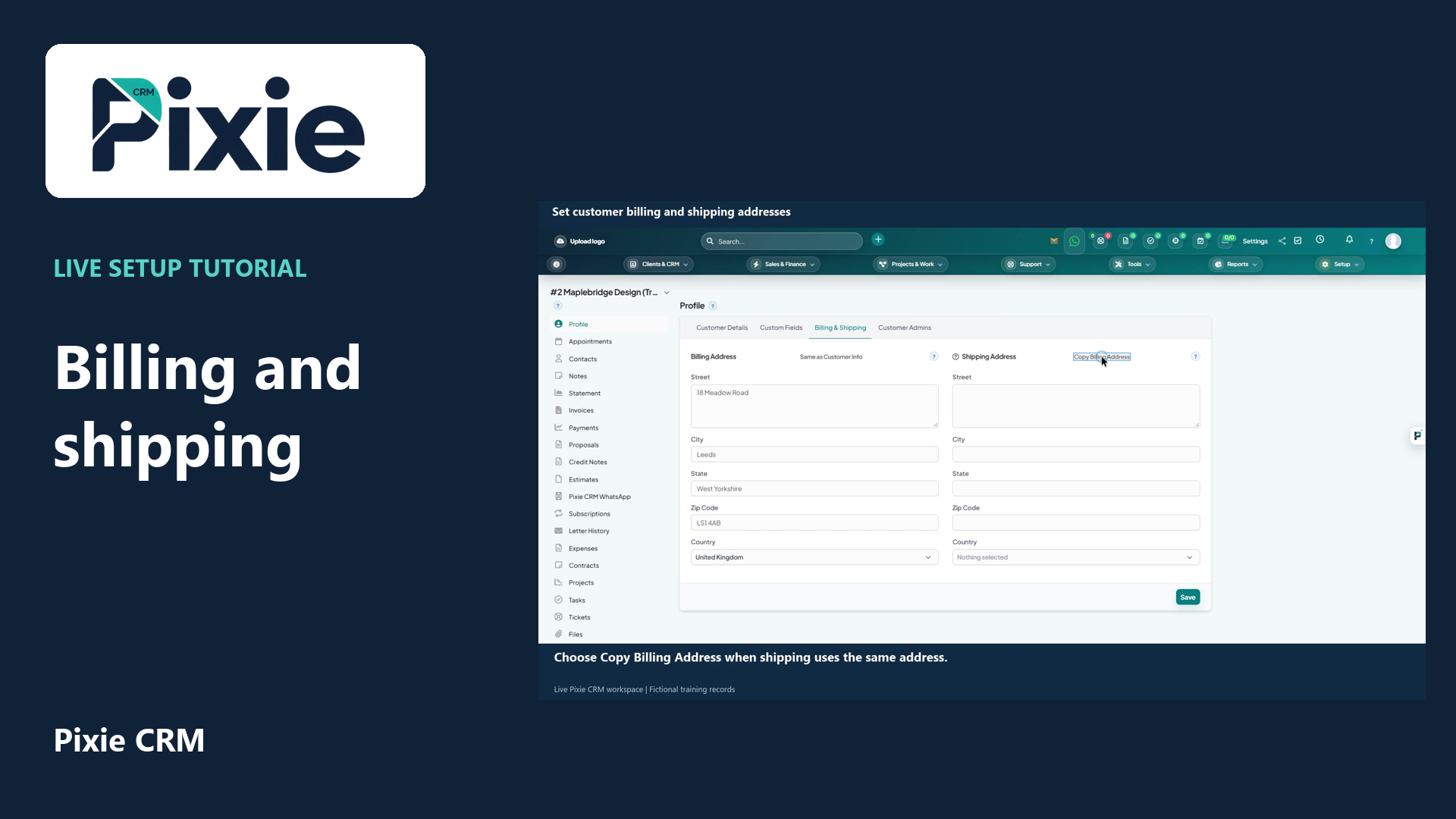
Set separate customer billing and shipping addresses in Pixie CRM. Follow live clicks to copy the customer address, copy billing to shipping, save and verify both sets of fields.
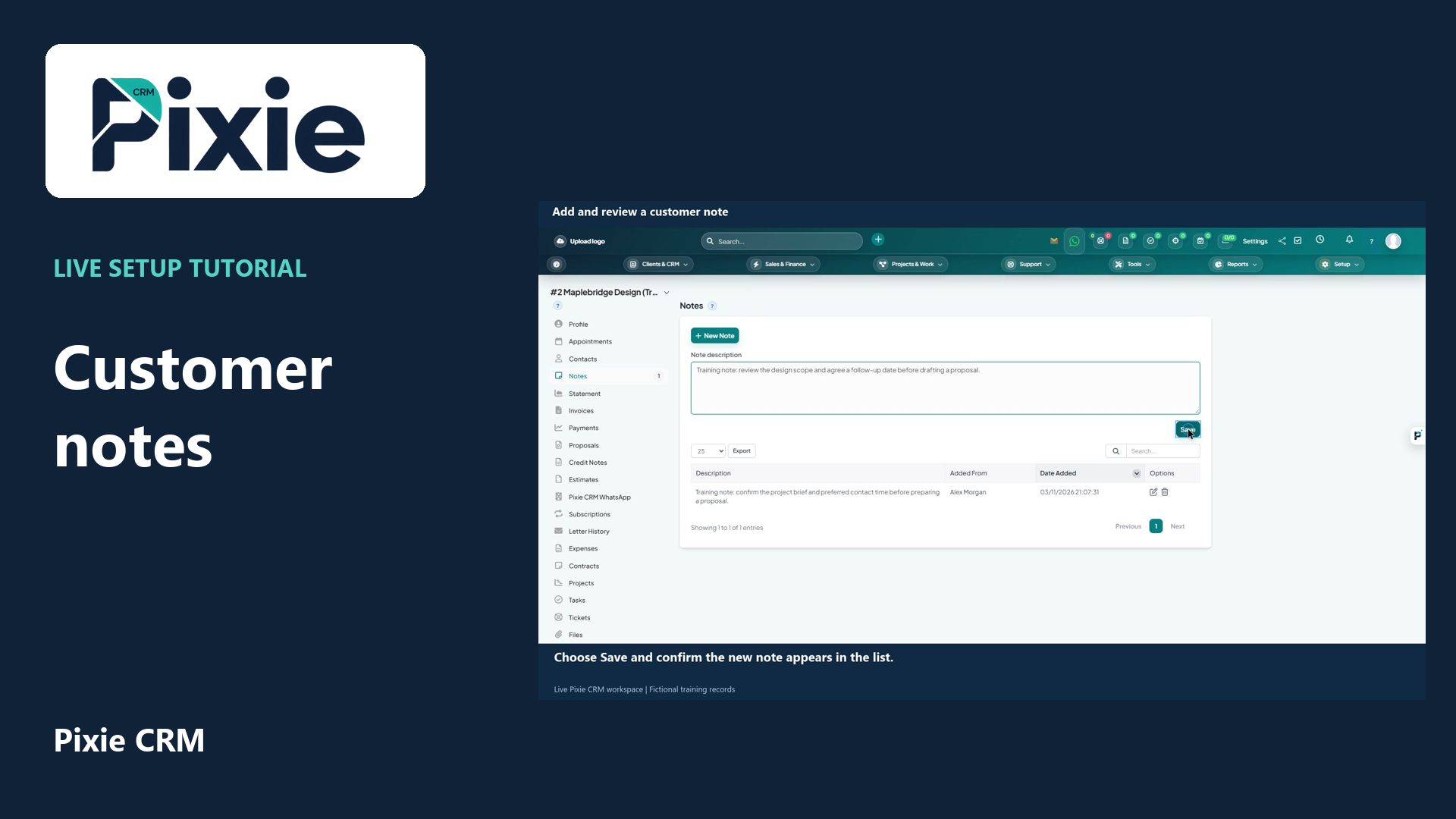
Add a customer note in Pixie CRM with live clicks. Open Notes, write a factual description, save it and review the saved note, author and date.
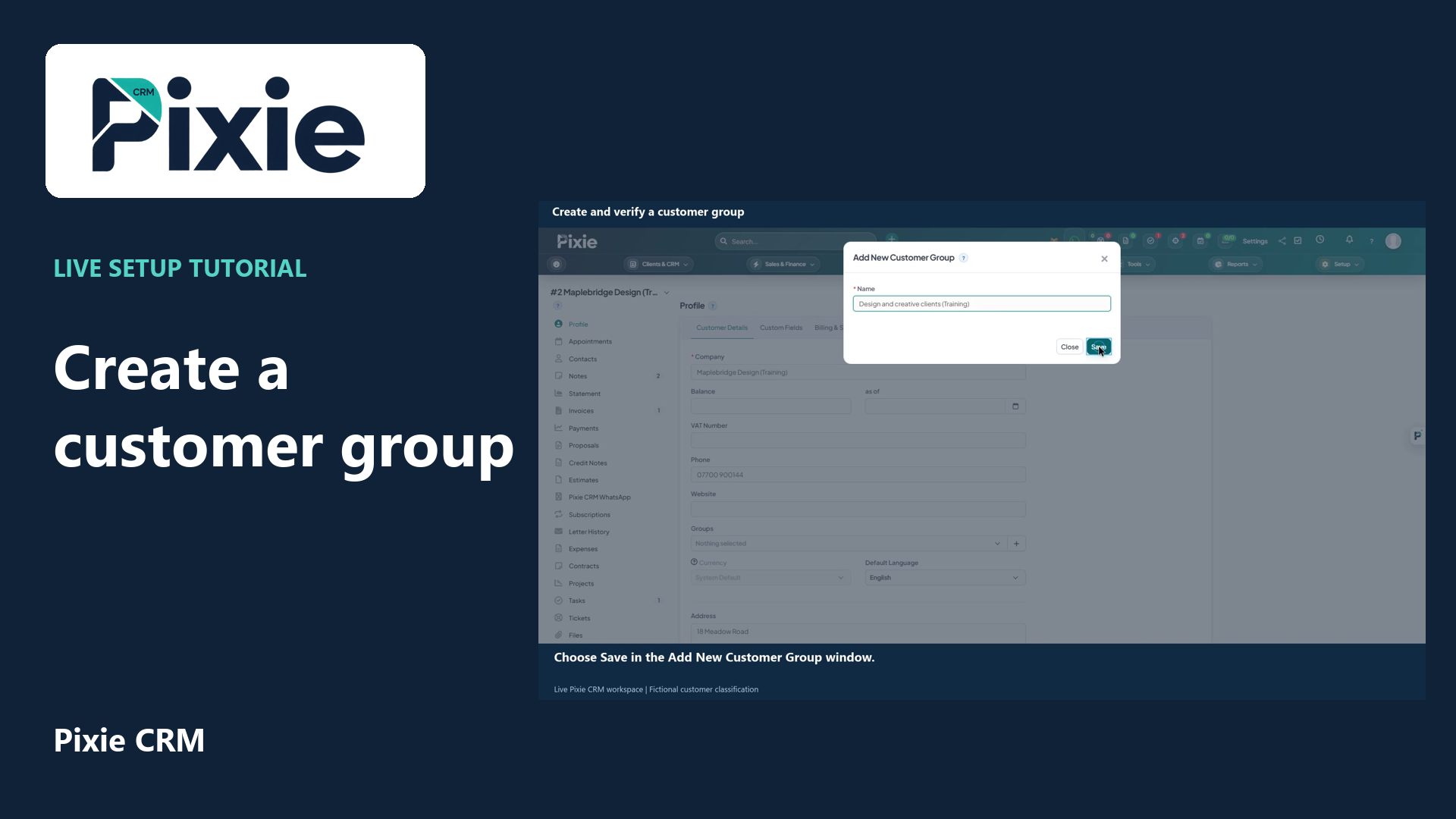
Create a customer group in Pixie CRM with live clicks. Open the group creator from a customer profile, enter a clear name, save and verify that the group remains available after reopening.
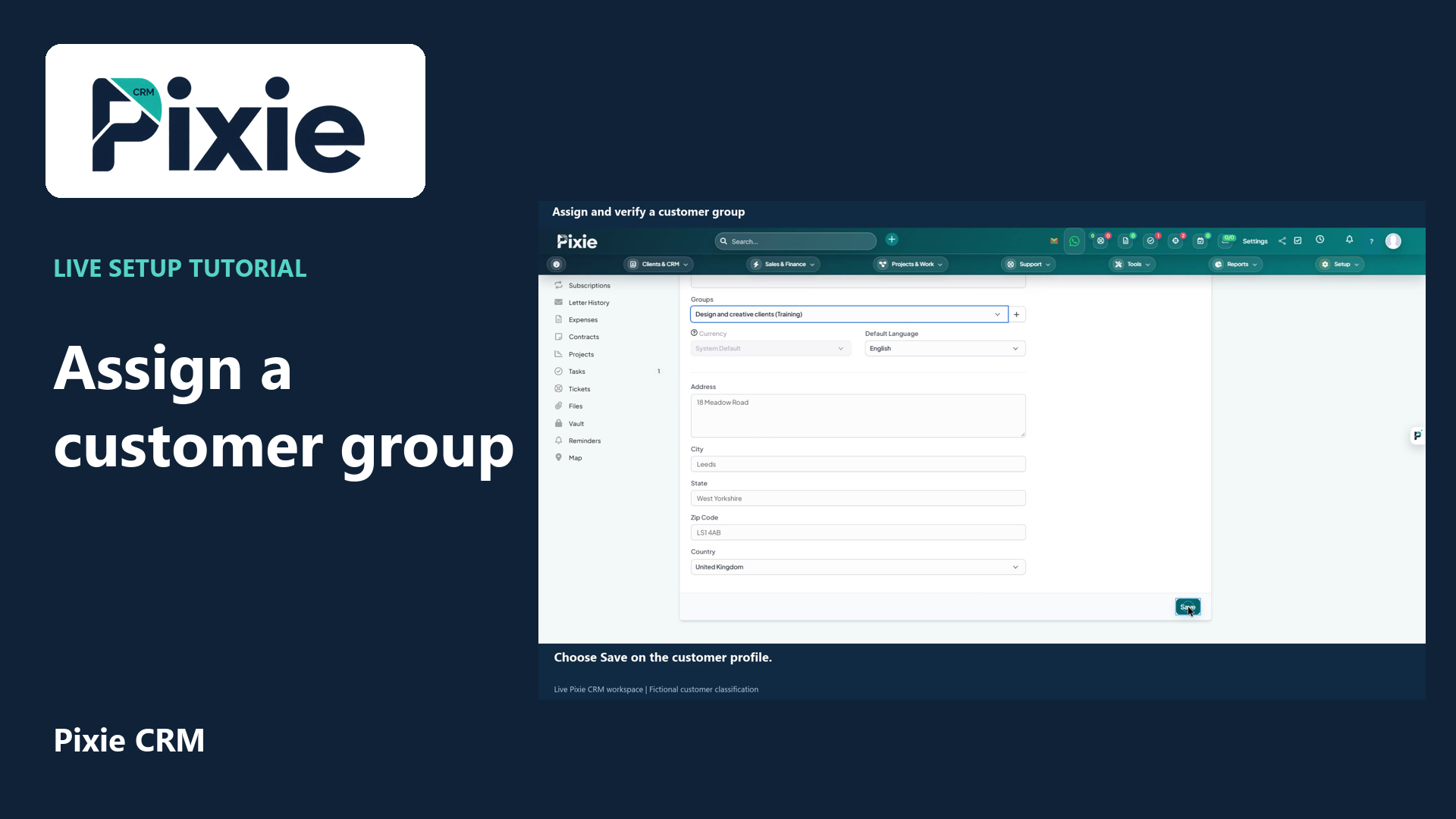
Assign an existing group to a customer in Pixie CRM. Select the group, save the customer profile and reopen it to verify the retained membership with live clicks.
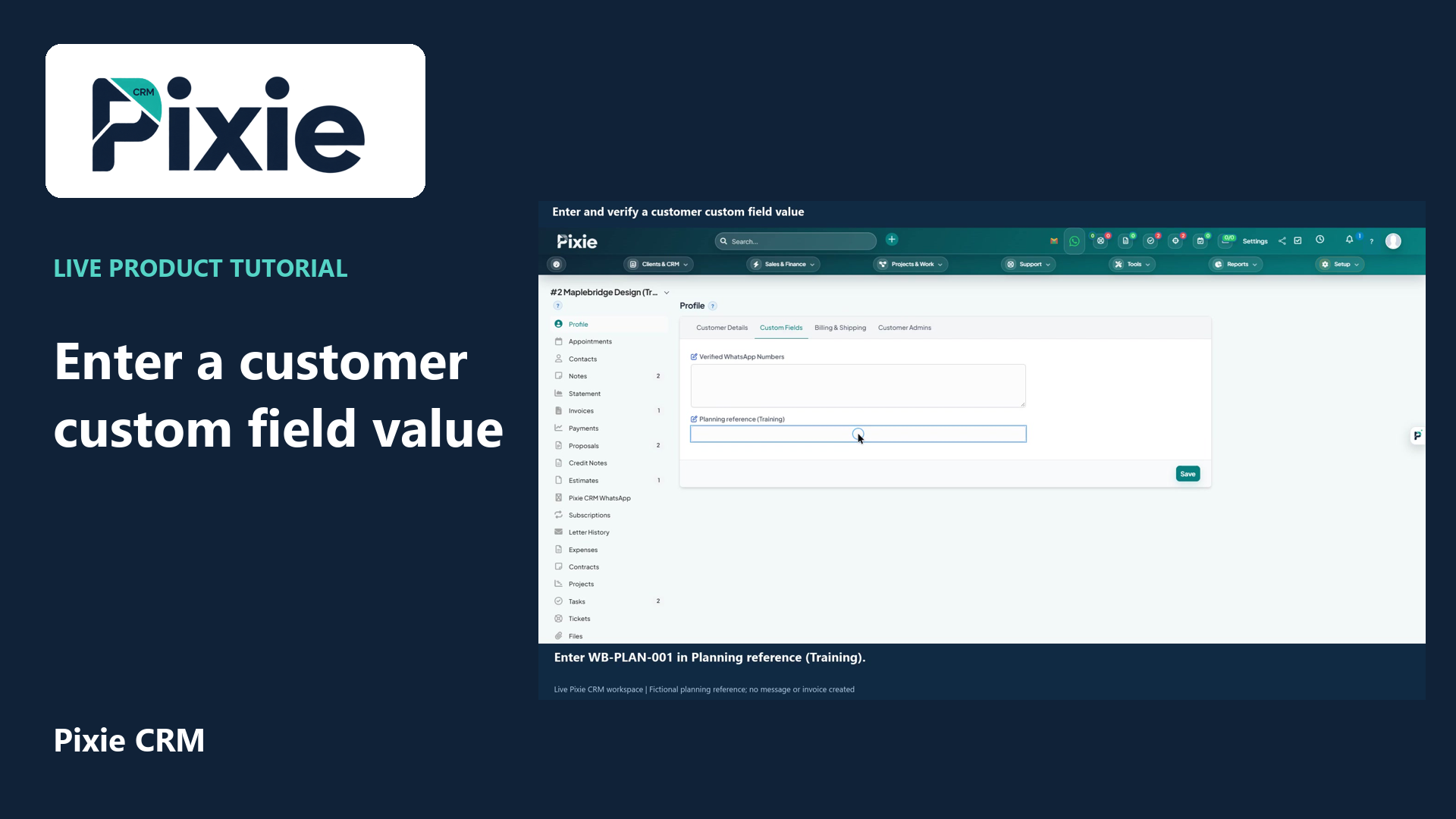
Enter a Pixie CRM customer custom field value with live clicks. Open the customer Custom Fields tab, enter the planning reference, save and reopen the record to verify that the value is retained.
Recorded in a demonstration workspace; available options depend on your plan and permissions.
Visit the Pixie CRM YouTube channel
Start with the organisation, its contacts and the responsibilities on both sides. Add the commercial and service records that explain the relationship: opportunities, proposals, agreed work, invoices and support requests. A useful record tells someone what has happened, what was promised and what needs attention next. Keep the information current through ordinary work rather than treating database maintenance as a separate annual exercise.
Shared information does not mean unrestricted visibility. Sales, finance, delivery and service have different responsibilities, and their views should reflect that. Decide which documents and updates belong in the customer portal and which remain internal. Agree who resolves duplicates, changes account ownership and reviews stale information. The result is a more dependable handover, especially when someone is absent or the relationship grows beyond its original contact.
Useful answers
Practical details for a better informed conversation.
A contact list tells you who someone is. Customer management also connects the work, decisions, communication and responsibilities that explain the ongoing relationship.
Choose a customer journey that currently loses context, such as sales-to-delivery handover. Establish the common record and a small set of useful fields, then connect additional workflows after the team can maintain that foundation.
Continue exploring
Your workflow is a good place to start
Bring your current tools, your priorities and the handovers you want to improve. We’ll help you define a useful next step.
Verify your email. Send your enquiry.
Keep your ticket reference.