
Pixie CRM guided video tutorial
Add and review customer notes
Recorded live · 1:25 · English captions
Add and review customer notes: live walkthrough
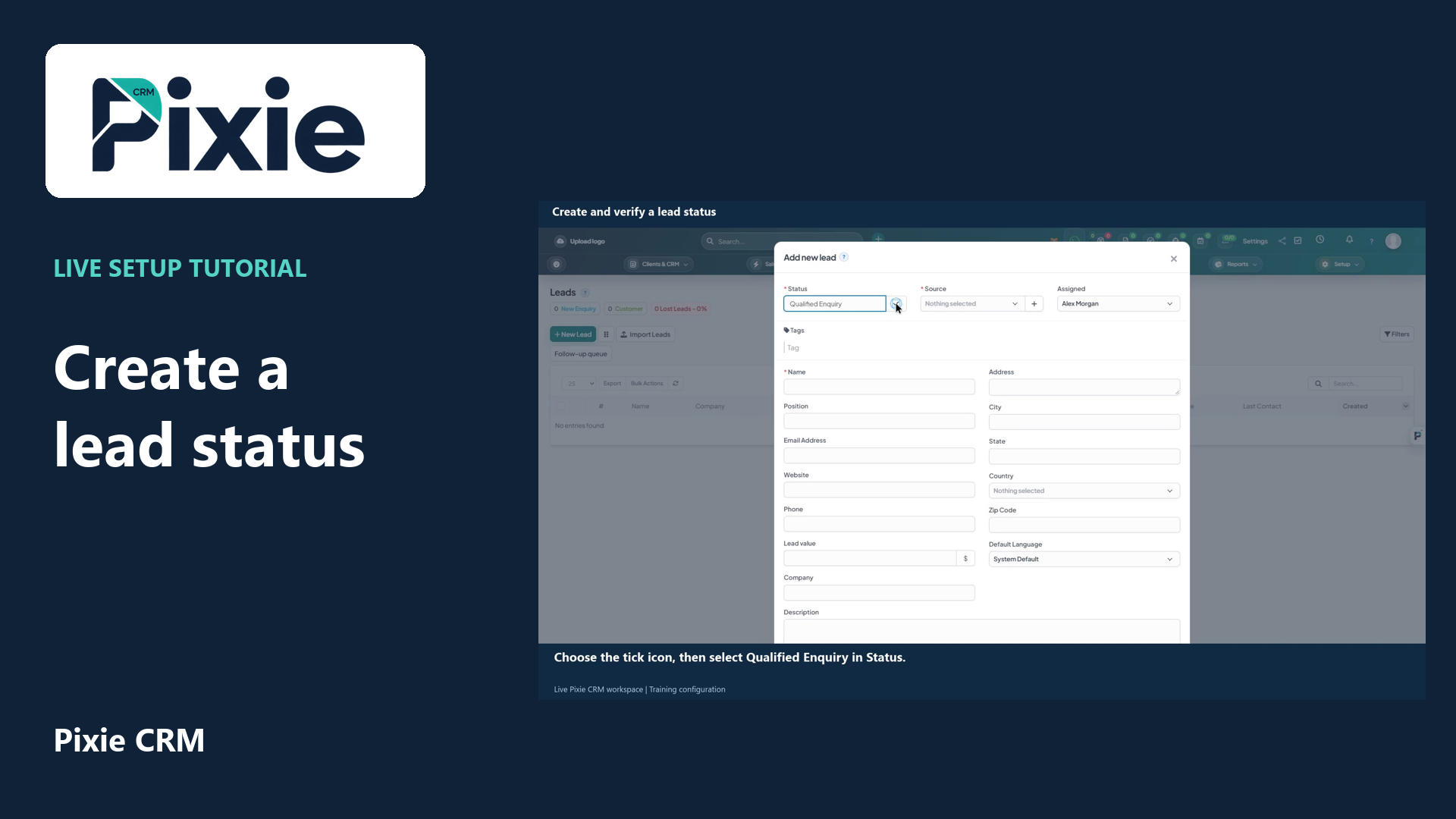 Create and verify a lead status
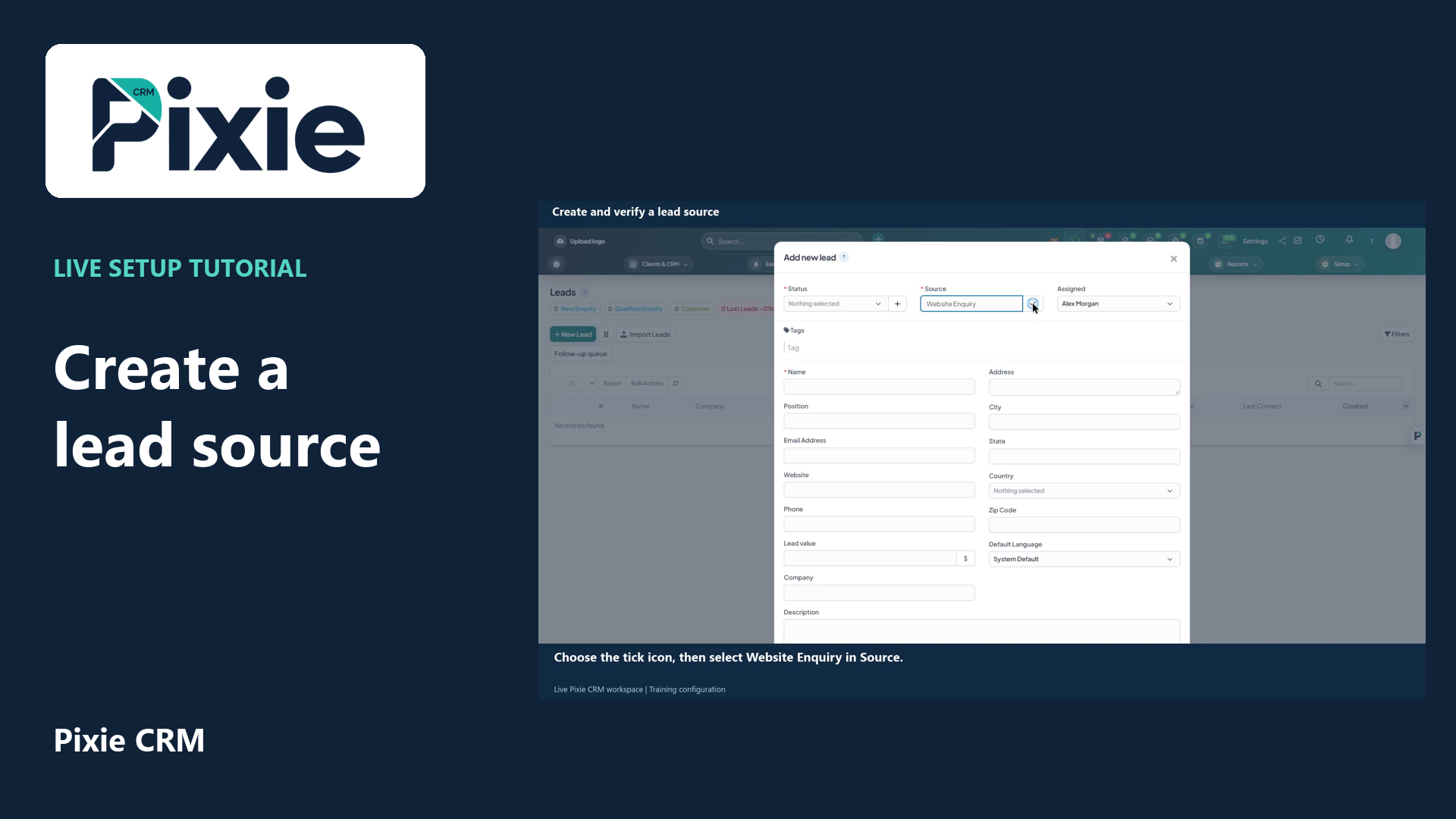 Create and verify a lead source
More videos in this category · Read the matching instructions
Add a customer note in Pixie CRM with live clicks. Open Notes, write a factual description, save it and review the saved note, author and date.
Matching written guide · Download MP4 · English captions
Fictional training customer and notes are used. Check the intended customer and follow your organisation's rules for confidential information. Customer record access depends on your role and permissions.
Watch this tutorial on YouTube ↗ · Related Pixie CRM tutorials ↗
Video chapters
- 0:00 — Open the customer's Notes tab
- 0:14 — Write a useful customer note
- 0:32 — Save the note and check the record
- 0:46 — Continue customer record management
- 1:04 — Continue with related Pixie CRM tutorials
Read the video transcript
Open the customer record in Pixie CRM and choose Notes. Select New Note to open the note description field. This example uses Maplebridge Design, a fictional training customer.
Enter a concise, factual note. We are recording a training reminder to review the design scope before preparing a proposal. Check your wording and the customer record before saving, and follow your organisation's rules for confidential information.
Choose Save and wait for the notes list to update. Confirm that the description appears under the intended customer. Review the Added From and Date Added columns to see the note's recorded author and date.
Use the related customer, billing and permission guides for the next steps. This tutorial adds a note to the customer record. The matching written instructions and other Pixie CRM videos are linked in the description.
Follow the written instructions
Open the matching written guide ↗ · Browse all Pixie CRM video guides