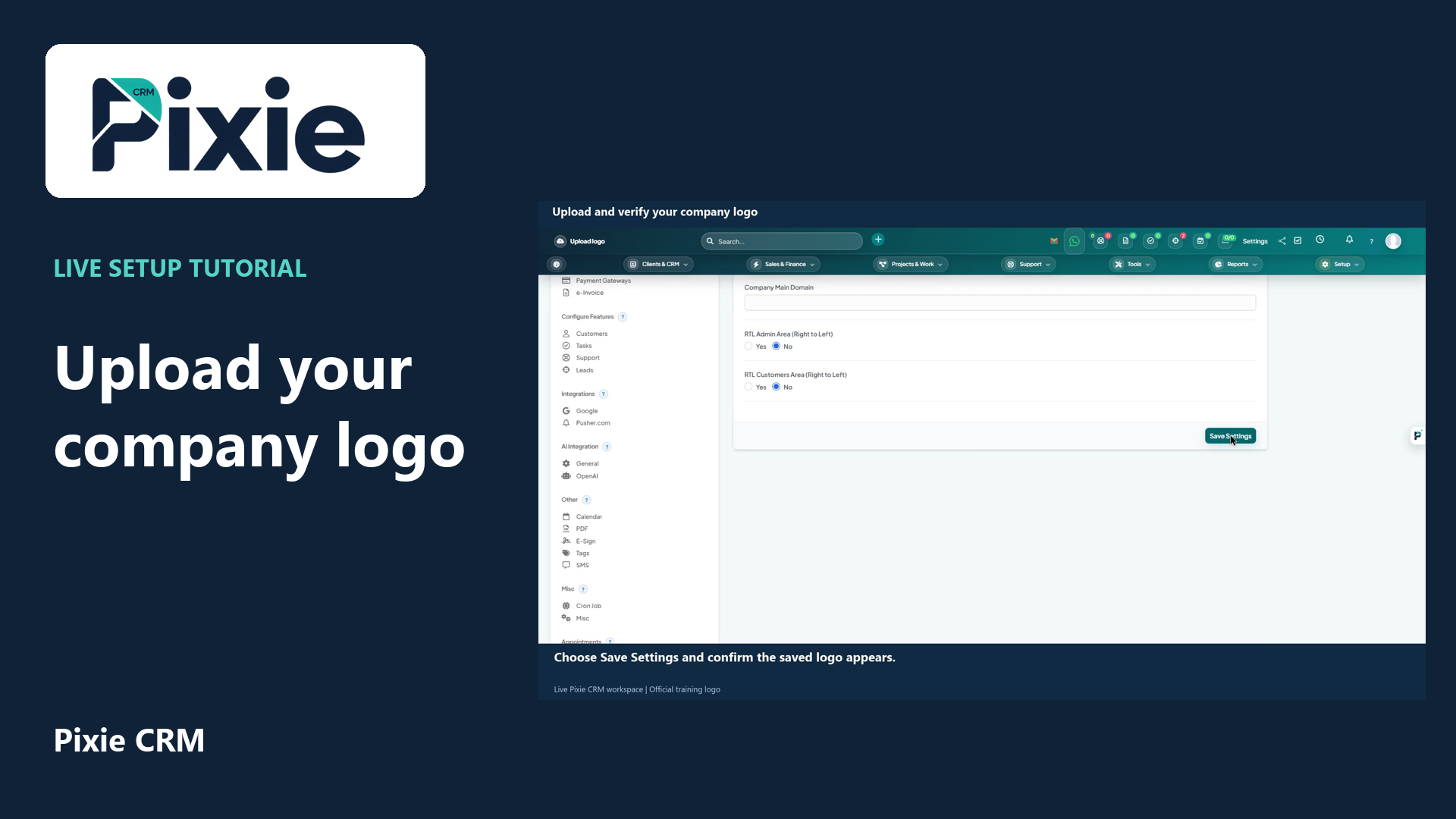
Upload and verify your company logo
Upload a company logo in Pixie CRM with live clicks. Open General settings, choose the image file, save the settings and confirm the logo appears in the workspace header and preview.
Customer work, connected.

Platform
A familiar logo and a clear sender help a customer recognise who is contacting them. Pixie CRM Theme and Brand Manager covers visual identity across the application and selected customer touchpoints. Good branding is consistent, readable and practical, from a portal header to an invoice email.
Keep the customer context, responsible person and next step together. Start with a familiar task, agree the information the team needs and check the result with the people who will use it.
Learn with Pixie CRM
Follow real application screens at your own pace, with English captions and a matching written guide.
Upload a company logo in Pixie CRM with live clicks. Open General settings, choose the image file, save the settings and confirm the logo appears in the workspace header and preview.
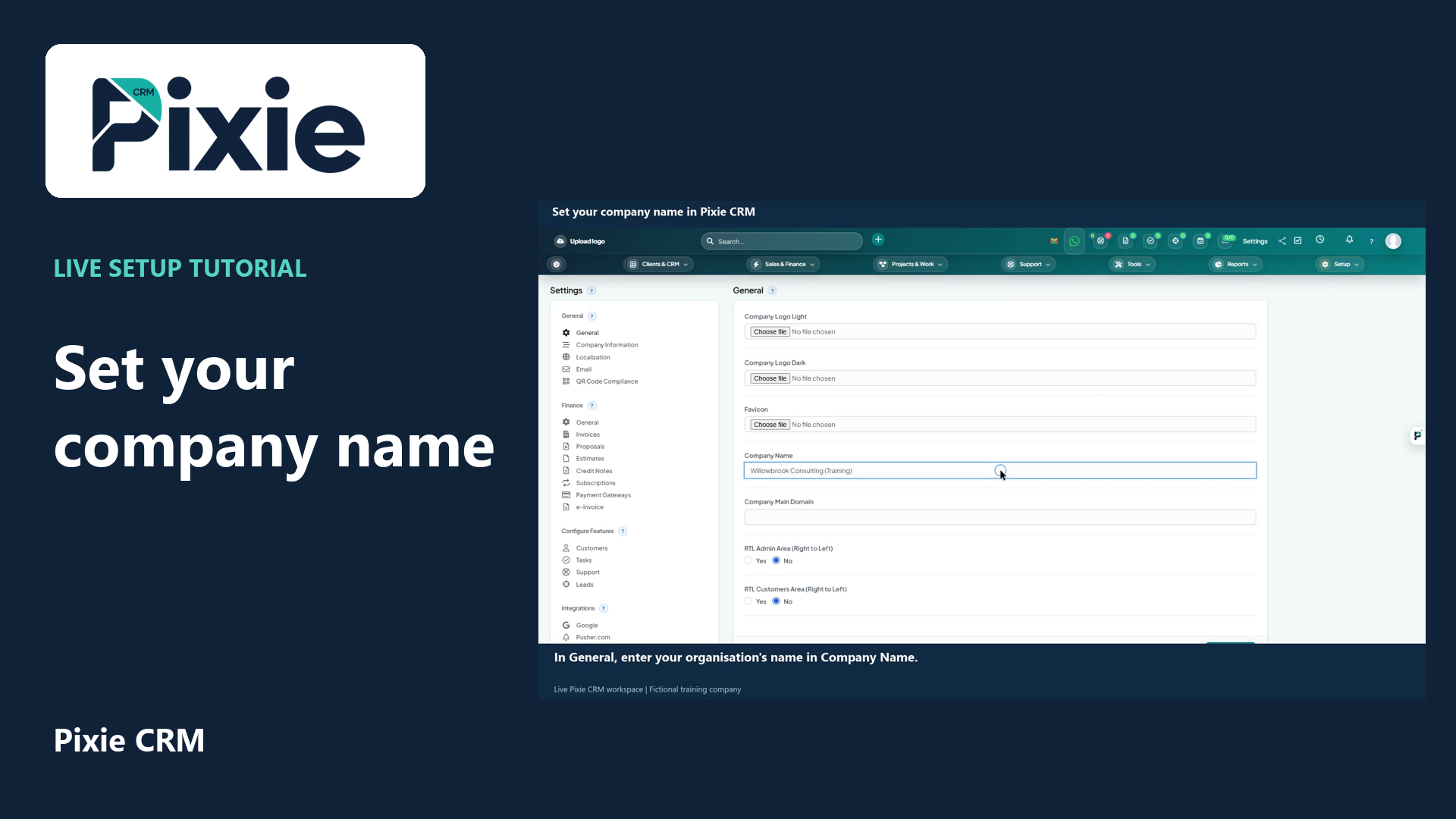
Learn how to set your company name in Pixie CRM. Follow the live dashboard and General settings, enter the name, choose Save Settings and verify the saved result.
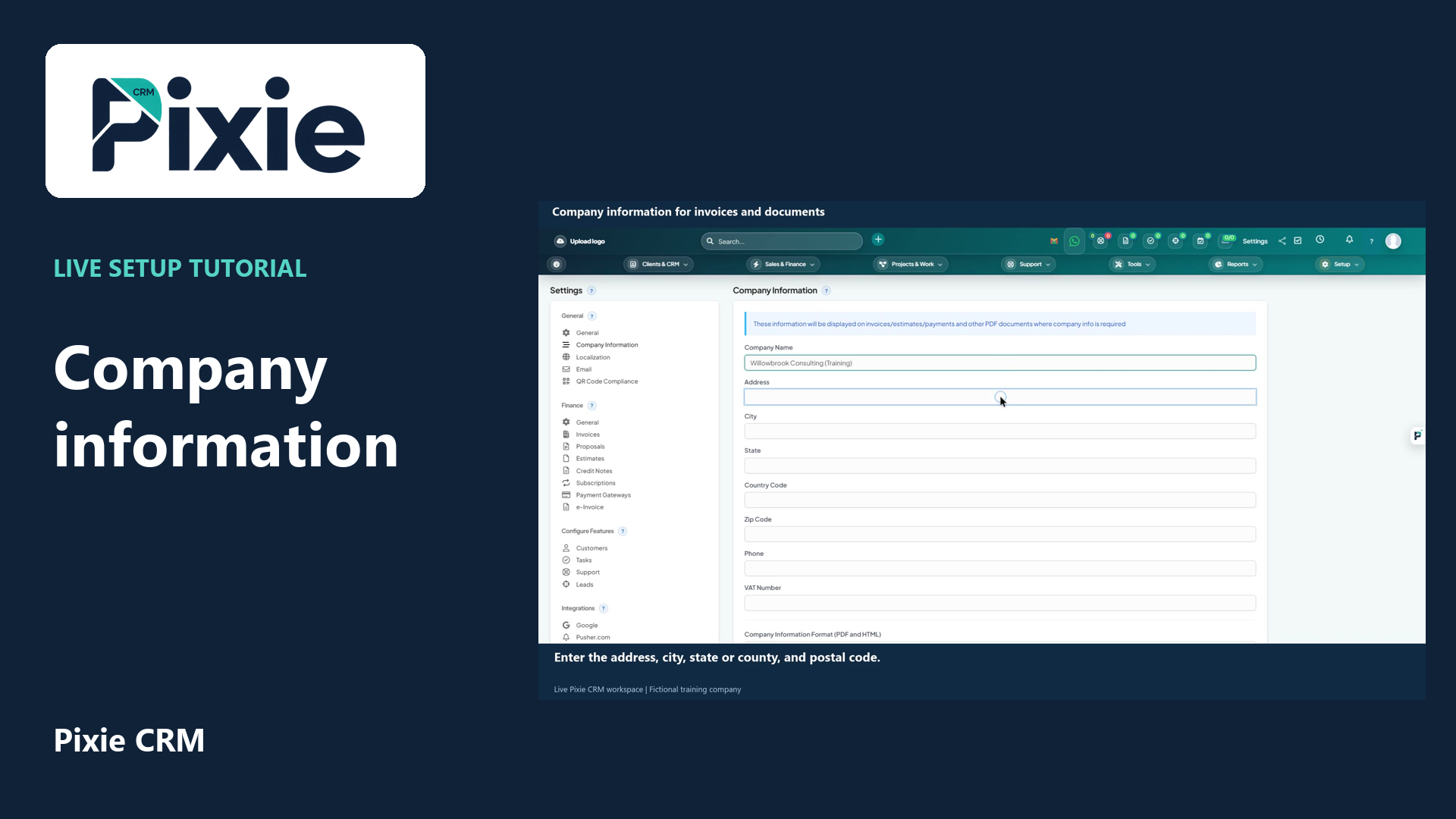
Set your company name, address, country code, phone and document information in Pixie CRM. Follow the live clicks, save the settings and verify the result.
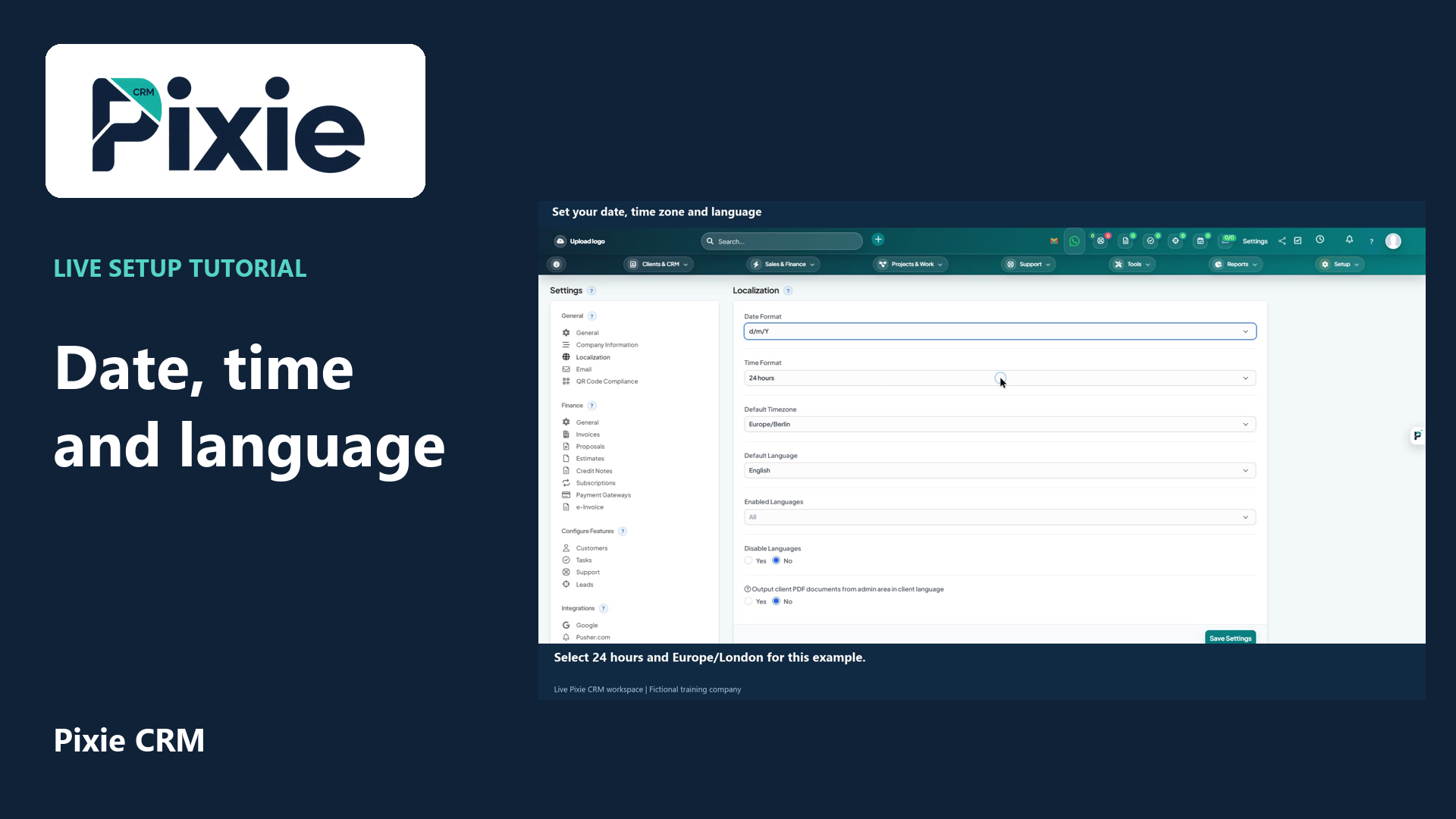
Configure Pixie CRM localisation settings with live clicks. Choose the date format, time display, default time zone and language, then save and confirm the result.
Recorded in a demonstration workspace; available options depend on your plan and permissions.
Visit the Pixie CRM YouTube channel
Supply a complete logo, a compact mark for small spaces and approved colours with sufficient contrast. Check how the logo looks on light and dark backgrounds and avoid stretching it to fit a fixed box. Decide which business name and contact details appear on documents. A favicon should remain recognisable at a small size rather than trying to reproduce every detail of a large artwork.
Look at the login area, portal, document downloads and email templates together. A polished screen can still feel inconsistent if a receipt has a different sender or a broken image. Test links and the plain-text version of important messages as well as their visual layout. Confirm which elements can be changed in the agreed package, and preserve required legal or service information when applying a white-label presentation.
Useful answers
Practical details for a better informed conversation.
The listed branding capability includes logos, favicons and a colour system. The team can confirm the touchpoints included in your deployment and the asset formats needed.
Visual branding and contractual responsibility are different matters. Confirm the permitted branding, required notices and service identity in the agreement for your chosen arrangement.
Continue exploring
Your workflow is a good place to start
Bring your current tools, your priorities and the handovers you want to improve. We’ll help you define a useful next step.
Verify your email. Send your enquiry.
Keep your ticket reference.
Explore the tasks behind Theme & Brand Manager. Check the guide against your enabled modules and role, then confirm the result in your workspace.