
Pixie CRM guided video tutorial
Create a reusable invoice item
Recorded live · 1:46 · English captions
Create a reusable invoice item: live walkthrough
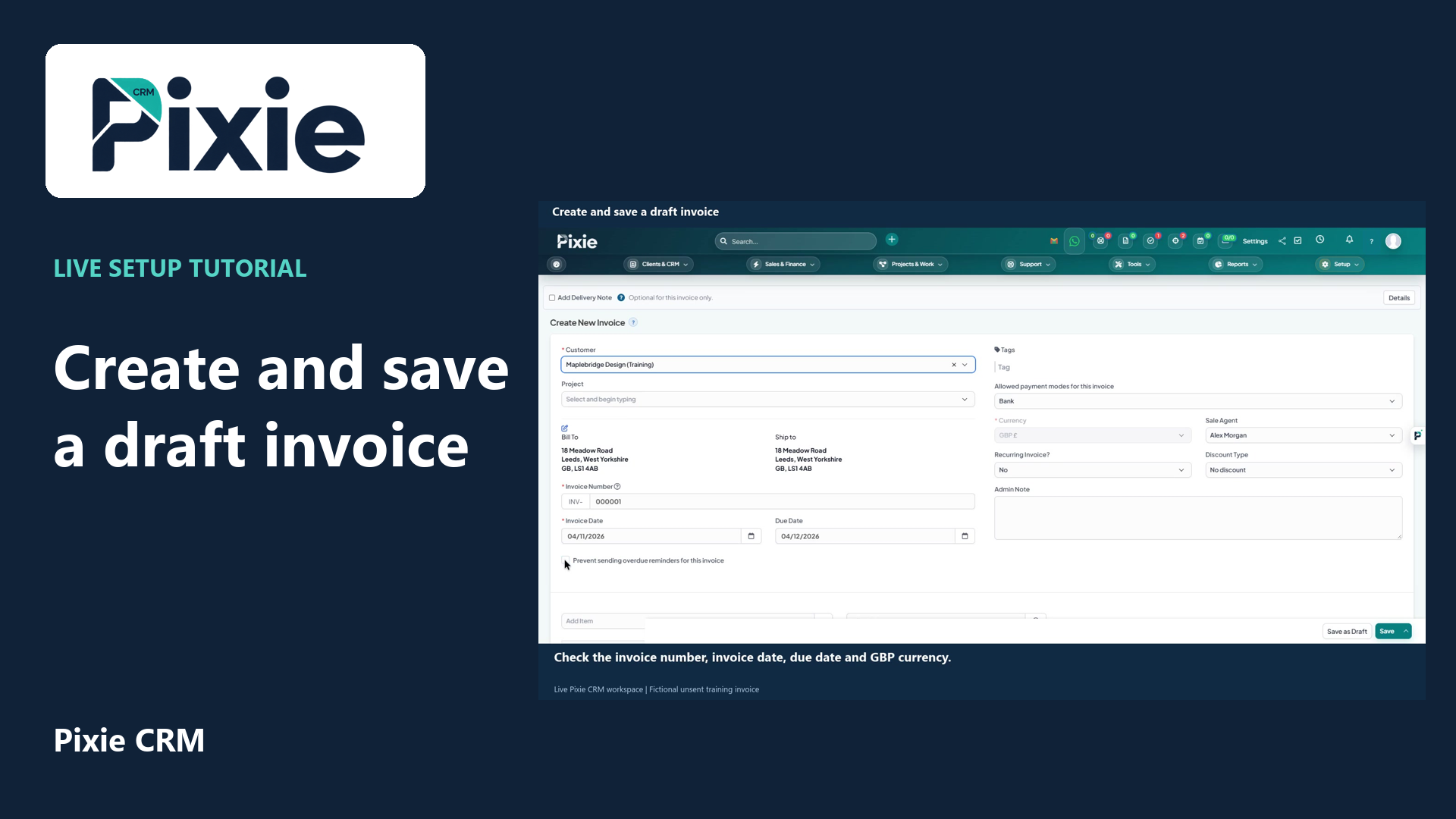 Create and save a draft invoice
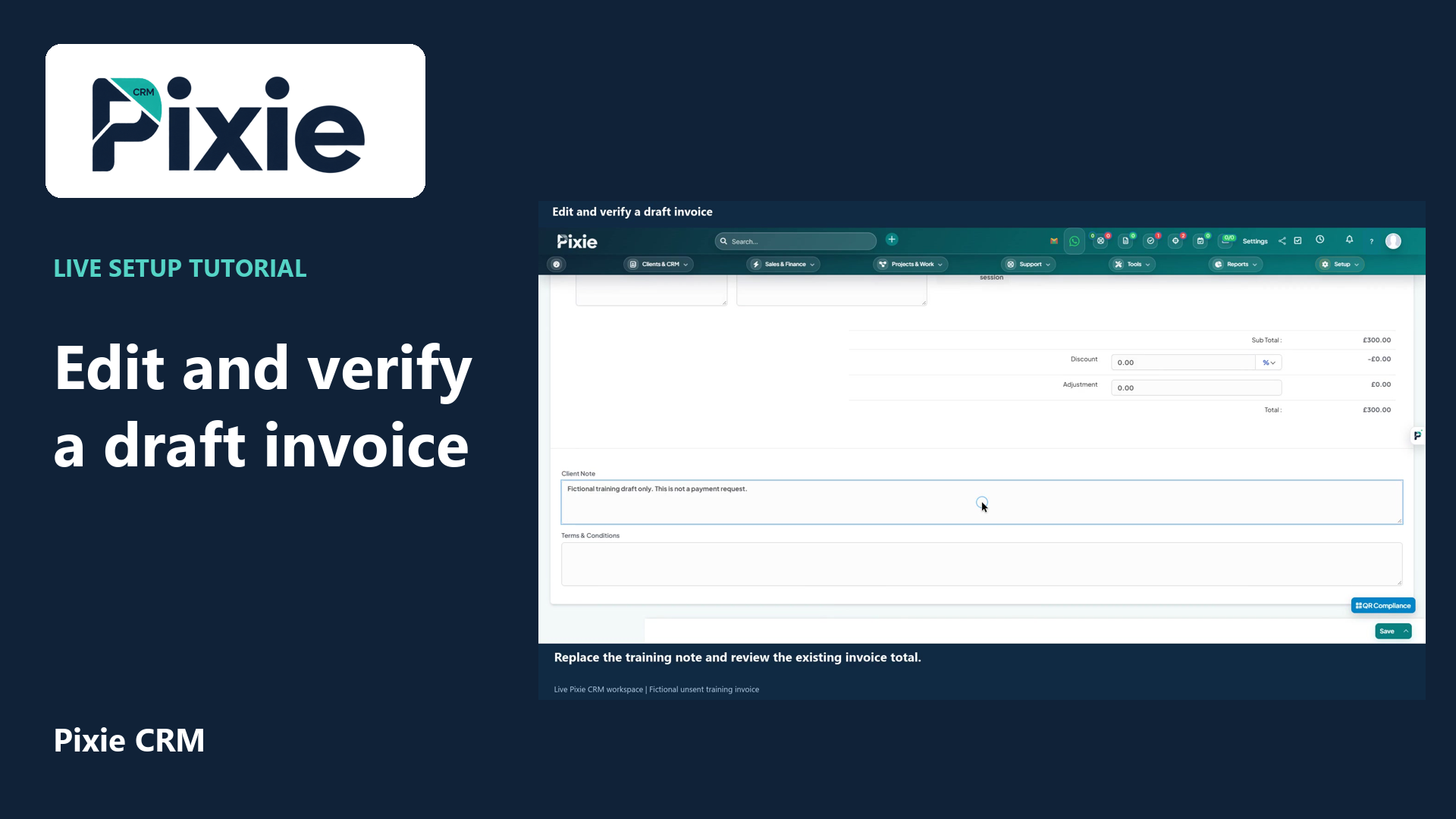 Edit and verify a draft invoice
More videos in this category · Read the matching instructions
Create a reusable invoice item in Pixie CRM. Follow live clicks to enter the description, rate and unit, save the item and reopen it to verify the details.
Matching written guide · Download MP4 · English captions
The service and workspace are fictional training examples. Tax choices depend on your business and configuration. This workflow creates a catalogue item only; no invoice, payment or customer message is issued.
Watch this tutorial on YouTube ↗ · Related Pixie CRM tutorials ↗
Video chapters
- 0:00 — Open the reusable item catalogue
- 0:17 — Enter the item description
- 0:38 — Set the rate and unit
- 0:54 — Save the reusable item
- 1:08 — Reopen and verify the saved details
- 1:25 — Continue with related Pixie CRM tutorials
Read the video transcript
Create a reusable item in Pixie CRM so its description, rate and unit are ready for future sales documents. Open Items from Sales and Finance, then choose New Item. This example uses a fictional training service.
Enter Website discovery session, Training, as the short description. Add a longer description explaining what the session covers. The short name helps you find the item, while the longer text gives the sales document more useful detail.
Set the rate to one hundred and fifty, and the unit to session. Tax and item group controls are also available. Choose the tax treatment that applies to your real business; this training catalogue has no tax configured.
Choose Save. The item appears in the catalogue with its description, rate and unit. Saving a catalogue item does not create an invoice, take a payment or send anything to a customer.
Open the saved item to check its details. The description, longer explanation, rate and unit are retained. Close the editor when you have finished reviewing. The item is now ready to select when preparing a draft sales document.
Follow the written instructions
Open the matching written guide ↗ · Browse all Pixie CRM video guides