
Pixie CRM guided video tutorial
Create and save a draft invoice
Recorded live · 2:48 · English captions
Create and save a draft invoice: live walkthrough
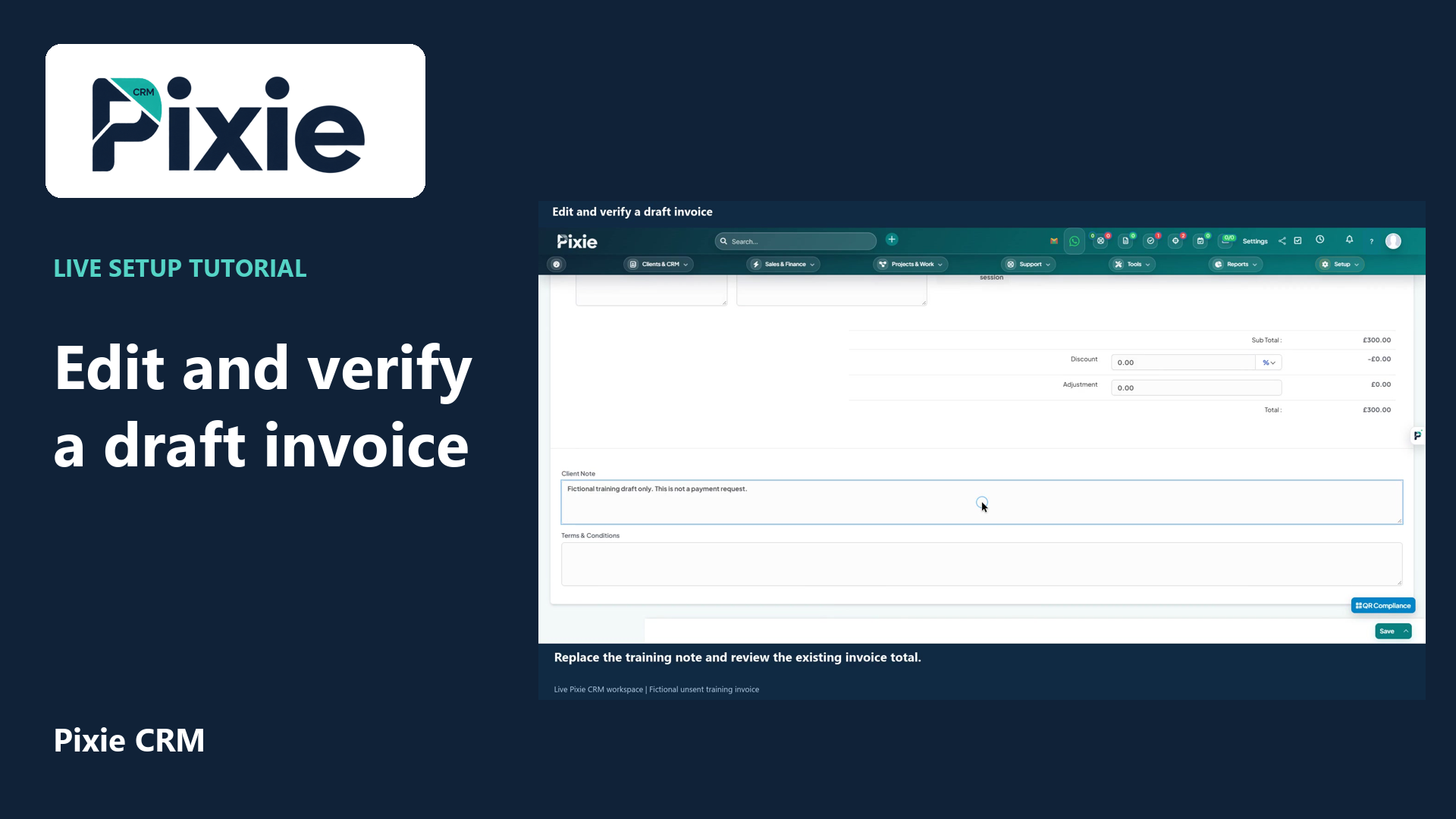 Edit and verify a draft invoice
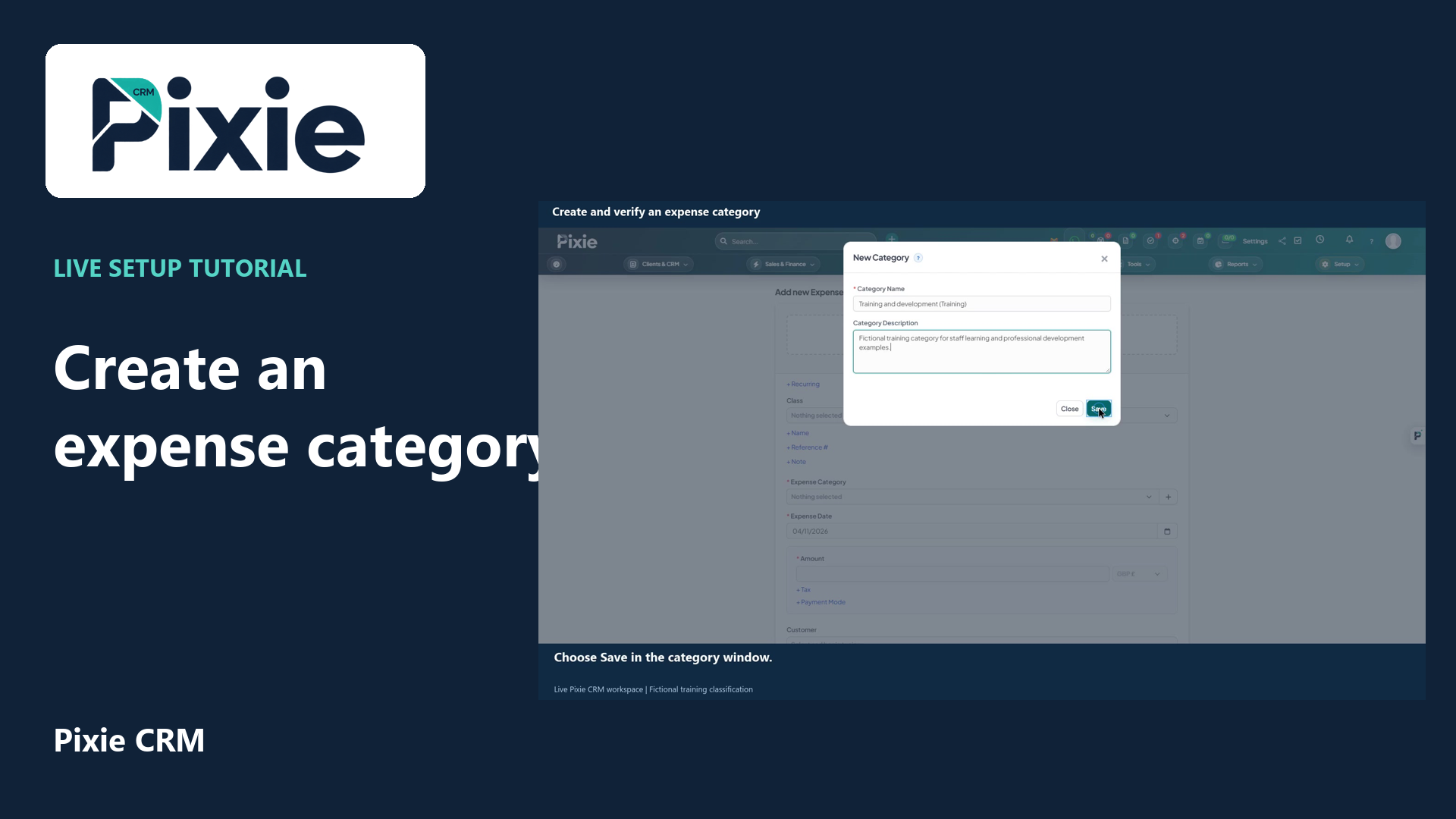 Create and verify an expense category
More videos in this category · Read the matching instructions
Create a draft invoice in Pixie CRM with live clicks. Select the customer, review dates and GBP currency, add a reusable service item and verify the saved draft.
Matching written guide · Download MP4 · English captions
The customer, service and invoice are fictional training records in a disposable workspace. The invoice remains an unsent draft. No real invoice is issued, payment requested, email sent or money moved. Apply the tax treatment and terms appropriate to your business when preparing real documents.
Watch this tutorial on YouTube ↗ · Related Pixie CRM tutorials ↗
Video chapters
- 0:00 — Create a new invoice draft
- 0:16 — Select the customer
- 0:33 — Review invoice dates and currency
- 0:51 — Select the reusable service item
- 1:07 — Add the line and review the total
- 1:29 — Add a clear training note
- 1:48 — Save as Draft
- 2:06 — Verify the saved invoice draft
- 2:28 — Continue with related Pixie CRM tutorials
Read the video transcript
Prepare an invoice in Pixie CRM and save it as a draft for review. Open Invoices from Sales and Finance, then choose Create New Invoice. The fictional example remains a draft and will not be sent to a customer.
Select the customer first. Search for Maplebridge and choose Maplebridge Design, Training. Pixie loads the customer details, including its saved billing information. Check the customer before adding the invoice items.
Review the proposed invoice number, invoice date and due date. This example uses the fourth of November and a due date of the fourth of December. The currency is pounds sterling. Leave recurrence set to No for this one-off example.
Choose the reusable Website discovery session item. Its short description, longer explanation, rate and unit load into the item entry row. This is why a clear item catalogue helps you prepare consistent documents.
Set the quantity to two sessions, then click the tick button to add the line to the invoice. At one hundred and fifty pounds per session, the training total is three hundred pounds. Check quantities, rates, discounts and tax before saving any real invoice.
Add a client note identifying the document as a fictional training example. Internal admin notes are separate from the client-facing note. Review any applicable terms carefully when preparing documents for your real business.
Choose Save as Draft. This stores the invoice without issuing it to the customer. Wait for the saved invoice view, then confirm the customer, item, total and Draft status. Sending and payment workflows are separate actions.
The invoice is saved as a draft for Maplebridge Design. The two-session line and three hundred pound total are visible, together with the training note. Use Edit when you need to correct a draft, and review the dedicated sending guide before issuing a real invoice.
Follow the written instructions
Open the matching written guide ↗ · Browse all Pixie CRM video guides