
Pixie CRM guided video tutorial
Sales and finance module overview
Recorded live · 3:52 · English captions
Sales and finance module overview: live walkthrough
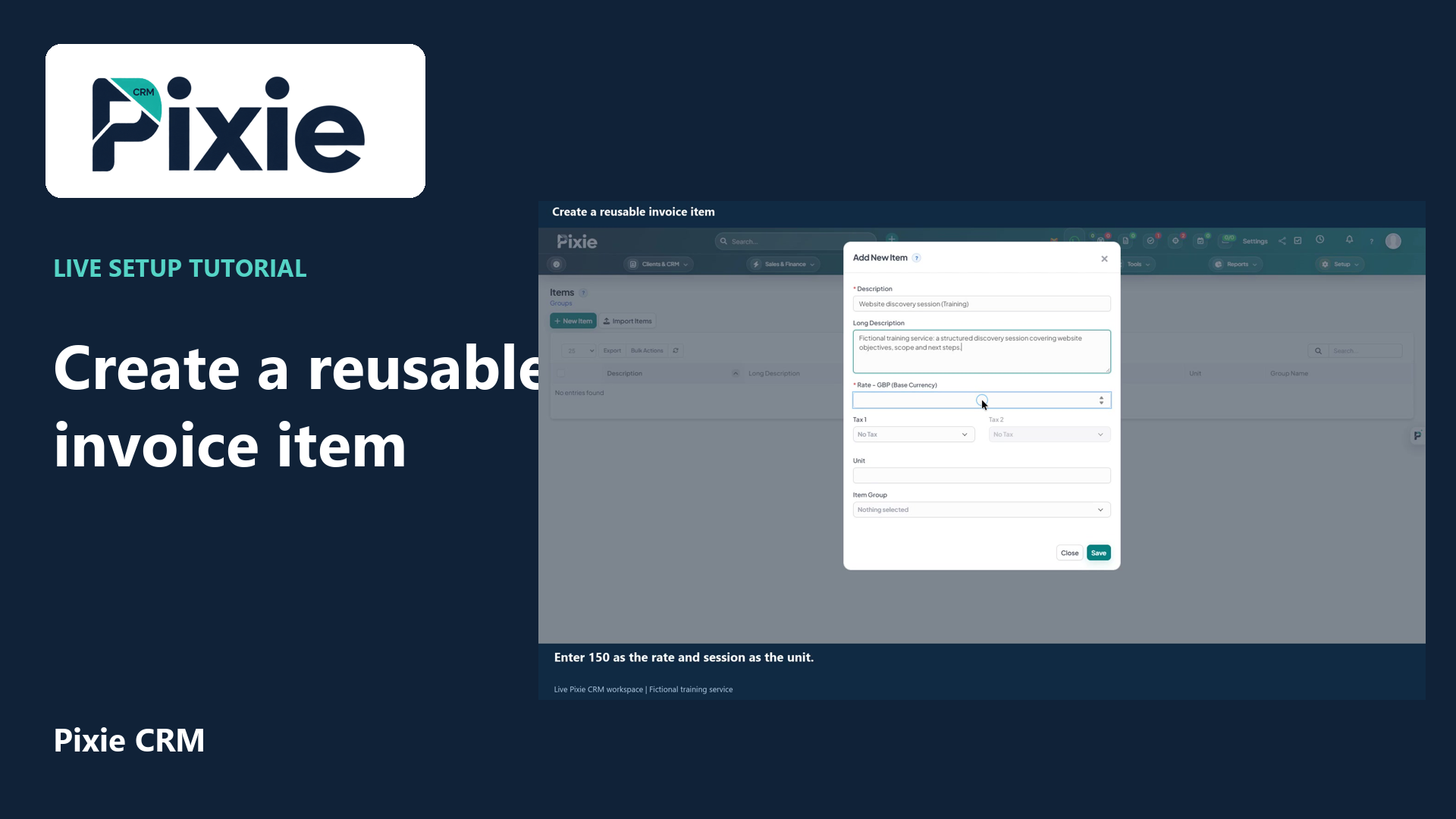 Create a reusable invoice item
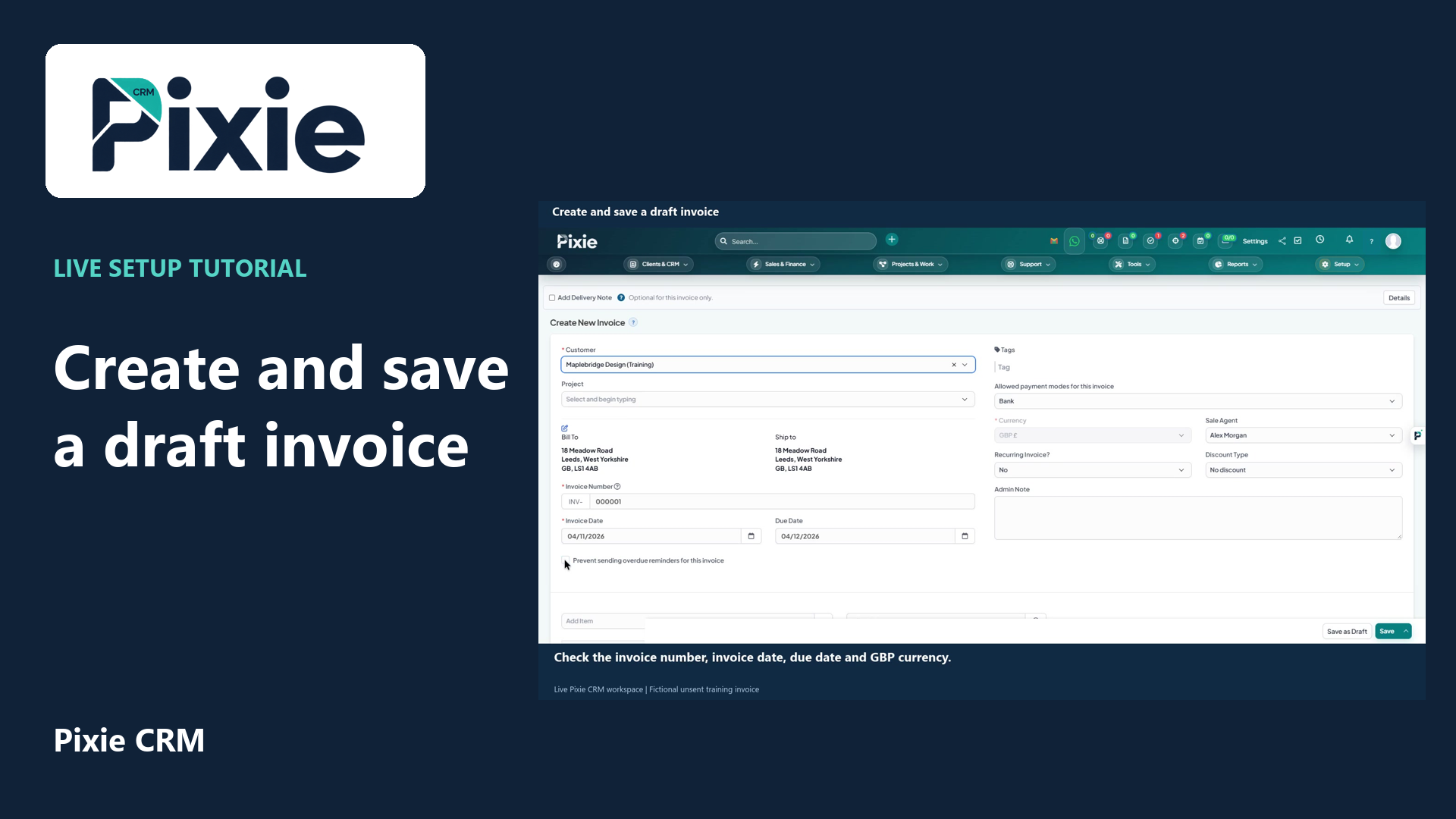 Create and save a draft invoice
More videos in this category · Read the matching instructions
Explore the Pixie CRM sales and finance workspaces with live clicks. Find deals, forecasts, sales documents, invoices, payments, items, subscriptions, expenses, contracts and accounting tools.
Matching written guide · Download MP4 · English captions
All records shown belong to a fictional training workspace. No real invoice, payment, subscription or binding agreement is created in this overview.
Watch this tutorial on YouTube ↗ · Related Pixie CRM tutorials ↗
Video chapters
- 0:00 — Explore the sales workspace
- 0:19 — Review forecast and reporting tools
- 0:33 — Review relationships and sales actions
- 0:49 — Find data transfer and product tools
- 1:07 — Open proposals
- 1:25 — Open estimates
- 1:42 — Review the invoice workspace
- 2:00 — Find payments and credit notes
- 2:17 — Open the items catalogue
- 2:34 — Find subscriptions, expenses and contracts
- 2:53 — Open the accounting dashboard
- 3:11 — Find accounting structure and reports
- 3:32 — Continue with related Pixie CRM tutorials
Read the video transcript
From Sales and Finance, open Sales, then Deals and pipeline. The sales workspace brings opportunities, forecasts, reporting, relationships and reusable sales actions together. The empty pipeline here belongs to the training workspace.
Choose Forecast and targets to review the forecasting workspace, then Reports for the available sales analysis. Use these views with your recorded opportunity data and agreed reporting periods.
Choose Relationships to explore the customer and contact context around opportunities. Sales actions contains reusable routines. Review the proposed changes and reminders before applying a routine to actual deals.
Import and export handles opportunity data transfer. Products and pricing supports product selection and quotations, while Sales setup contains pipeline configuration. These are separate workspaces, so open the relevant tab for the job you need.
From the Sales menu, choose Proposals. Use this area to prepare and manage proposals before moving an agreed opportunity into the next commercial stage. Open the dedicated proposal guide for the full creation and review workflow.
Choose Estimates to work with customer estimates. Keep the customer, line items, currency and acceptance terms consistent with the work being offered. This overview locates the workspace; the dedicated guide covers its saved document workflow.
Choose Invoices to review paid, outstanding, overdue and draft invoice queues. Create New Invoice starts a new invoice, while recurring invoices and batch payments have their own controls. The training workspace has no real customer billing.
Payments provides the recorded payment list. Credit Notes handles credit documents separately from invoice creation. Use the dedicated finance guides to follow the correct record, review and allocation steps for your organisation.
Choose Items for reusable products and services used in sales documents. Consistent item descriptions, rates and tax choices help the team prepare documents with less repeated entry. Review each document before it is issued.
Sales and Finance also contains Subscriptions, Expenses and Contracts. Each has its own record list and workflow. Subscriptions can require a connected payment provider; completing a real subscription or agreement requires the appropriate private setup and review.
Open Accounting, then Dashboard for the accounting view. Banking, transactions, registers, bills, journal entries, transfers and reconciliation are available from the same menu. Choose the area that matches the accounting work you need to review.
The Chart of Accounts provides the accounting structure. Budget contains budget planning, and Reports contains the available accounting reports. A live organisation should configure these with its own accounting policies before recording real transactions.
Follow the written instructions
Open the matching written guide ↗ · Browse all Pixie CRM video guides