
Pixie CRM guided video tutorial
Manage leads in the Kanban pipeline
Recorded live · 2:07 · English captions
Manage leads in the Kanban pipeline: live walkthrough
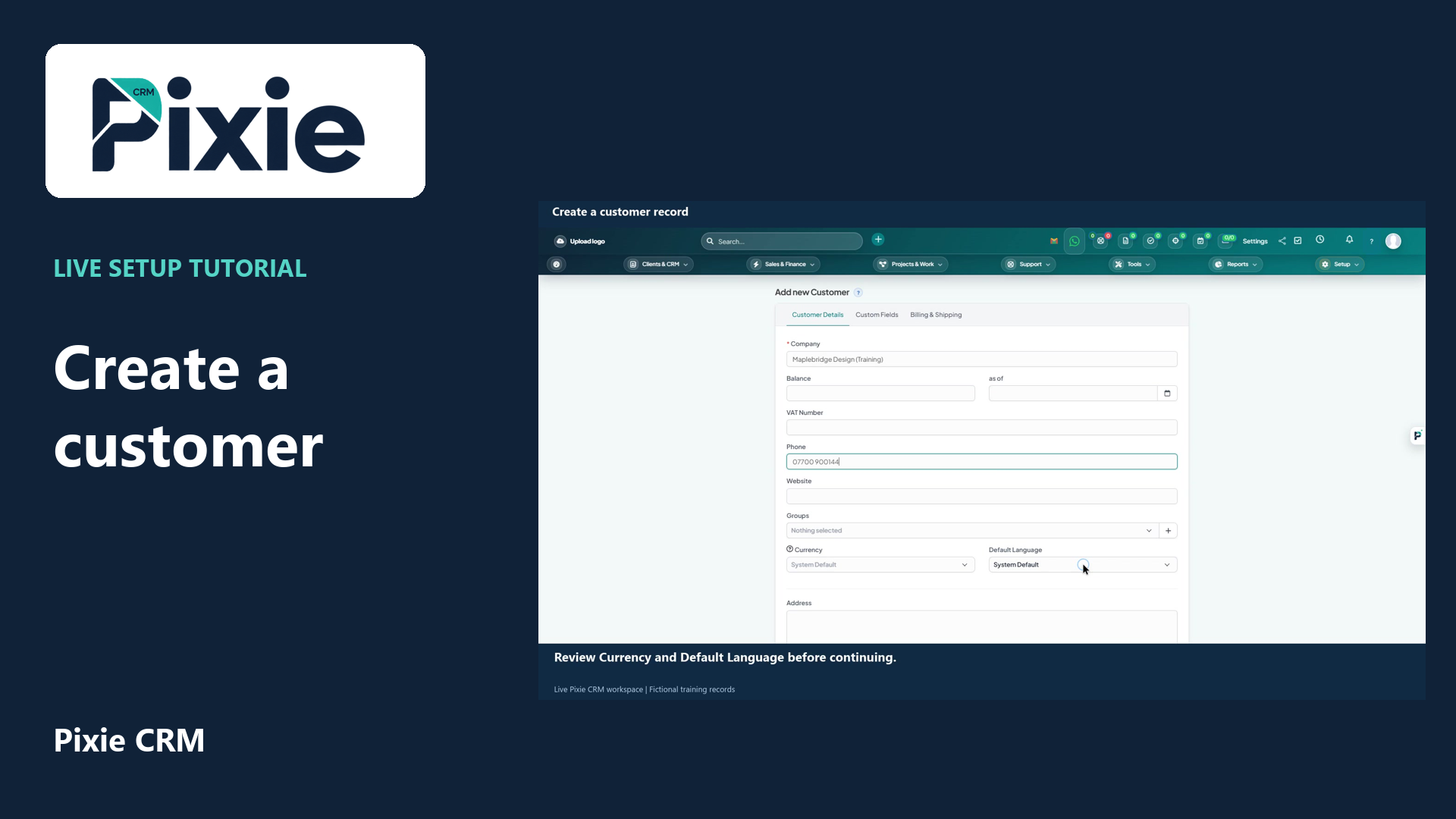 Create a customer record in Pixie CRM
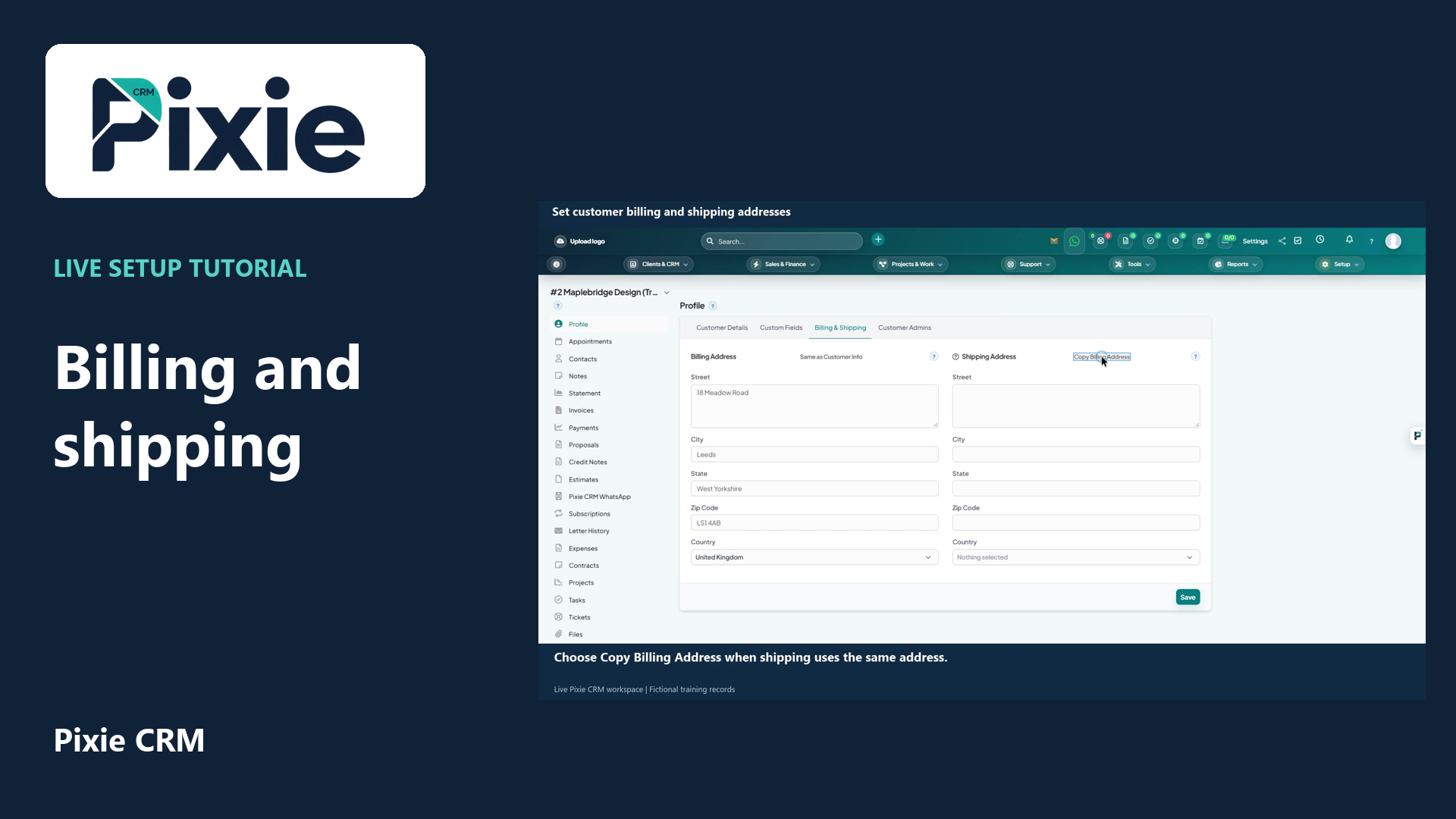 Set customer billing and shipping addresses
More videos in this category · Read the matching instructions
Use the Pixie CRM leads Kanban board with live clicks and cursor movement. Review a lead, move its card to the next stage and confirm the saved status in list view.
Matching written guide · Download MP4 · English captions
All enquiries, people and companies are fictional training examples. The stage change is illustrative; no prospect is contacted and no lead is converted into a customer. Change a real stage only when it reflects the work actually completed.
Watch this tutorial on YouTube ↗ · Related Pixie CRM tutorials ↗
Video chapters
- 0:00 — Open the Kanban pipeline
- 0:14 — Review the configured stages
- 0:33 — Review the lead before changing its stage
- 0:52 — Move the card to the next stage
- 1:08 — Confirm the updated column
- 1:24 — Verify the saved status in list view
- 1:46 — Continue with related Pixie CRM tutorials
Read the video transcript
Open Leads in Pixie CRM and choose the Kanban view icon. The pipeline groups lead cards by their saved status, giving your team a visual way to review the current stage of each enquiry.
Review the configured columns. In this training workspace, New Enquiry contains our fictional enquiries and Qualified Enquiry is empty. Your own stages depend on the lead statuses configured for your business. A lead's stage should reflect its actual progress.
Open Oliver Hughes to review the saved lead record. Check the company, enquiry source and current information before changing its stage. Close the profile to return to the board. This is a fictional training example and no prospect is contacted.
Drag Oliver's card from New Enquiry into Qualified Enquiry. Drop it in the destination column and wait for the card to appear there. This demonstrates a status change on the board; it does not convert the lead into a customer.
Confirm Oliver Hughes appears under Qualified Enquiry. The board saves this change automatically, so there is no separate Save button for this move. Use the appropriate stage for the work your team has actually completed.
Return to list view and confirm the saved row shows Oliver Hughes with Qualified Enquiry as the status and Website Enquiry as the source. List and Kanban views show the same underlying lead records. Continue with the linked guides for ownership, follow-up and lead conversion.
Follow the written instructions
Open the matching written guide ↗ · Browse all Pixie CRM video guides