
Pixie CRM guided video tutorial
Edit and verify a task timesheet note
Recorded live · 1:58 · English captions
Edit and verify a task timesheet note: live walkthrough
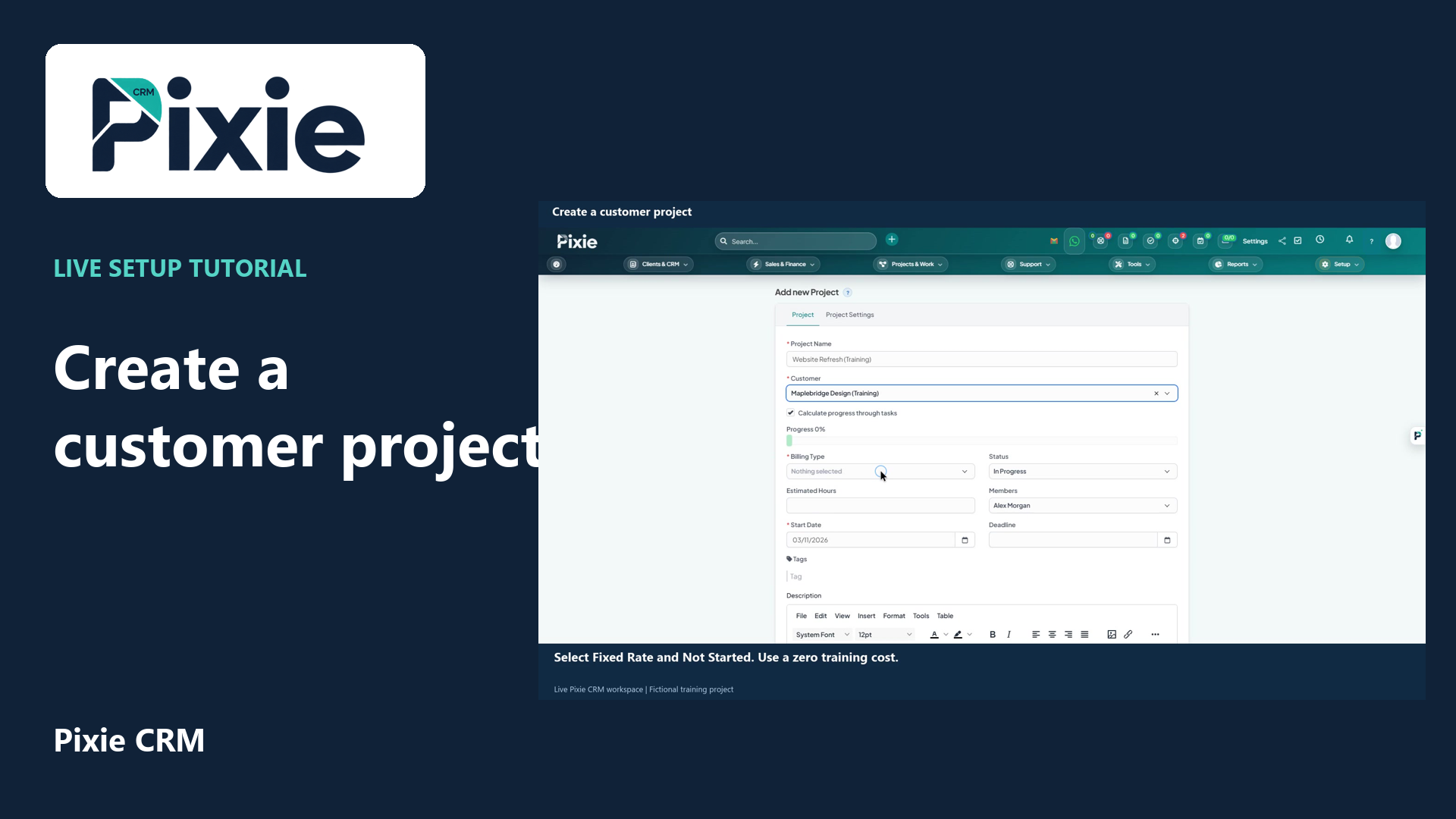 Create a customer project
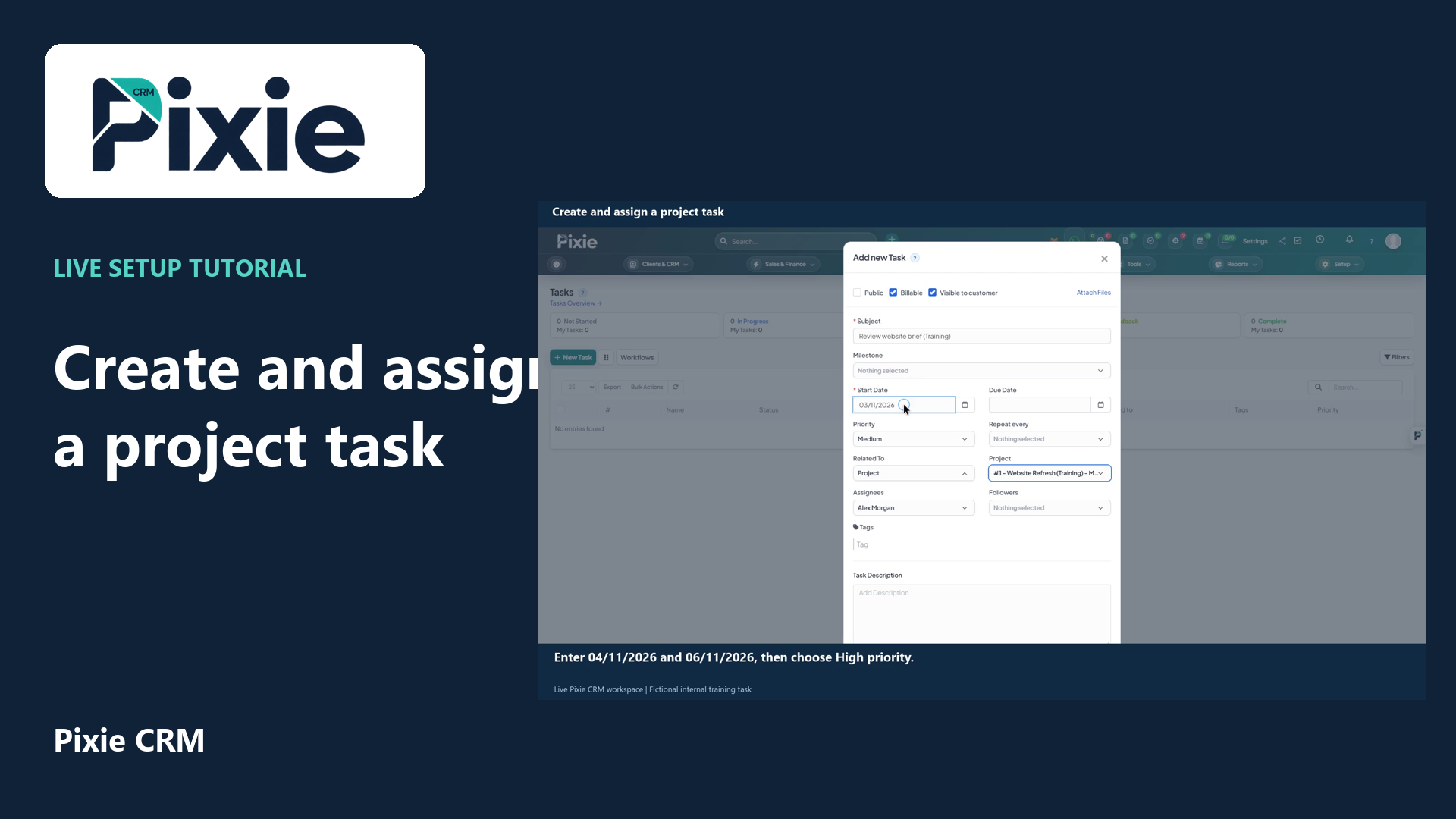 Create and assign a project task
More videos in this category · Read the matching instructions
Edit a saved Pixie CRM task timesheet note with live clicks. Update the wording, retain the existing member and timestamps, save and reopen the entry to verify the retained changes.
Matching written guide · Download MP4 · English captions
The existing timesheet is a fictional non-billable training record in the disposable workspace. Only its note is revised. No new timesheet, running timer, invoice, payment or customer message is created.
Watch this tutorial on YouTube ↗ · Related Pixie CRM tutorials ↗
Video chapters
- 0:00 — Open the saved training timesheet
- 0:27 — Revise the session note
- 0:49 — Save the updated timesheet note
- 1:03 — Reopen and verify the saved wording
- 1:37 — Continue with related Pixie CRM tutorials
Read the video transcript
Edit a saved task timesheet note in Pixie CRM. Open the internal training task and choose Timesheets. Use Edit beside the fifteen-minute manual entry. Check the member and recorded timestamps before changing the note.
Revise the note to include the planned project-reference follow-up. Keep the existing start time, end time and member. This example changes the wording on one fictional training entry; it does not create another timesheet or start a timer.
Choose Save in the existing timesheet edit form. The update applies to the same recorded session. Return to the timesheet list and confirm that the member and fifteen-minute duration are retained.
Reopen Edit on the same entry. Verify the revised note and the original timestamps and member. Close and reopen the task to check the retained timesheet again. The timer remains stopped and the task remains Not Billable.
Follow the written instructions
Open the matching written guide ↗ · Browse all Pixie CRM video guides