
Pixie CRM guided video tutorial
Edit and verify a draft proposal
Recorded live · 1:49 · English captions
Edit and verify a draft proposal: live walkthrough
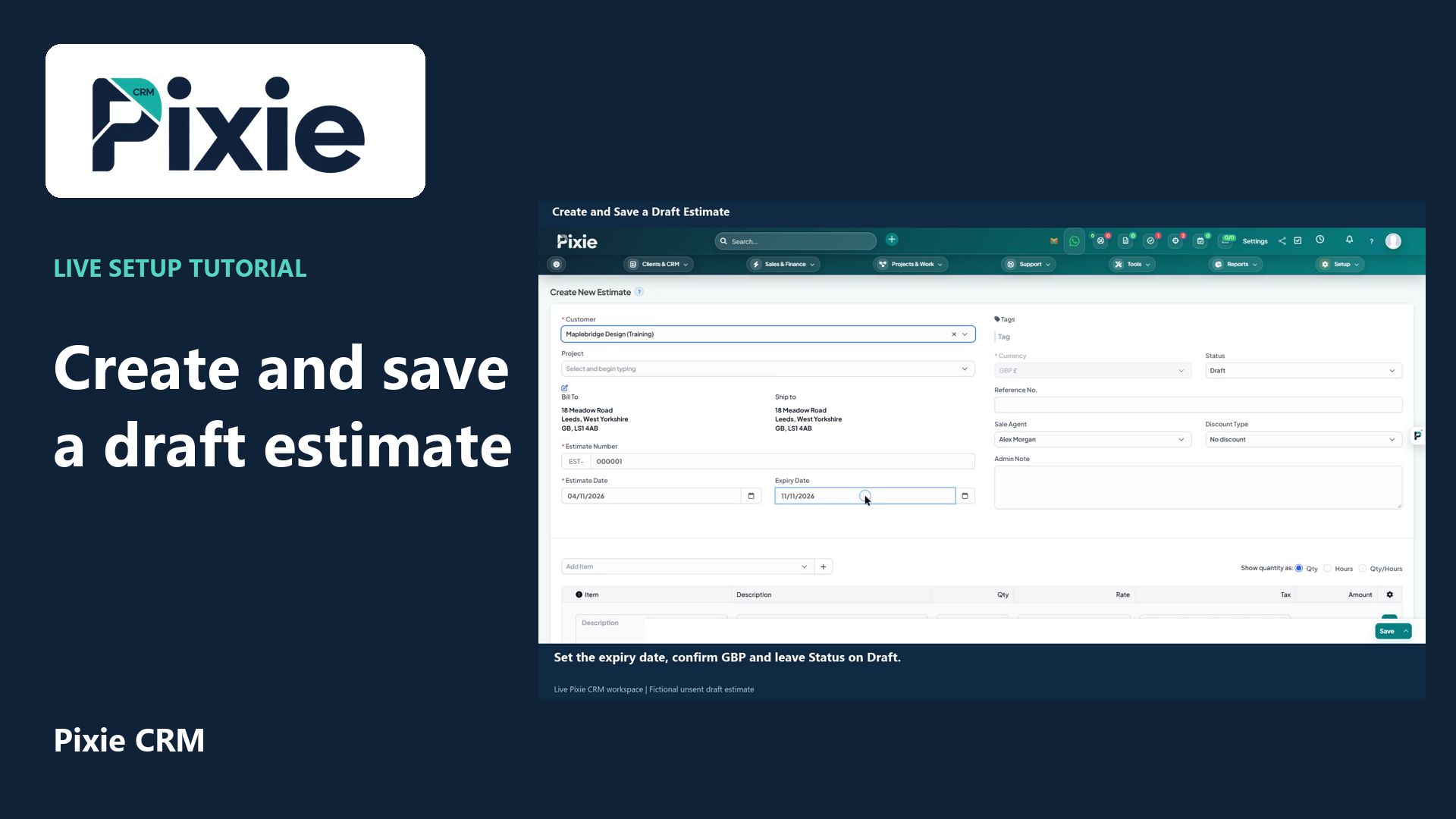 Create and save a draft estimate
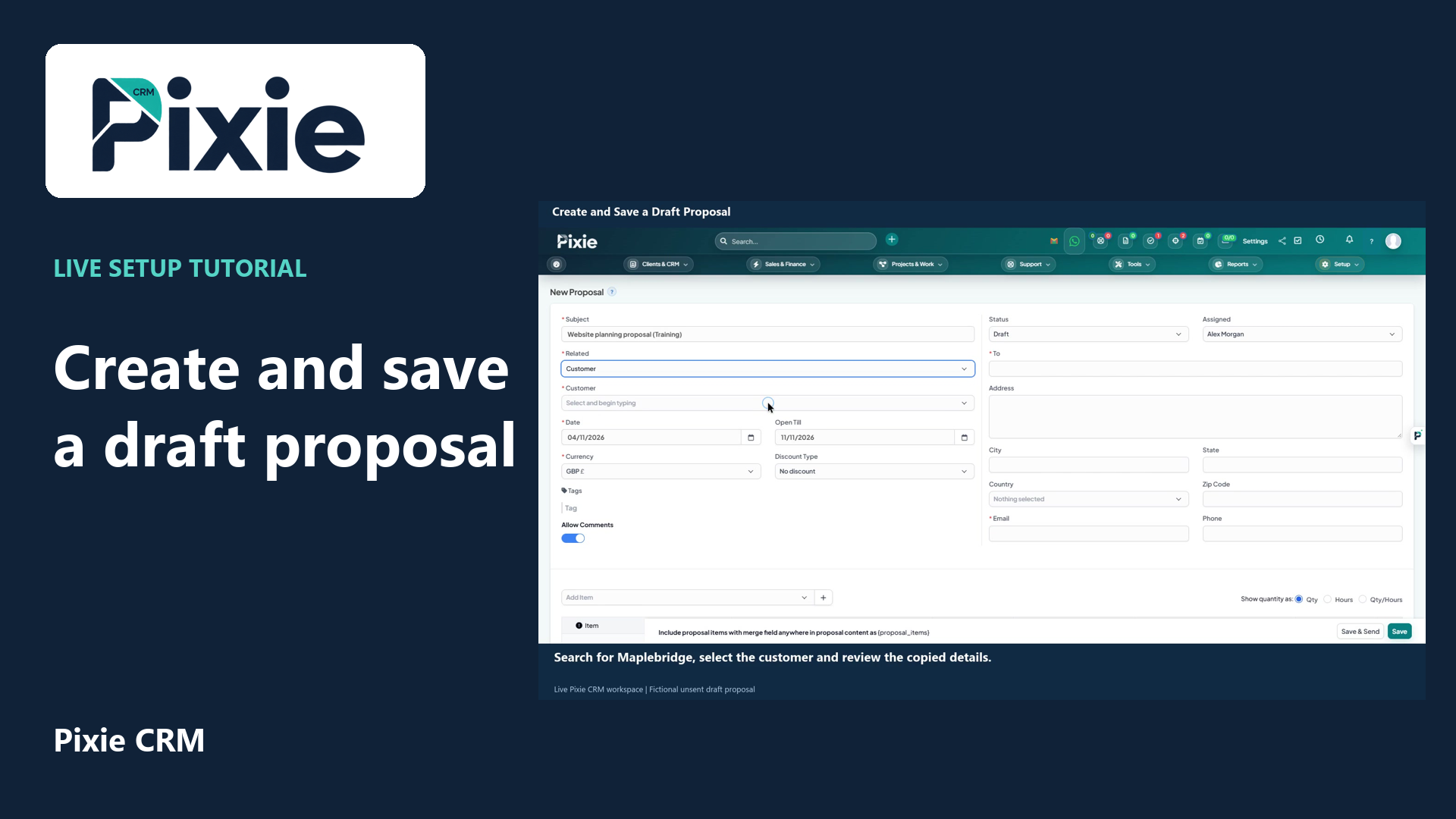 Create and save a draft proposal
More videos in this category · Read the matching instructions
Edit a saved Pixie CRM draft proposal with live clicks. Change its expiry date and service description, save the draft, then reopen it to verify both changes.
Matching written guide · Download MP4 · English captions
All customer, service and proposal records are fictional training examples. The reserved example email cannot receive mail. Save & Send is not used; no delivery, acceptance, binding agreement, payment or document conversion is performed.
Watch this tutorial on YouTube ↗ · Related Pixie CRM tutorials ↗
Video chapters
- 0:00 — Open the saved draft proposal
- 0:19 — Revise the proposal expiry date
- 0:34 — Update the existing service description
- 0:50 — Save the revised draft
- 1:09 — Reopen and verify the stored changes
- 1:28 — Continue with related Pixie CRM tutorials
Read the video transcript
Edit a saved draft proposal in Pixie CRM. Open Proposals and select the Website planning training proposal. Confirm the customer and Draft status, then choose Edit Proposal. This example revises an existing draft without sending it.
Change Open Till to the twenty-fifth of November. Confirm that the proposal is still linked to Maplebridge Design and that its status remains Draft. Review the recipient details before saving any customer document.
Scroll to the saved service line and revise its detailed description. The existing line is edited directly, so there is no need to add a duplicate item. Check quantity one, the one hundred and fifty pound rate and the proposal total.
Choose Save to store the revised draft. Save and Send is a separate control. In the saved proposal, check the number, subject, customer, total and Draft status. Saving these edits does not record delivery or customer acceptance.
Reopen Edit Proposal to verify the stored changes. The revised expiry date and service description are retained, while the customer, quantity, rate and Draft status remain as reviewed. Complete your internal checks before using a separate sharing or sending workflow.
Follow the written instructions
Open the matching written guide ↗ · Browse all Pixie CRM video guides