
Pixie CRM guided video tutorial
Create and verify a predefined support reply
Recorded live · 1:46 · English captions
Create and verify a predefined support reply: live walkthrough
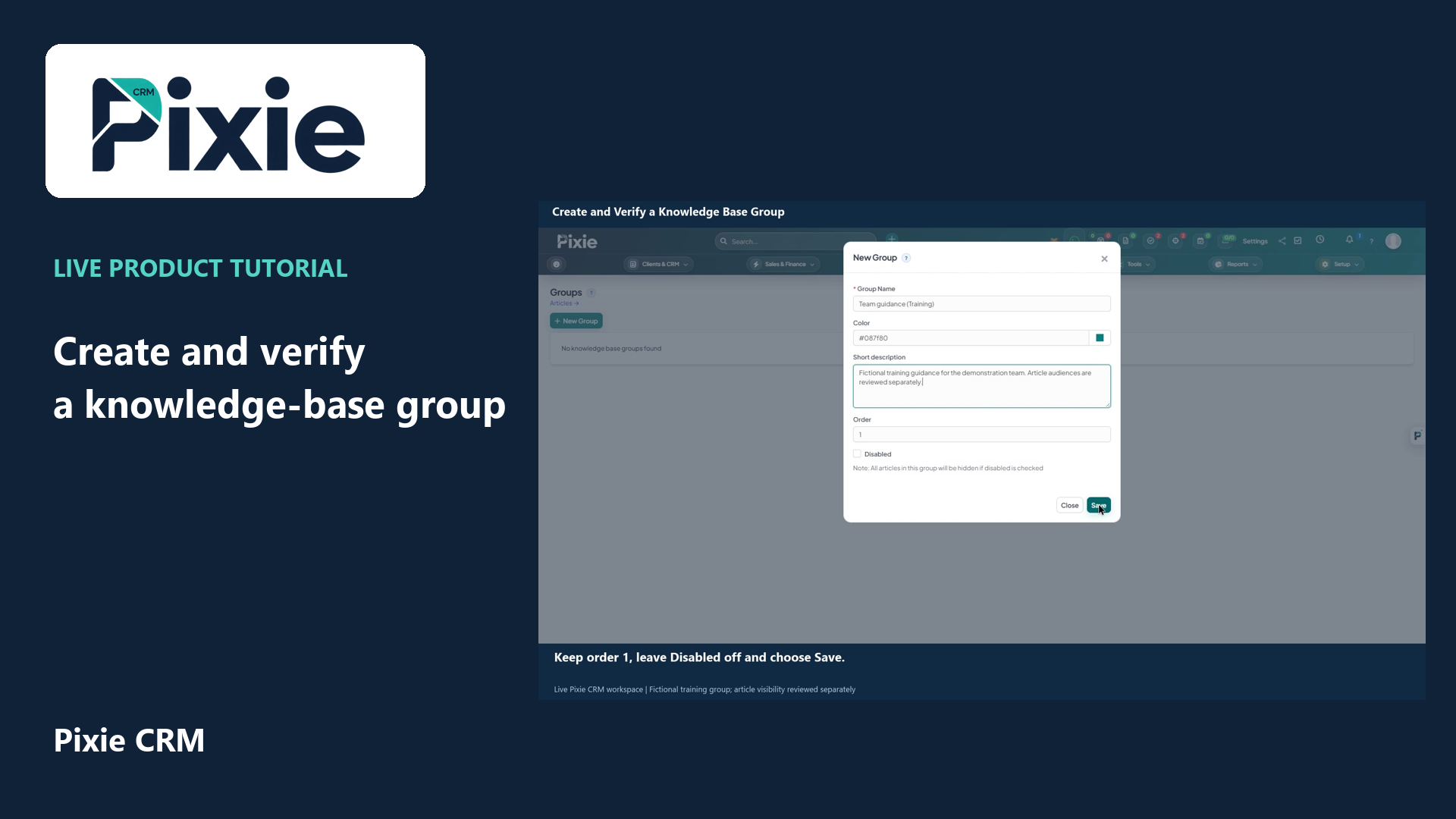 Create and verify a knowledge base group
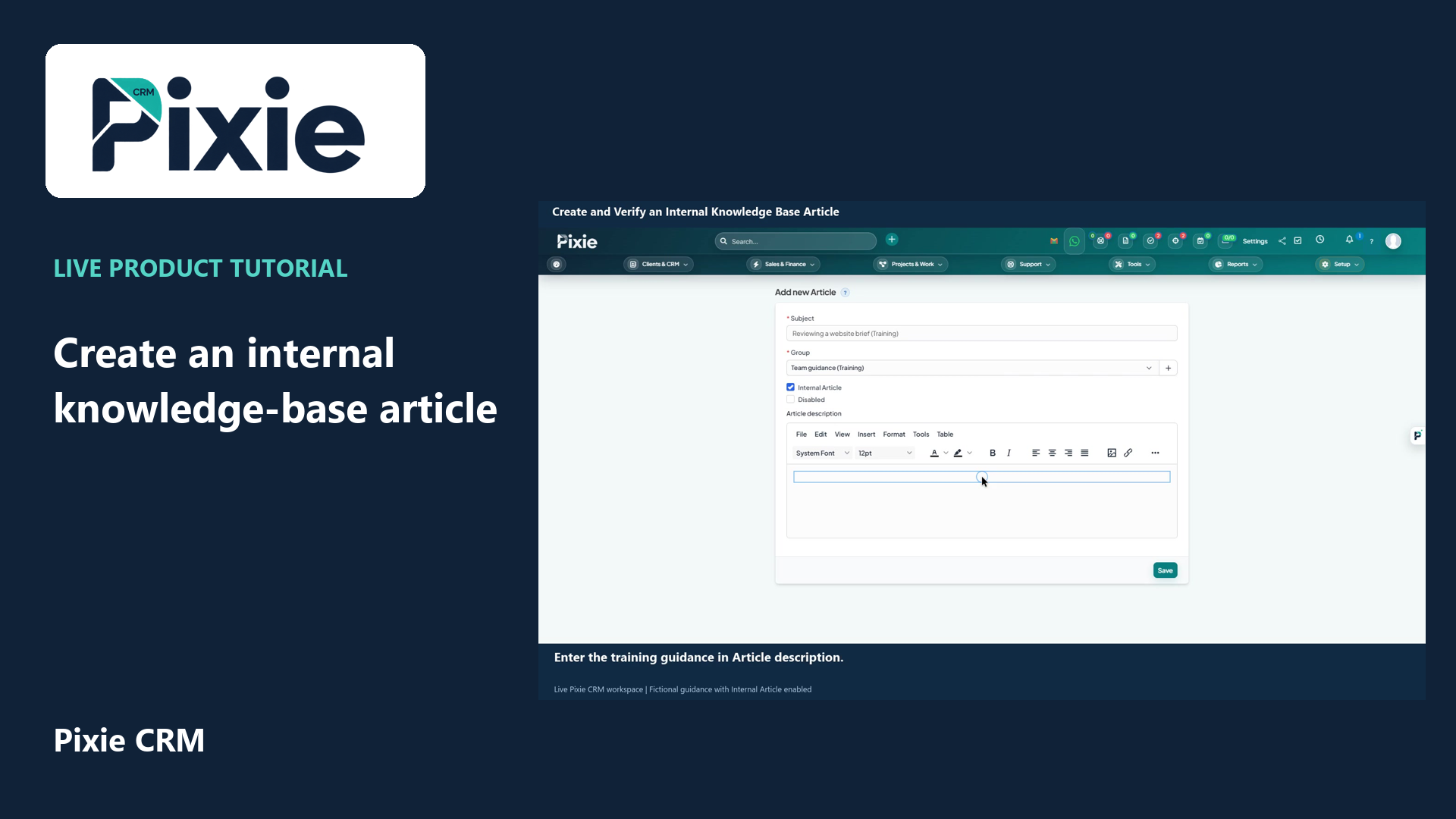 Create and verify an internal knowledge base article
More videos in this category · Read the matching instructions
Create a Pixie CRM predefined support reply with live clicks. Enter its name and message, save the reusable text and reopen it to verify the retained wording.
Matching written guide · Download MP4 · English captions
The reply is fictional training content in the disposable workspace. Saving reusable wording does not send a customer message, create a ticket or confirm an actual response. Review and adapt each reply before real use.
Watch this tutorial on YouTube ↗ · Related Pixie CRM tutorials ↗
Video chapters
- 0:00 — Open a new predefined reply
- 0:18 — Name the reply clearly
- 0:33 — Write reusable reply text
- 0:50 — Save and verify the stored reply
- 1:06 — Reopen from the saved reply list
- 1:25 — Continue with related Pixie CRM tutorials
Read the video transcript
Create a predefined support reply in Pixie CRM. From Setup and Support, open Predefined Replies, then choose New Predefined Reply. Saved replies provide reusable wording that your team can review before responding to a customer.
Enter Website brief acknowledgement, marked as Training. Choose a clear name so the support team can recognise when this wording is appropriate. The name identifies the saved reply rather than a customer or support department.
Write the acknowledgement in the message editor. This example thanks the customer for a website brief and explains that the team will review the information. Check every saved reply for accuracy and adapt it to the individual request before use.
Choose Save. The saved editor retains the reply name and message. Saving a predefined reply stores reusable text; it does not send a message, create a ticket or confirm that a customer has received a response.
Return to Predefined Replies and open the saved name. Verify the retained title and message before using the reply in a real support conversation. This tutorial prepares the wording only and sends no customer communication.
Follow the written instructions
Open the matching written guide ↗ · Browse all Pixie CRM video guides