
Pixie CRM guided video tutorial
Create and verify an internal knowledge base article
Recorded live · 1:52 · English captions
Create and verify an internal knowledge base article: live walkthrough
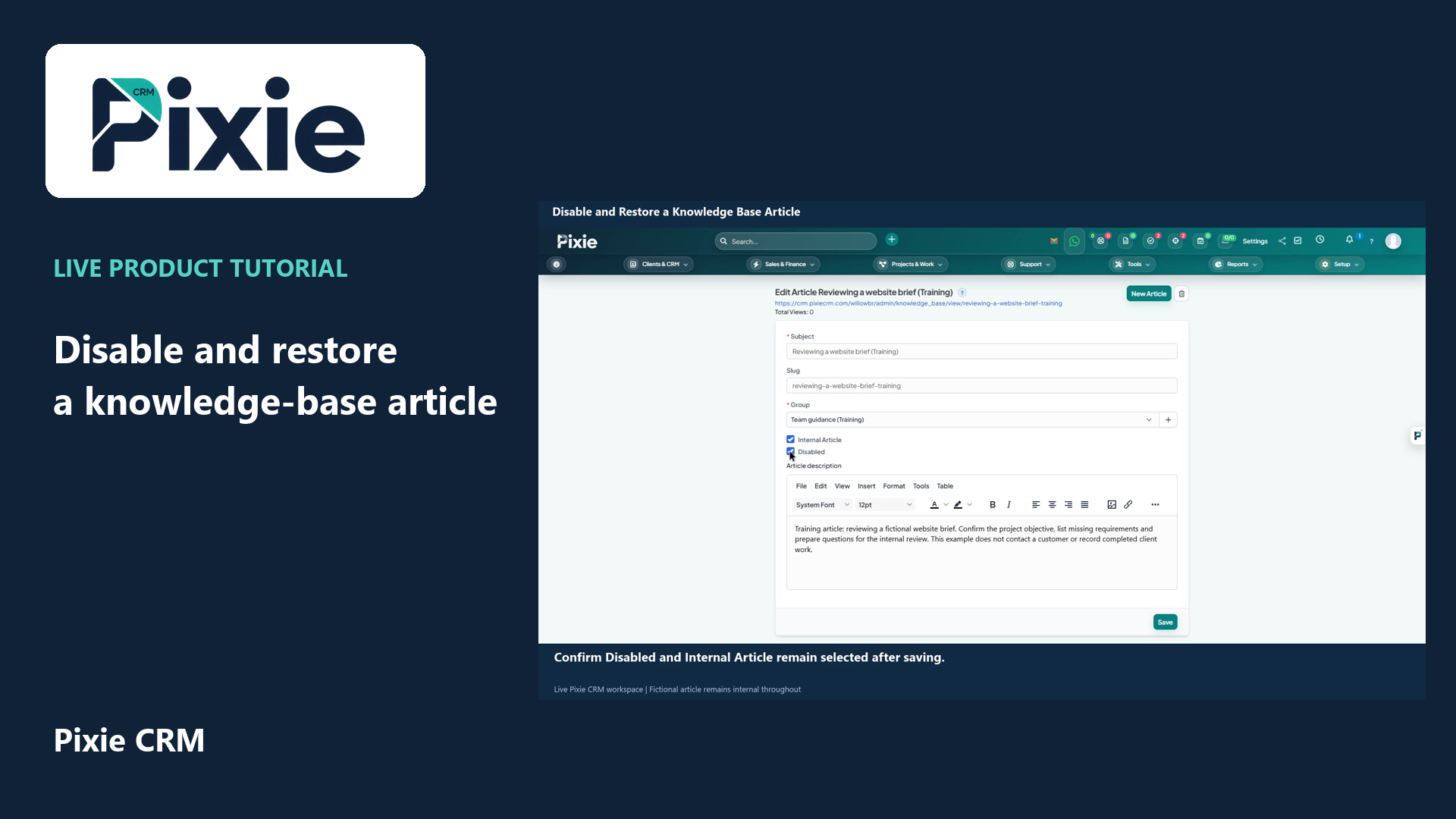 Disable and restore a knowledge base article
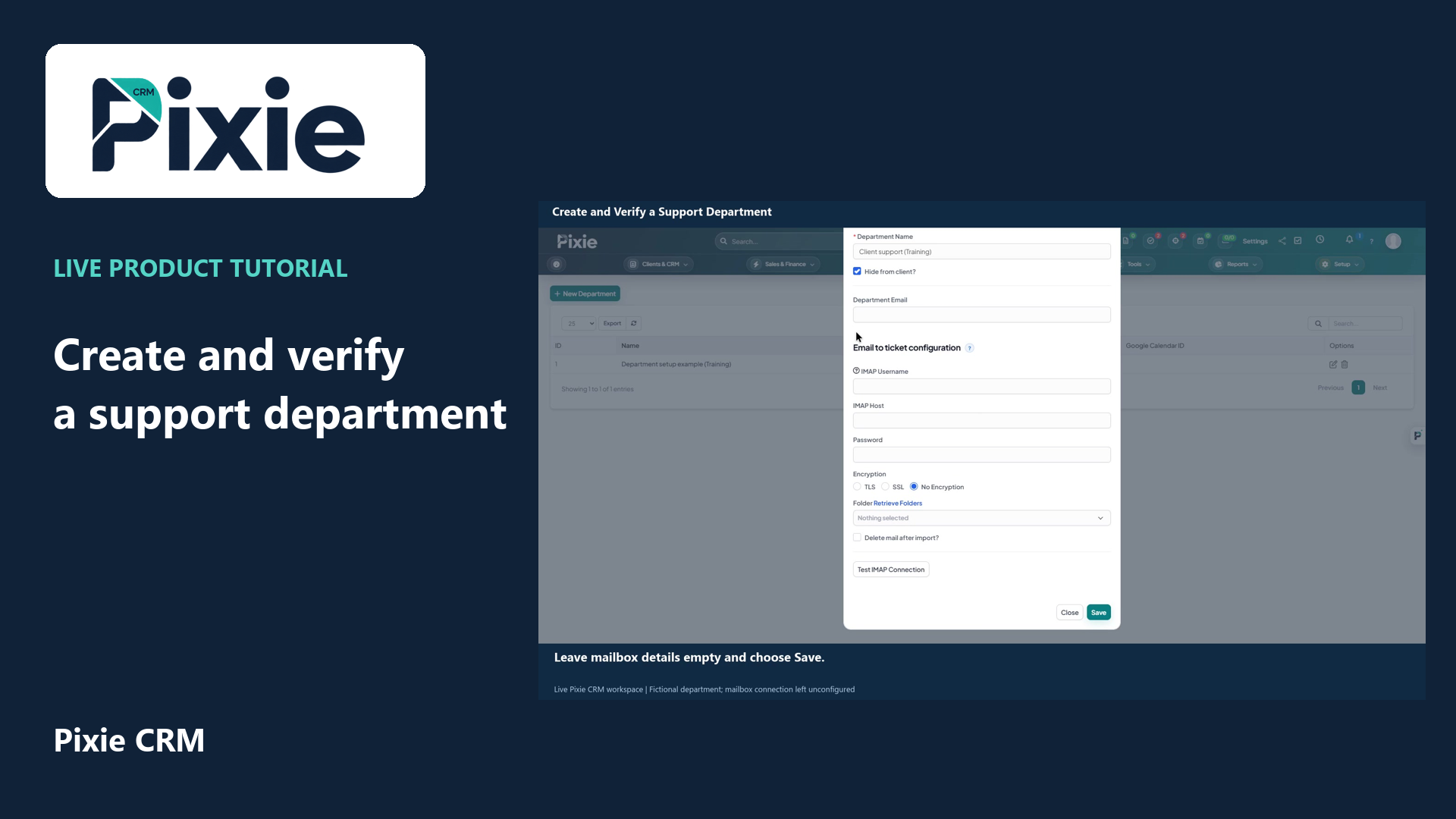 Create and verify a support department
More videos in this category · Read the matching instructions
Create an internal Pixie CRM knowledge-base article with live clicks. Set its title and group, choose Internal Article, write the guidance and verify the saved audience and content.
Matching written guide · Download MP4 · English captions
The article and guidance are fictional training examples in the disposable workspace. Internal Article is enabled throughout the save; no customer-facing article, customer contact, completed client work or real business instructions are published.
Watch this tutorial on YouTube ↗ · Related Pixie CRM tutorials ↗
Video chapters
- 0:00 — Open a new knowledge-base article
- 0:16 — Set the title, group and internal audience
- 0:37 — Write clear article instructions
- 0:58 — Save the internal article
- 1:16 — Verify the saved audience and content
- 1:32 — Continue with related Pixie CRM tutorials
Read the video transcript
Create an internal knowledge-base article in Pixie CRM. From Tools, open Knowledge Base and choose New Article. This example prepares fictional guidance for the demonstration team and keeps its audience internal.
Enter a clear subject and select the Team guidance training group. Enable Internal Article. Leave Disabled off so the guidance is available to its intended internal audience. Review article visibility before saving real business information.
Write the guidance in Article description. Explain what the reader should review and what they should do next. This example asks the team to confirm the project objective, identify missing requirements and prepare questions for an internal review.
Choose Save. Pixie CRM opens the saved article editor. Review the stored title and group, then check Internal Article and the description. The article remains internal; saving it does not publish a customer-facing article.
Confirm that Team guidance is retained and Internal Article remains selected. Review the saved description and the Disabled option. These separate controls let you organise guidance, choose its audience and decide whether it is available.
Follow the written instructions
Open the matching written guide ↗ · Browse all Pixie CRM video guides