
Pixie CRM guided video tutorial
Create and verify a customer group
Recorded live · 1:33 · English captions
Create and verify a customer group: live walkthrough
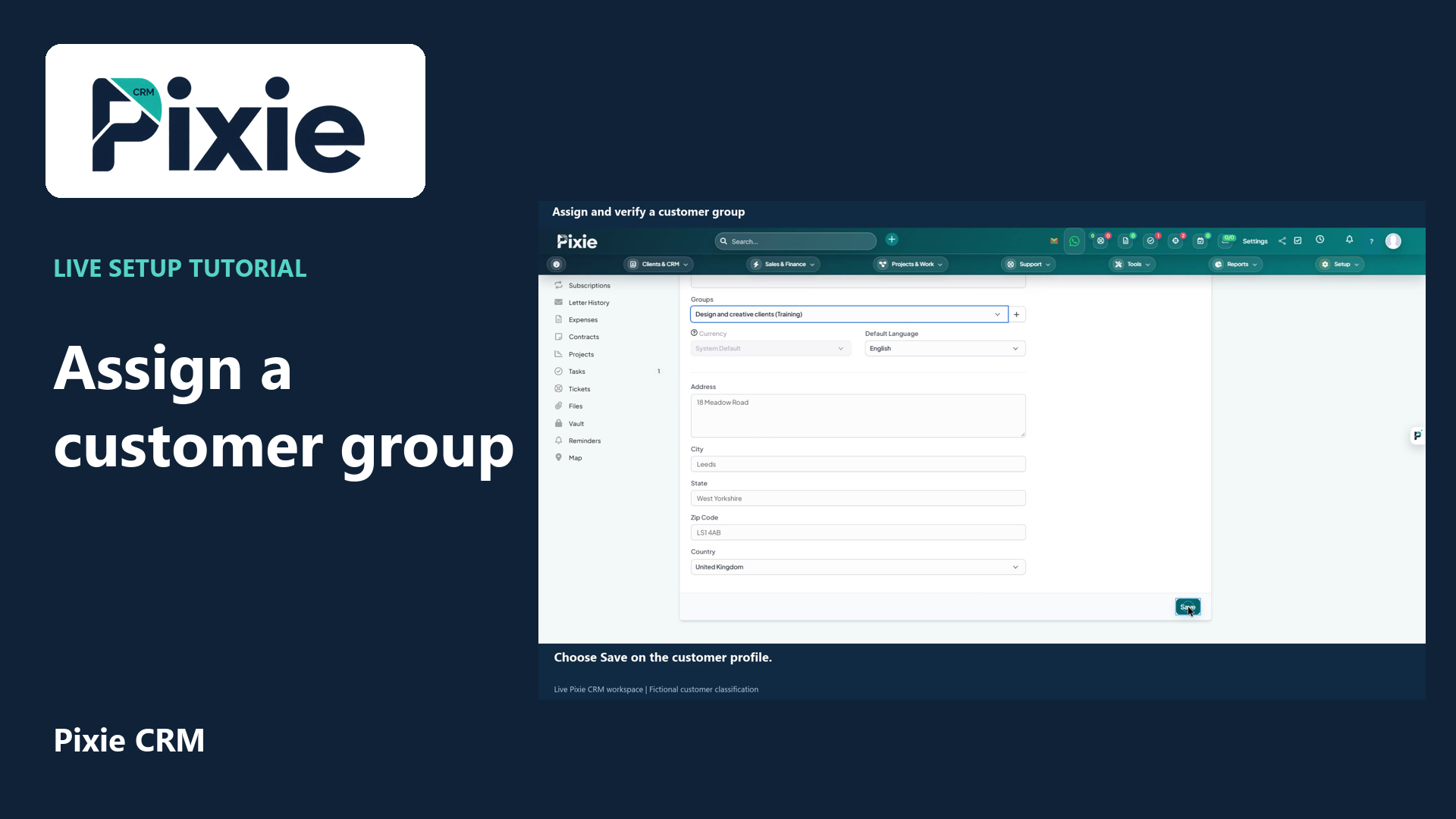 Assign and verify a customer group
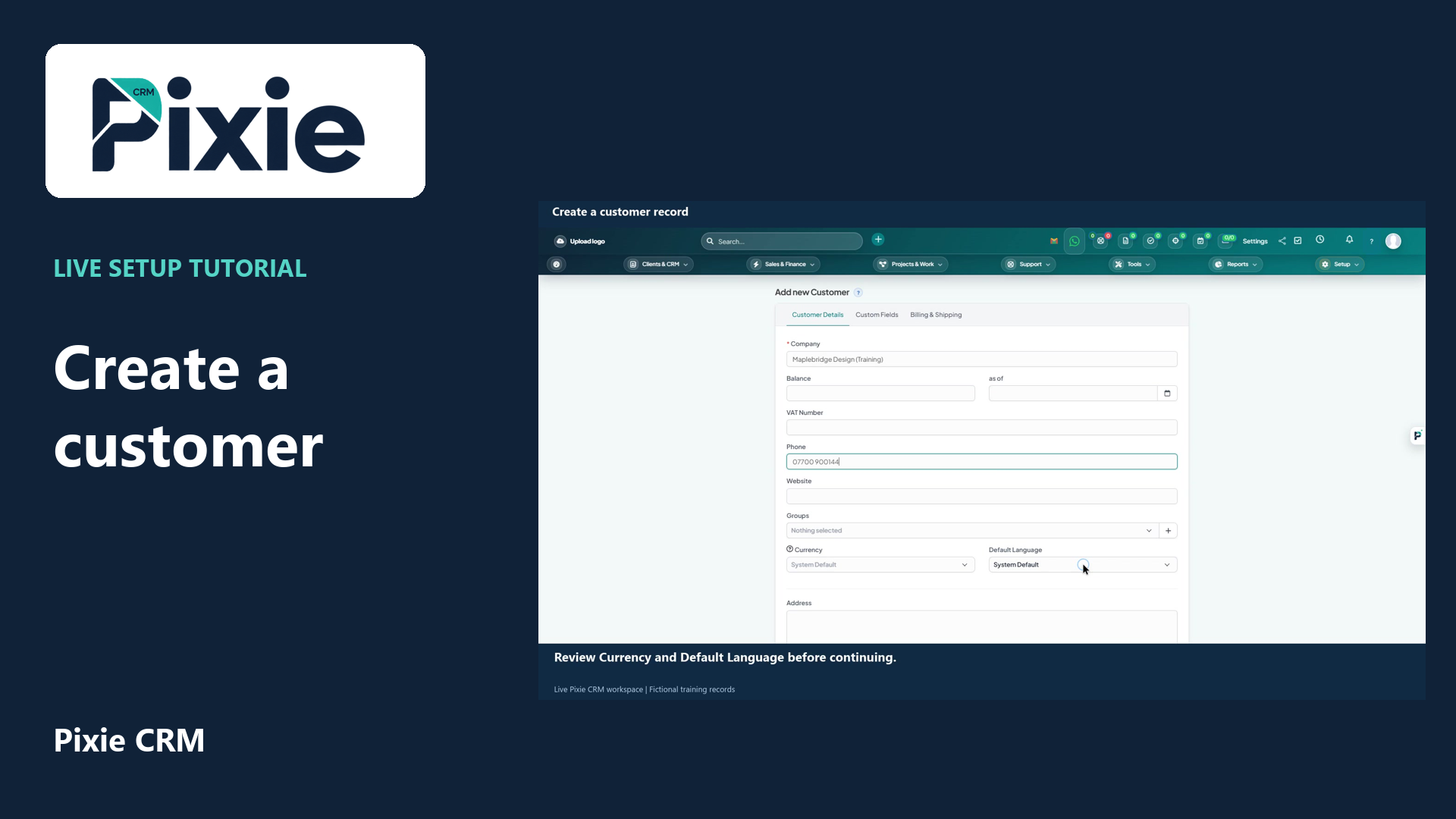 Create a customer record in Pixie CRM
More videos in this category · Read the matching instructions
Create a customer group in Pixie CRM with live clicks. Open the group creator from a customer profile, enter a clear name, save and verify that the group remains available after reopening.
Matching written guide · Download MP4 · English captions
The customer and groups are fictional training records. Creating a classification does not grant portal access or change contact permissions. This tutorial creates the group; the dedicated assignment tutorial demonstrates saving a customer membership.
Watch this tutorial on YouTube ↗ · Related Pixie CRM tutorials ↗
Video chapters
- 0:00 — Open the customer group creator
- 0:16 — Name the customer group
- 0:32 — Save the new group
- 0:51 — Verify the group is available after reopening
- 1:13 — Continue with related Pixie CRM tutorials
Read the video transcript
Create a customer group from a saved customer profile. Open Customers, choose Maplebridge Design, Training, and use the plus button beside Groups. Groups help you organise related customer records consistently.
Enter Design and creative clients, Training, as the group name. Choose a clear name that your team can apply consistently. The group is a customer classification; it does not grant portal access or change permissions.
Choose Save in the group window. Pixie stores the group and makes it available in the customer form. Saving a group and saving a customer membership are separate steps; the profile changes still need their own Save action.
Reopen the customer profile and select the new group from the Groups list. Its presence confirms that the group was retained. The dedicated assignment tutorial shows how to save the customer membership and verify it after reopening.
Follow the written instructions
Open the matching written guide ↗ · Browse all Pixie CRM video guides