
Pixie CRM guided video tutorial
Create a project milestone
Recorded live · 1:50 · English captions
Create a project milestone: live walkthrough
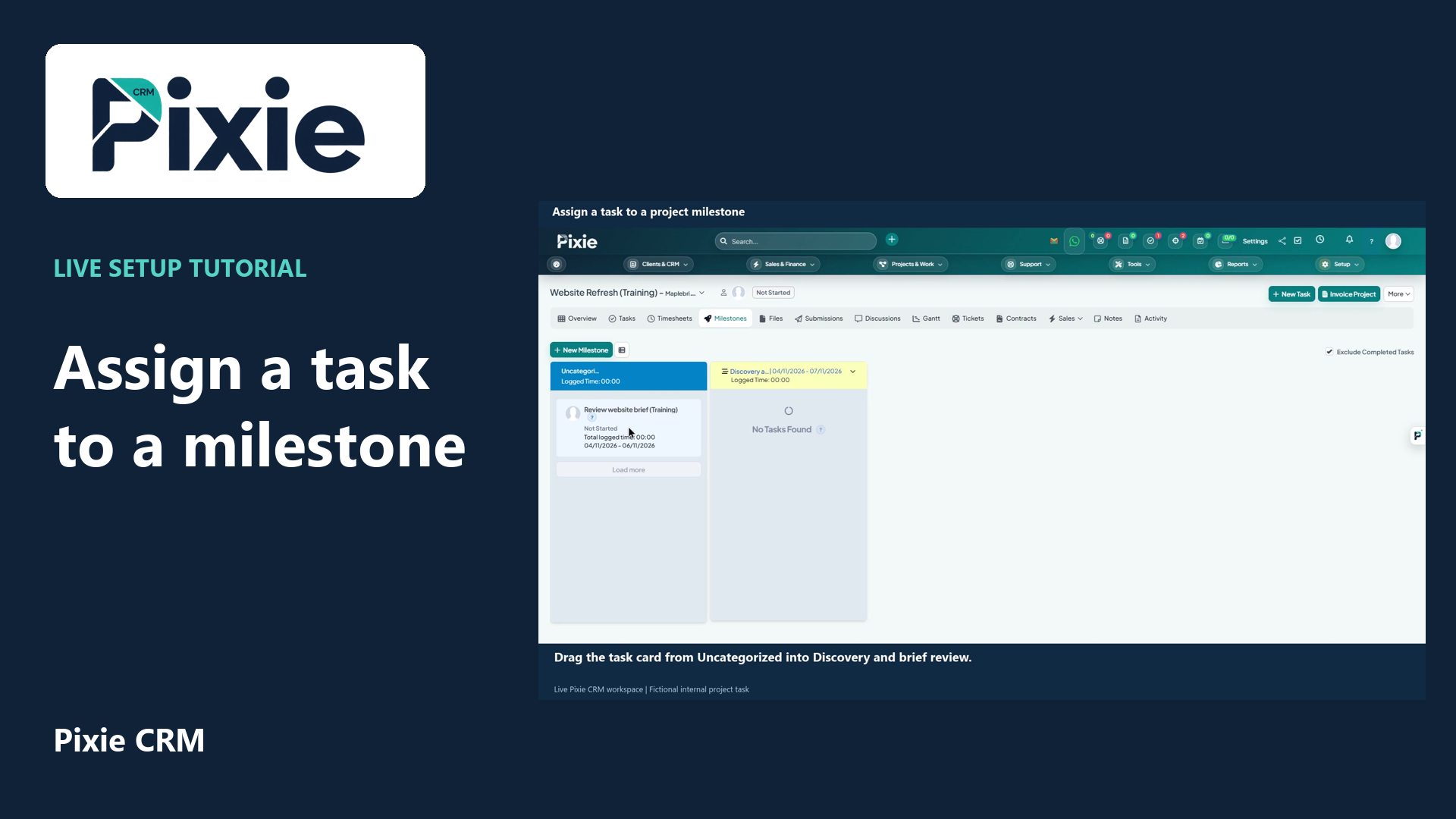 Assign a task to a project milestone
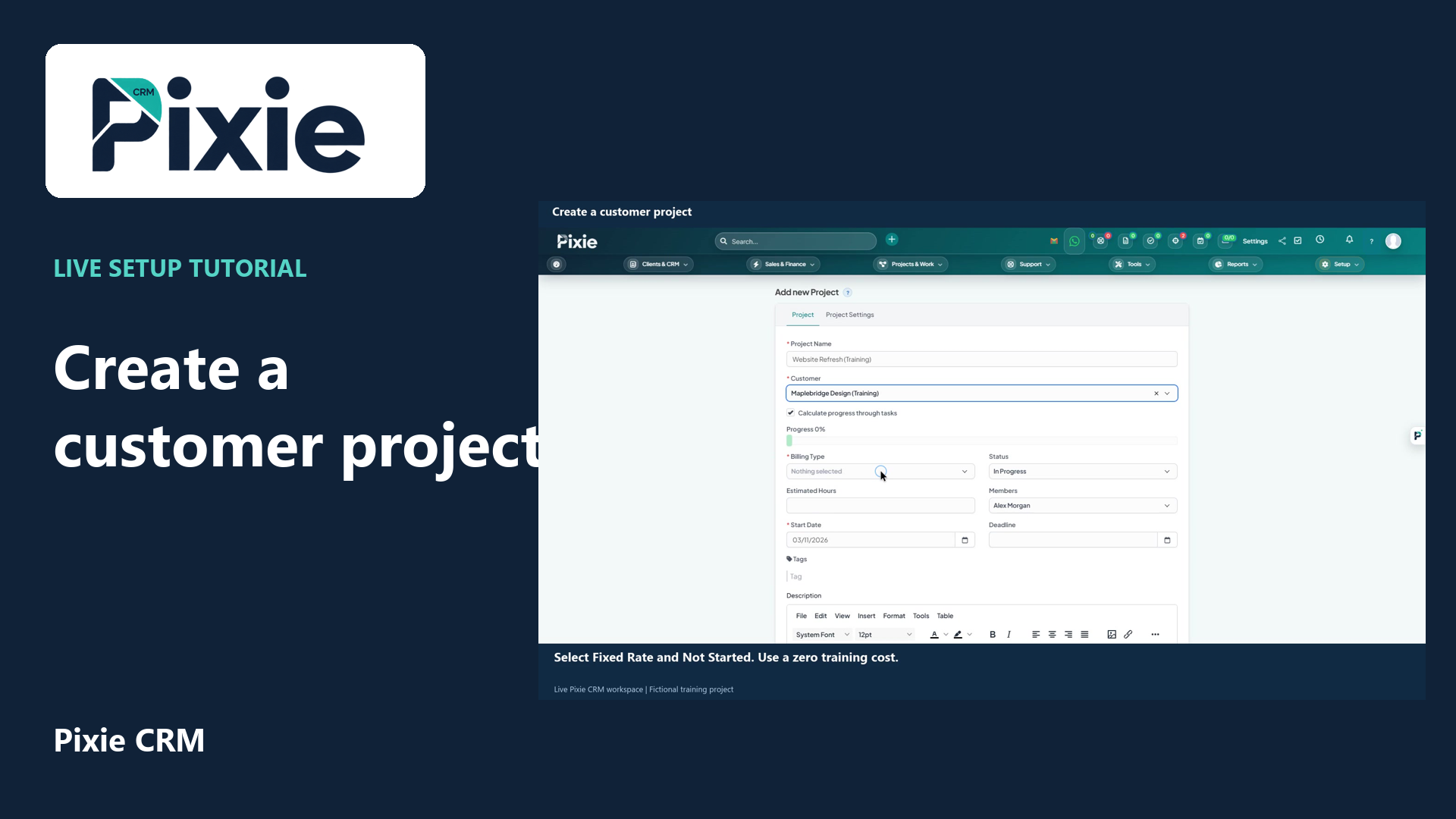 Create a customer project
More videos in this category · Read the matching instructions
Create a project milestone in Pixie CRM with live clicks. Set its name, dates, description, customer visibility and order, then save and confirm it in the project.
Matching written guide · Download MP4 · English captions
All project, customer and milestone records are fictional training examples. Hide from customer is selected for this internal milestone and its description is not shared with the customer. No real approval, contract or completed work is represented.
Watch this tutorial on YouTube ↗ · Related Pixie CRM tutorials ↗
Video chapters
- 0:00 — Open project milestones
- 0:16 — Name the milestone and set its dates
- 0:37 — Describe the expected result
- 0:52 — Review customer visibility and order
- 1:10 — Save and confirm the milestone
- 1:29 — Continue with related Pixie CRM tutorials
Read the video transcript
Open the saved Website Refresh project in Pixie CRM. Choose Milestones, then New Milestone. A milestone marks an important stage of the project and gives related tasks a clear delivery context.
Enter Discovery and brief review, marked as a training milestone. Set the start date to the fourth of November and the due date to the seventh. Use dates that fit the project schedule and describe a specific stage of the work.
Use Description to explain the expected result. This example covers completing the fictional brief review and listing the next steps. Keep the description clear enough for the team to recognise when the stage has been completed.
Review the customer visibility choices. For this internal training milestone, keep Show description to customer off and select Hide from customer. Leave Order at one. Choose visibility and ordering appropriate to the project before saving.
Choose Save and confirm Discovery and brief review appears in the project's milestone view. The milestone is now recorded for the project. Continue with the dedicated task and milestone guides to organise the work that belongs to this stage.
Follow the written instructions
Open the matching written guide ↗ · Browse all Pixie CRM video guides