Require and verify task checklist completion
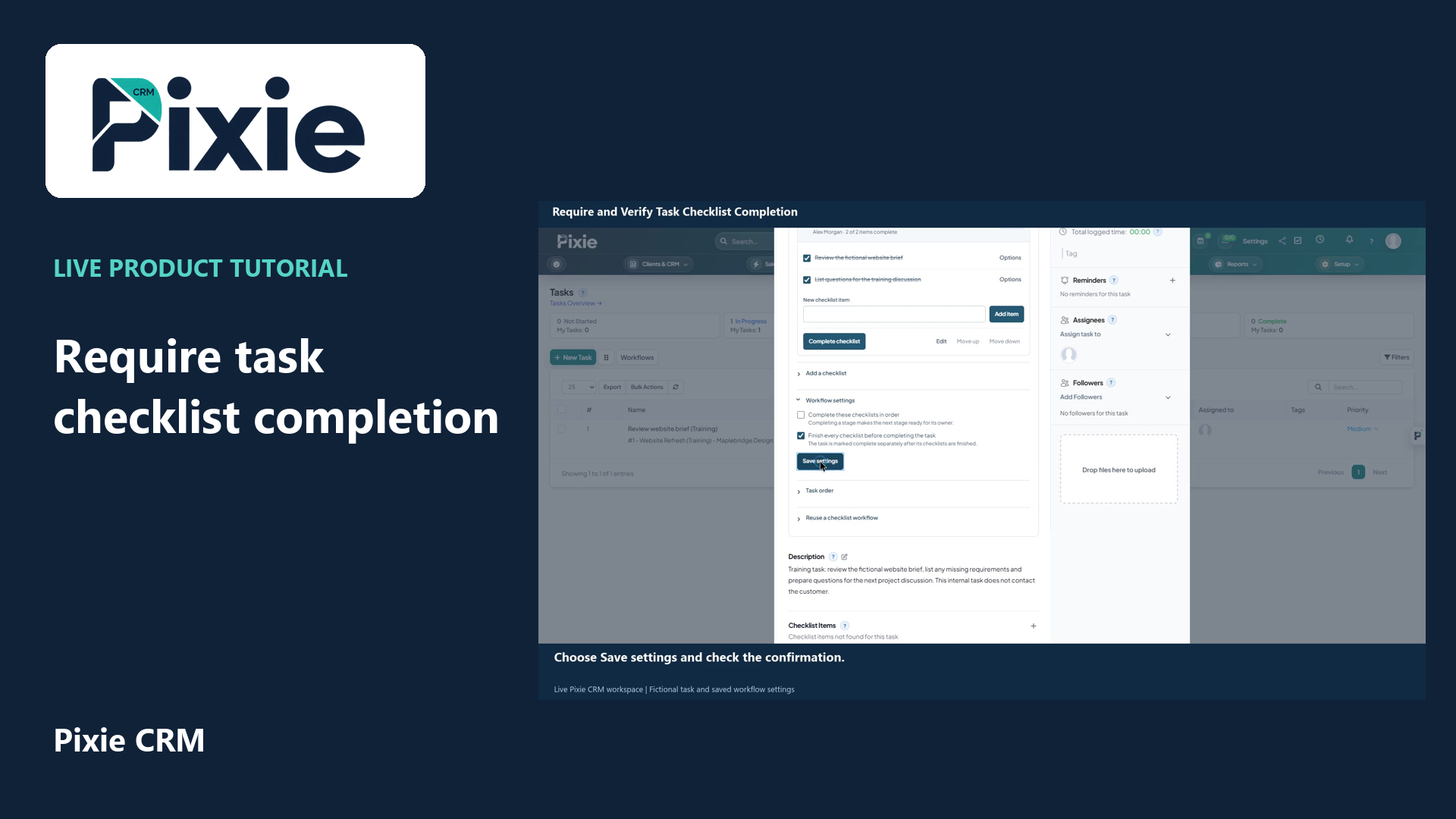
Require task checklist completion in Pixie CRM with live clicks. Save the workflow setting and reopen the task to verify it is retained.
Customer work, connected.

Operations & Workflow
Digitise internal processes, approvals, cases and operational controls. The scope can be tailored to your policies, roles, approvals, documents, dashboards and deployment model.
Walk through one real request from arrival to completion. Make the owner and the next action clear at each stage. Include what happens when information is missing or a deadline moves, so the process works on a busy day as well as in a demonstration.
Learn with Pixie CRM
Follow real application screens at your own pace, with English captions and a matching written guide.
Require task checklist completion in Pixie CRM with live clicks. Save the workflow setting and reopen the task to verify it is retained.
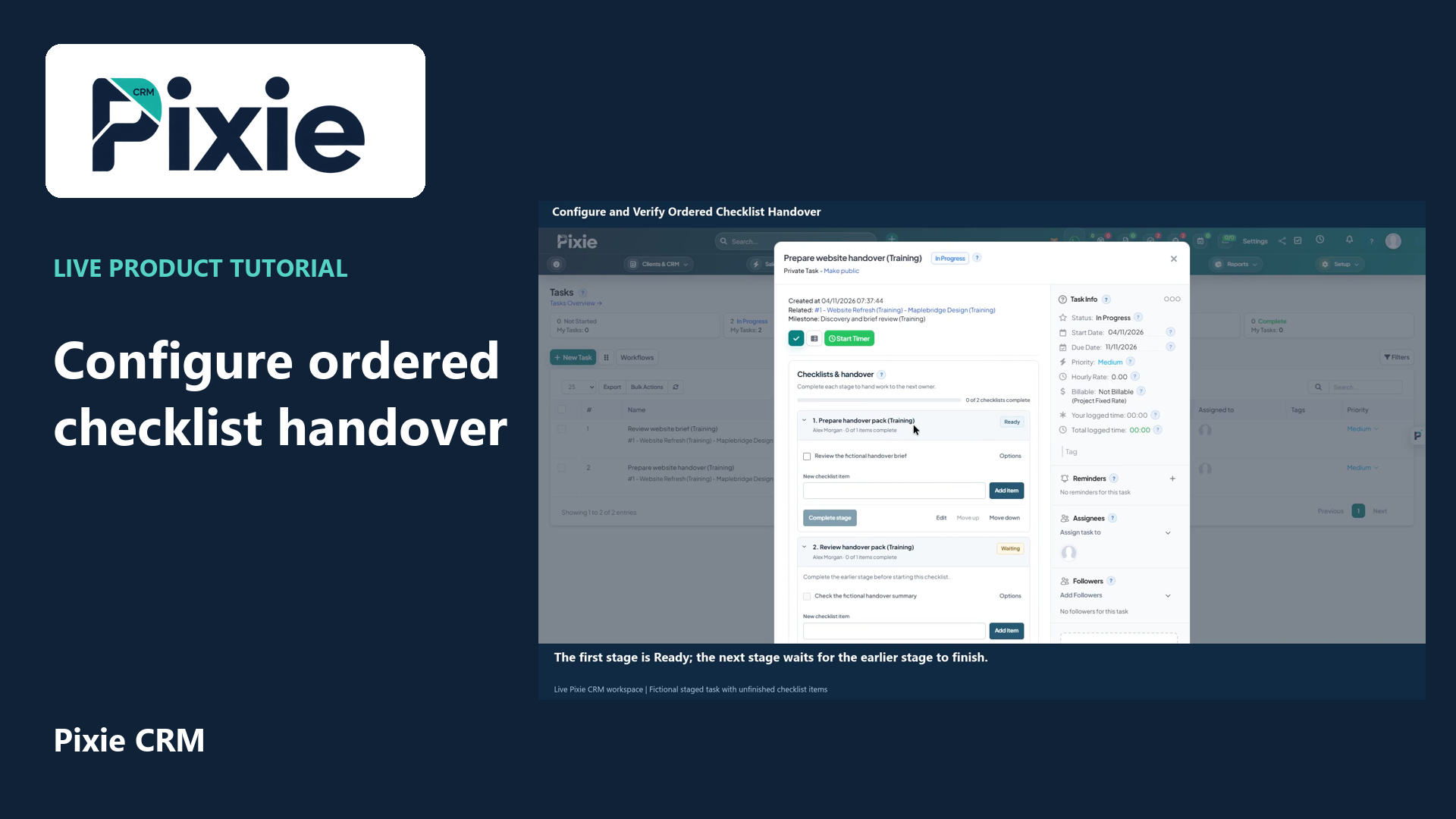
Configure an ordered Pixie CRM checklist workflow with live clicks. Save the completion rules, review Ready and Waiting stages and reopen the task to verify the sequence.
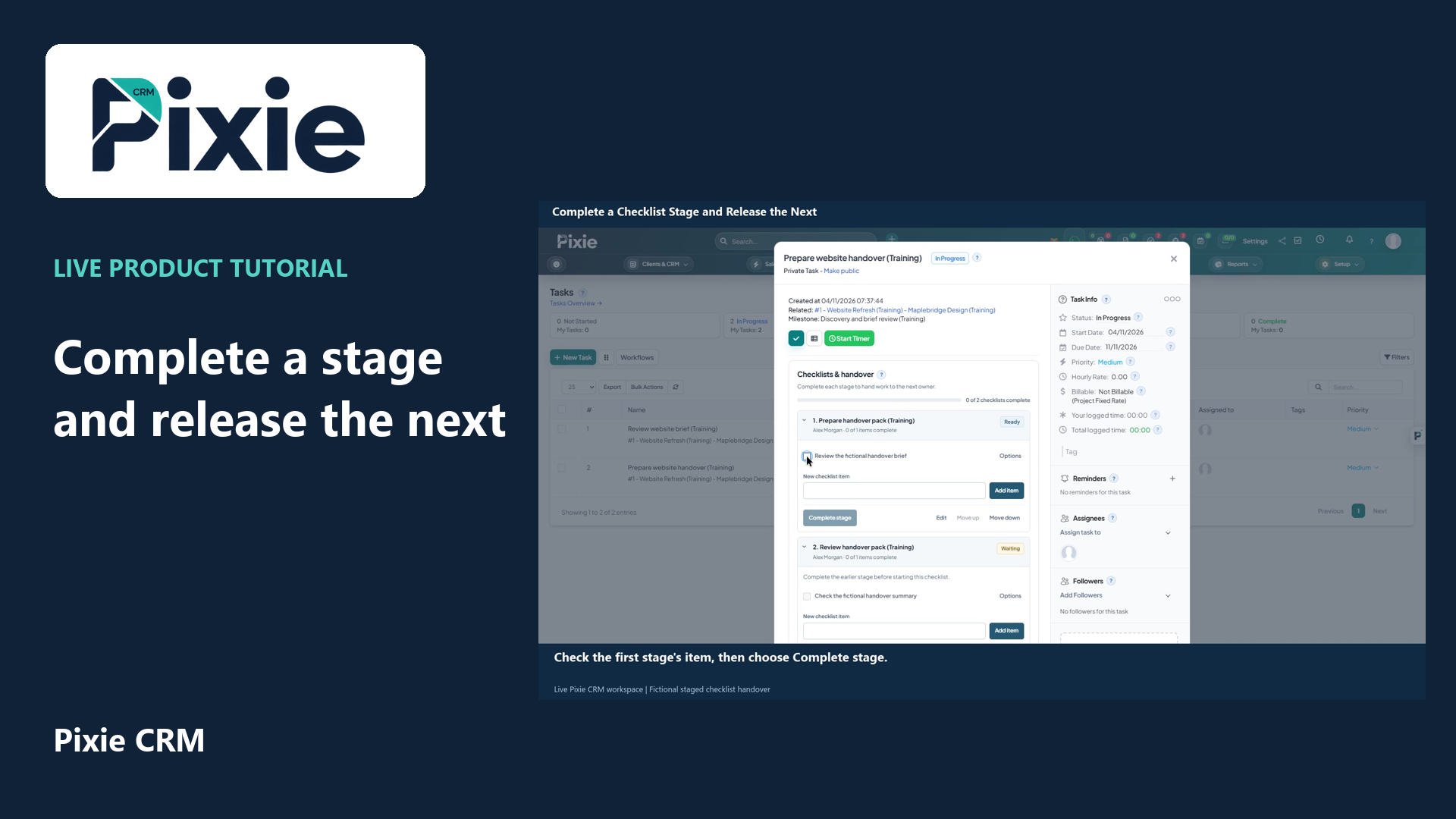
Complete a Pixie CRM checklist stage with live clicks and watch the next stage become Ready. Reopen the task to verify the saved handover and separate task status.
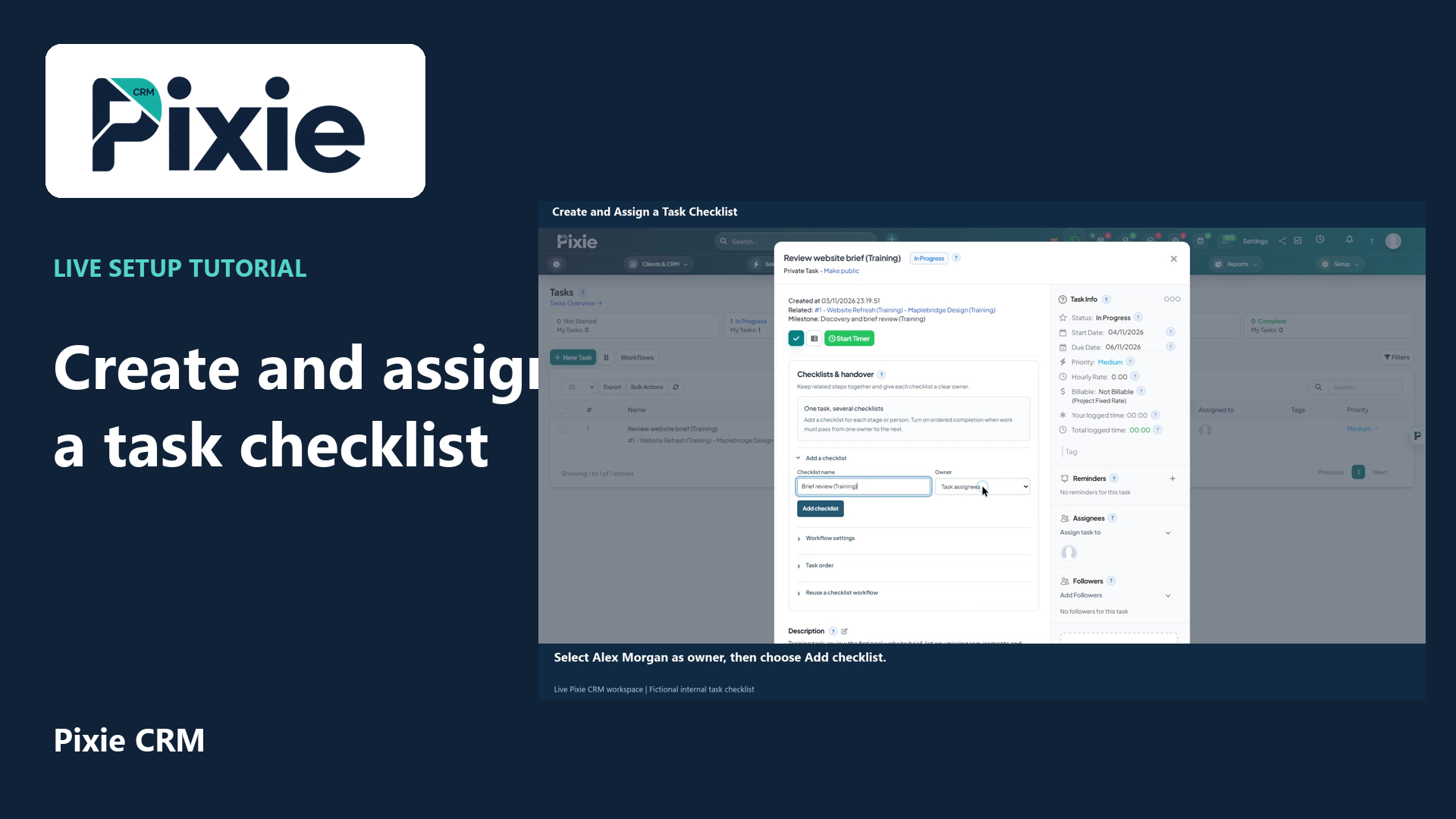
Create a named task checklist in Pixie CRM with live clicks. Enter the checklist name, choose an existing owner, save and reopen the task to verify the retained checklist.
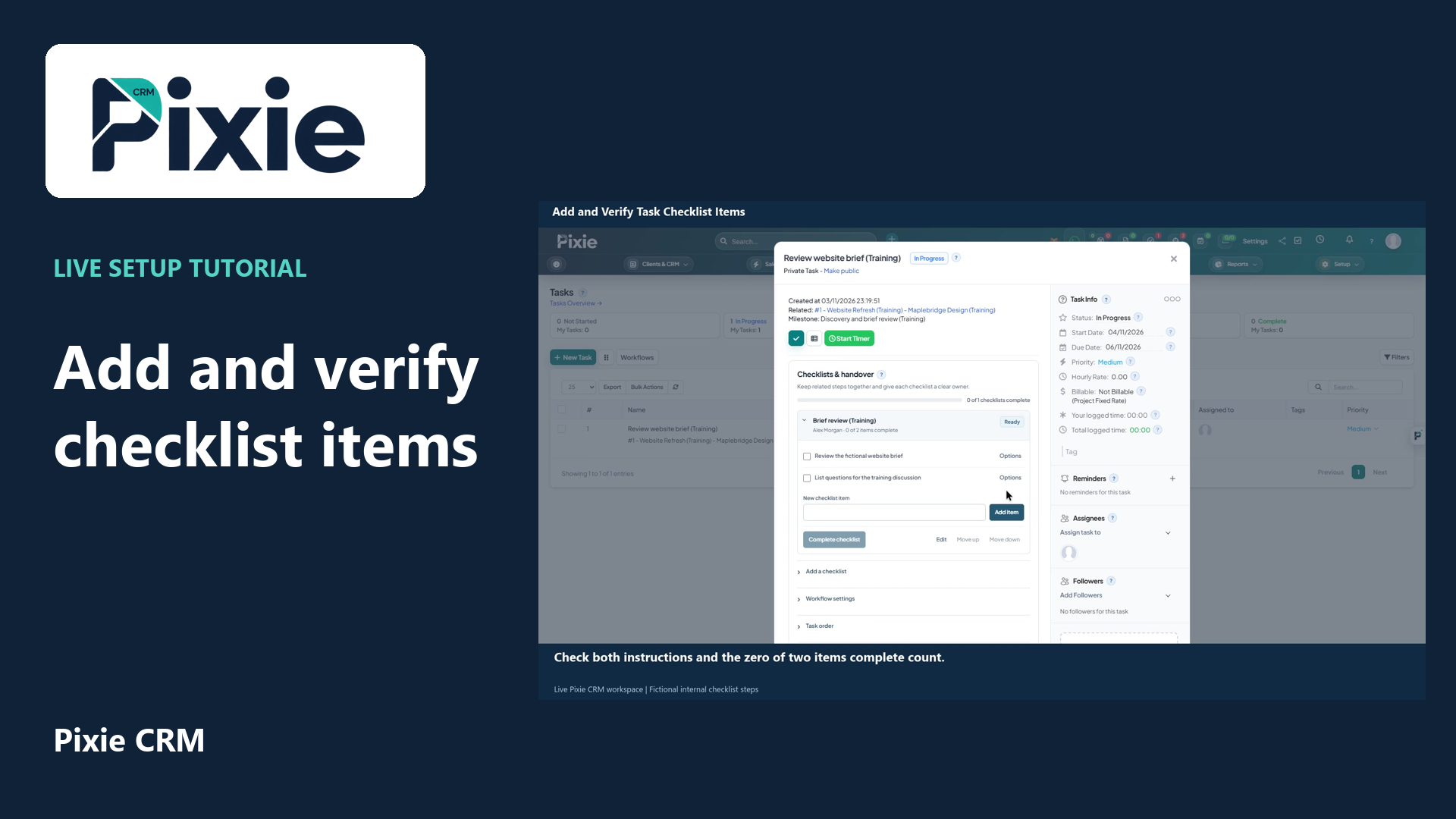
Add an item to a named task checklist in Pixie CRM with live clicks. Enter a clear instruction, save it, review the incomplete count and reopen the task to verify both retained steps.
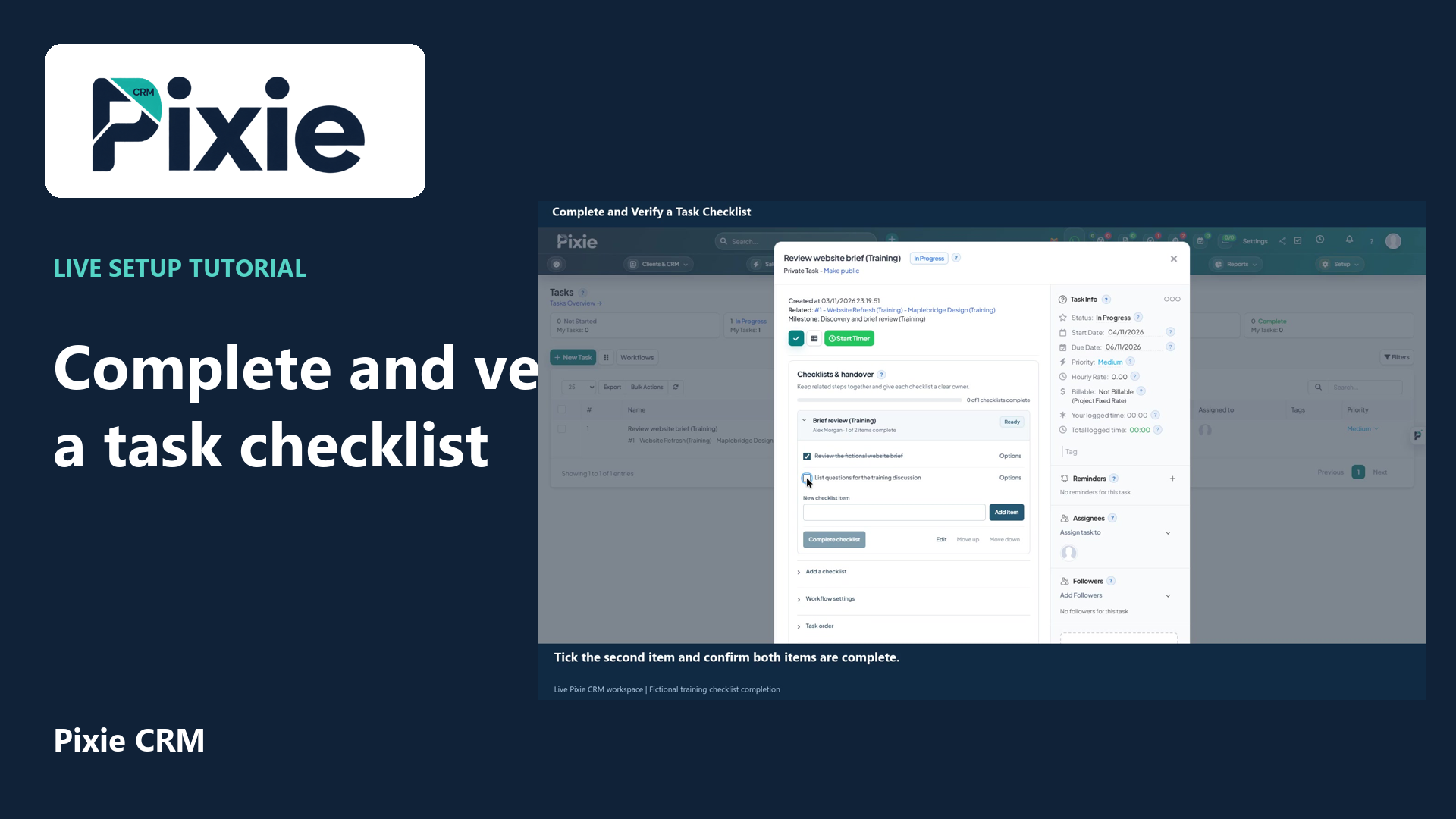
Complete a named task checklist in Pixie CRM with live clicks. Tick its two training items, complete the checklist and reopen the task to verify the retained result.
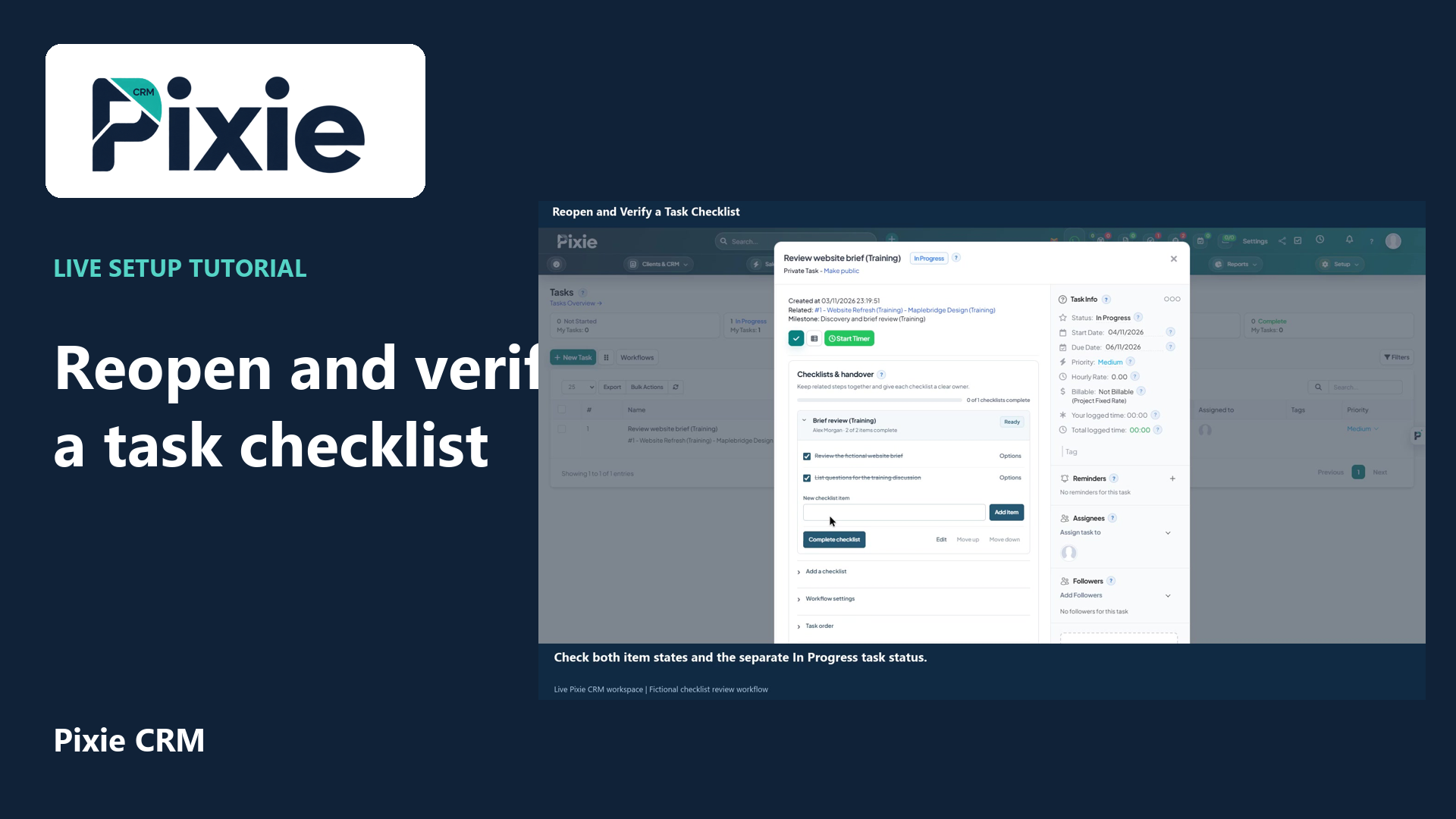
Reopen a completed task checklist in Pixie CRM with live clicks. Review the retained item checkboxes, check the separate task status and reopen the task to verify persistence.
Recorded in a demonstration workspace; available options depend on your plan and permissions.
Visit the Pixie CRM YouTube channel
Digitise internal processes, approvals, cases and operational controls. The scope can be tailored to your policies, roles, approvals, documents, dashboards and deployment model.
Begin with one representative workflow. Agree the minimum information required at intake, who can create or change it, what event moves the work forward and how an exception becomes visible. Test that path end to end before expanding the configuration, so training and reporting are based on a process people have actually validated.
Permissions should follow responsibility rather than convenience. Administrators need controlled configuration access, operational users need the actions required for their role, and reviewers may need evidence without edit rights.
Pixie CRM is designed around shared customer and operational records. Where appropriate, Enterprise Workflow Automation can sit alongside sales, finance, projects, service, documents, automation and reporting without forcing teams to re-key the same context. The exact relationship is scoped so one authoritative version remains clear.
Availability, dependencies, regulated use, external services and package inclusion are confirmed during discovery. This page describes the capability without implying that every option is enabled for every customer.
Enterprise Workflow Automation is listed for operations & workflow. The exact workflow, permissions, dependencies and package availability are confirmed during discovery.
No default inclusion should be assumed from the public catalogue. Activation and implementation scope are confirmed for the relevant workspace.
Where the workflow requires it, related customer, project, finance, service or operational records can be connected through approved Pixie CRM relationships and integrations.
Explore the tasks behind Enterprise Workflow Automation. Check the guide against your enabled modules and role, then confirm the result in your workspace.