
Pixie CRM guided video tutorial
Reopen and verify a task checklist
Recorded live · 1:22 · English captions
Reopen and verify a task checklist: live walkthrough
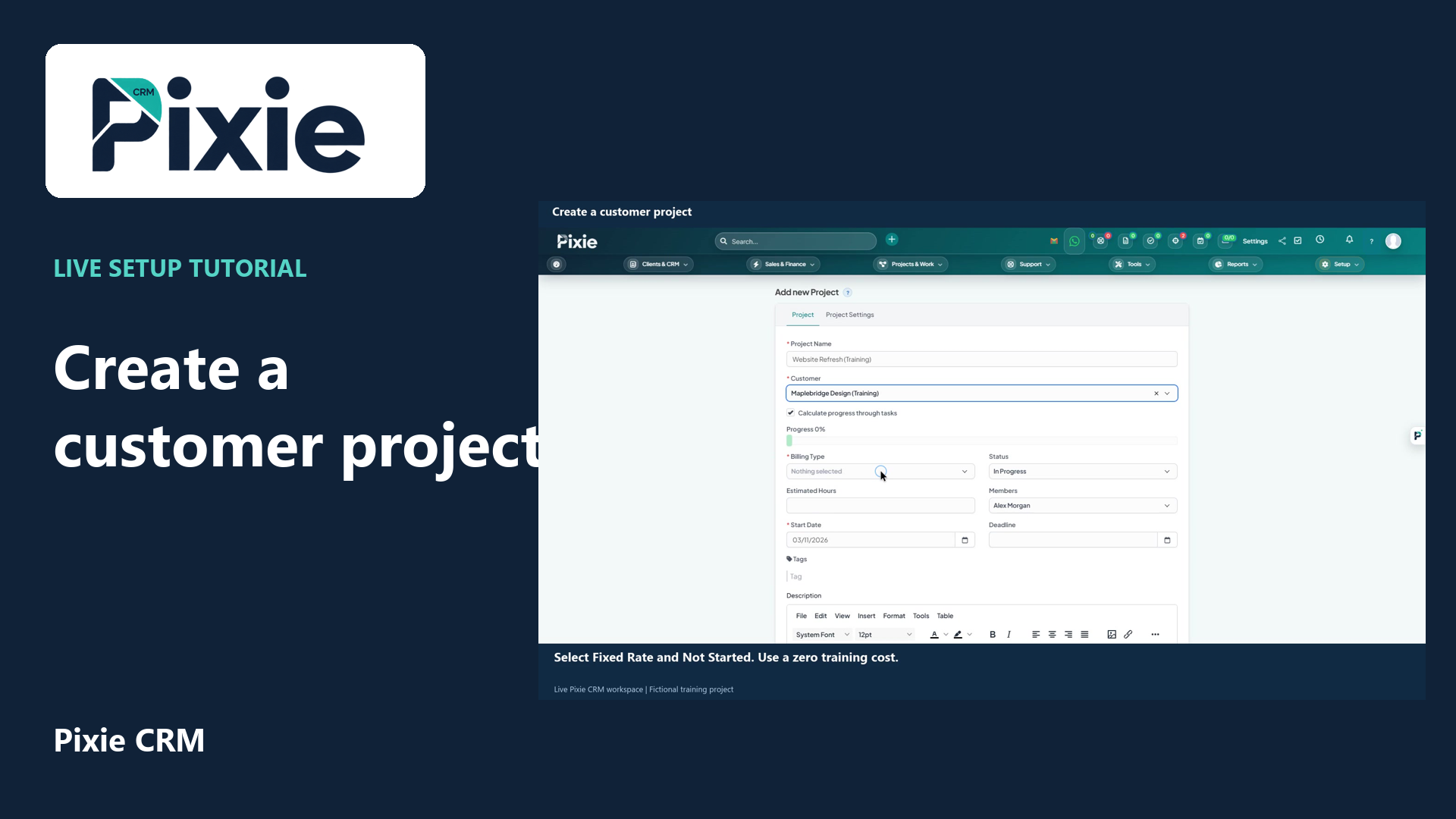 Create a customer project
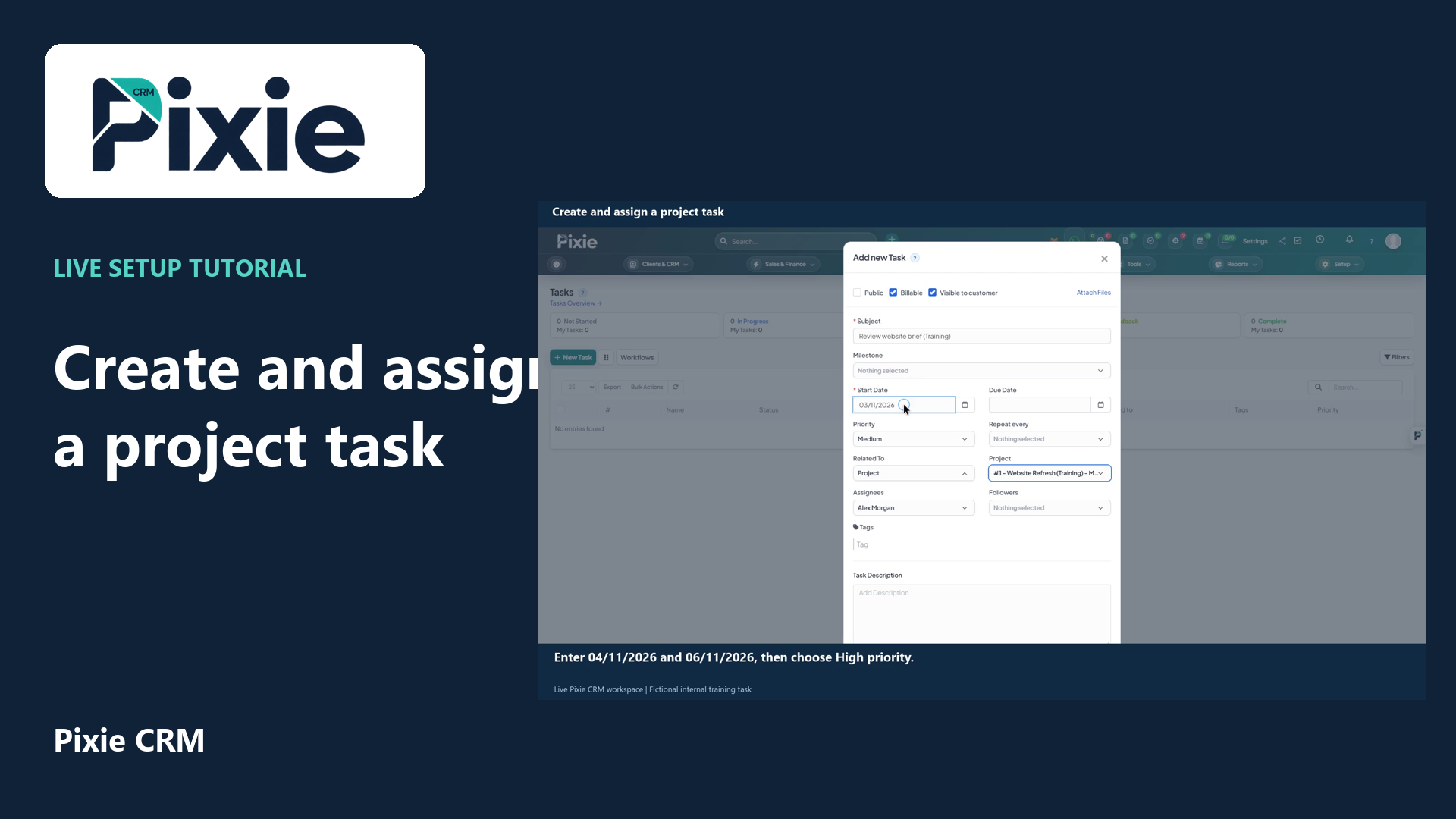 Create and assign a project task
More videos in this category · Read the matching instructions
Reopen a completed task checklist in Pixie CRM with live clicks. Review the retained item checkboxes, check the separate task status and reopen the task to verify persistence.
Matching written guide · Download MP4 · English captions
All task and checklist records are fictional training examples. Reopening the training checklist does not represent real completed or unfinished work, change customer access, record time or contact a customer.
Watch this tutorial on YouTube ↗ · Related Pixie CRM tutorials ↗
Video chapters
- 0:00 — Open the completed checklist
- 0:15 — Choose Reopen checklist
- 0:30 — Review retained items and task status
- 0:46 — Reopen the task and verify the result
- 1:01 — Continue with related Pixie CRM tutorials
Read the video transcript
Reopen a named task checklist in Pixie CRM. Open the training task and expand Brief review, Training. Confirm the completed-checklist count and the two checked items before changing its state.
Choose Reopen checklist. The completed-checklist count changes to zero of one. Reopening makes this checklist available for further work; it does not automatically clear the individual item checkboxes.
Both items remain checked. Review each instruction and change only the item states that need more work. Task Info still shows In Progress, because the task status is managed separately from checklist completion.
Close and reopen the same task, then review the checklist. Zero of one checklists complete is retained, and both item checkboxes remain checked. The checklist is ready for its owner to review and update.
Follow the written instructions
Open the matching written guide ↗ · Browse all Pixie CRM video guides