
Pixie CRM guided video tutorial
Schedule and verify a lead next action
Recorded live · 1:44 · English captions
Schedule and verify a lead next action: live walkthrough
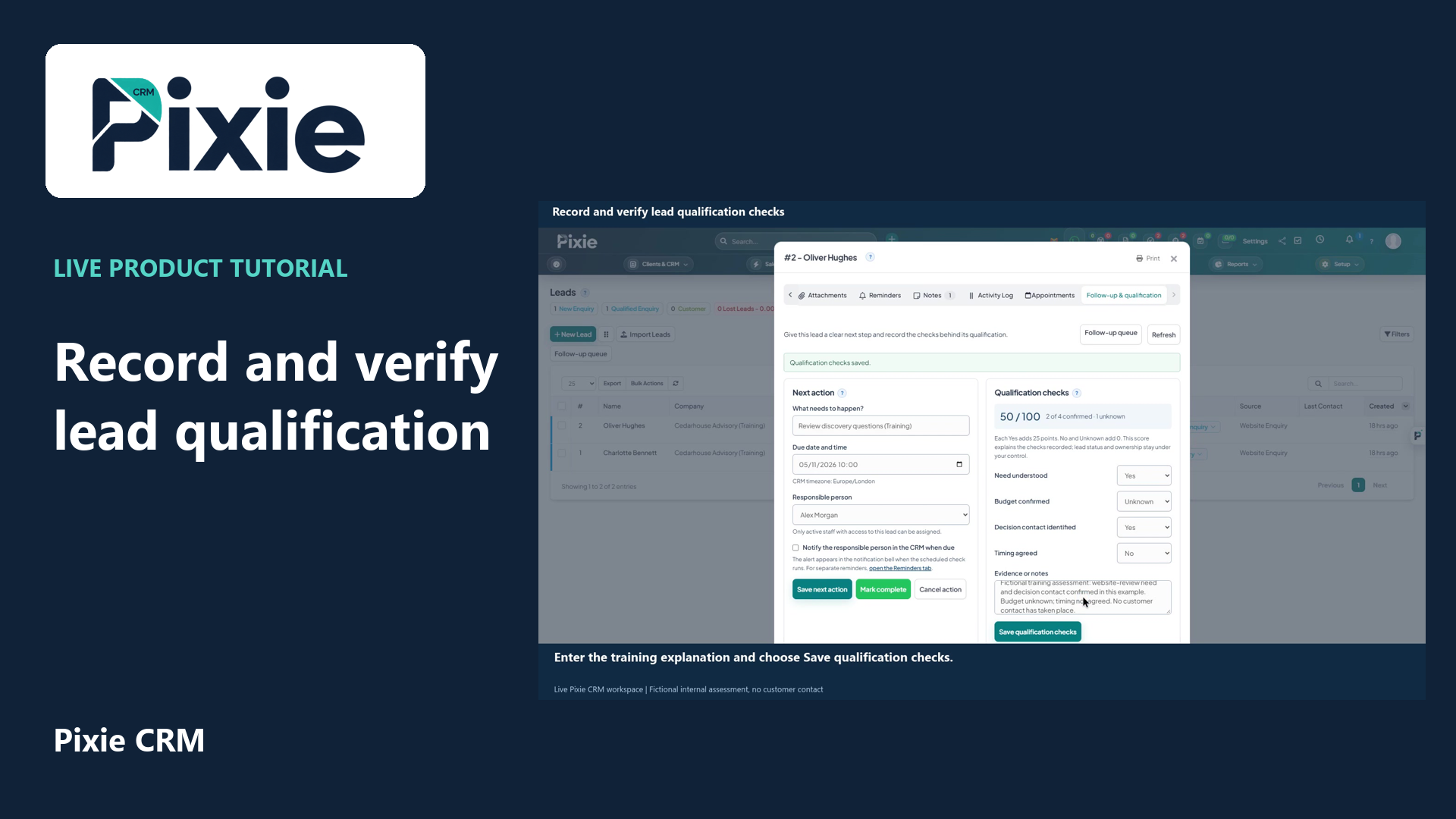 Record and verify lead qualification checks
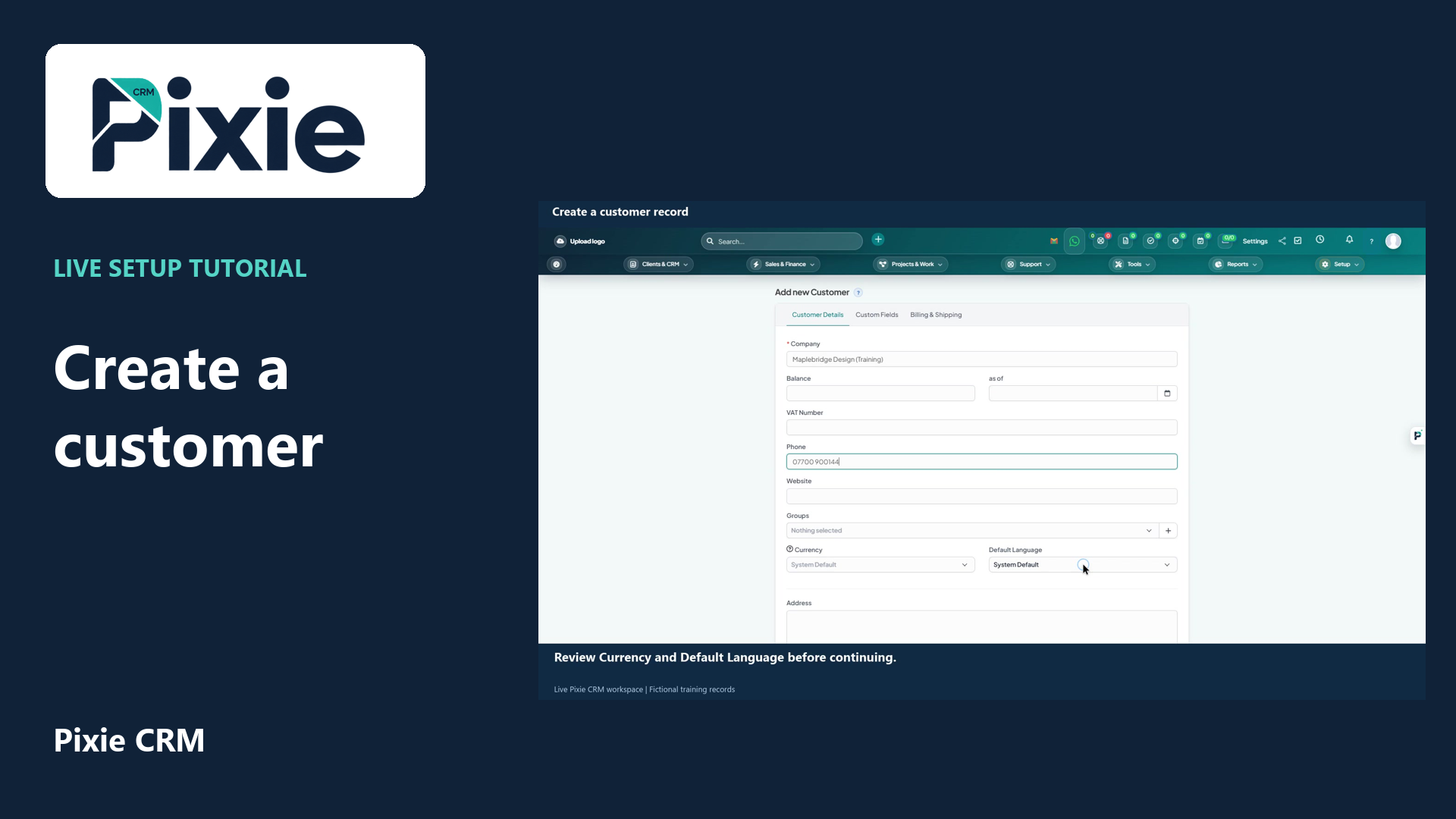 Create a customer record in Pixie CRM
More videos in this category · Read the matching instructions
Schedule a Pixie CRM lead next action with live clicks. Set the title, due date and time, responsible person and notification choice, save and reopen to verify the plan.
Matching written guide · Download MP4 · English captions
The prospect and internal review plan are fictional training records in the disposable workspace. Notifications are left off. No customer contact, email, call, appointment, lead conversion or status change is performed.
Watch this tutorial on YouTube ↗ · Related Pixie CRM tutorials ↗
Video chapters
- 0:00 — Open lead follow-up
- 0:24 — Enter the action and due time
- 0:45 — Review notifications and save
- 1:05 — Reopen and verify the saved plan
- 1:24 — Continue with related Pixie CRM tutorials
Read the video transcript
Give a lead a clear next step in Pixie CRM. Open Leads, choose Oliver Hughes and select Follow-up and qualification. Confirm the prospect and the Europe London timezone before entering the planned action.
Enter a specific internal review action. Set the due date to the fifth of November at ten in the morning, and choose Alex Morgan as the responsible person. A clear action and deadline make the next step easy to find.
Review the due-notification choice. This fictional training example leaves it off, so it creates no notification. Check the title, due time and owner, then choose Save next action. Saving the plan does not contact the prospect or change the lead status.
Close and reopen the same lead, then return to Follow-up and qualification. Verify the saved action, due time, responsible person and notification choice. The training lead remains a qualified enquiry, and no customer message has been sent.
Follow the written instructions
Open the matching written guide ↗ · Browse all Pixie CRM video guides