
Pixie CRM guided video tutorial
Require and verify task checklist completion
Recorded live · 1:23 · English captions
Require and verify task checklist completion: live walkthrough
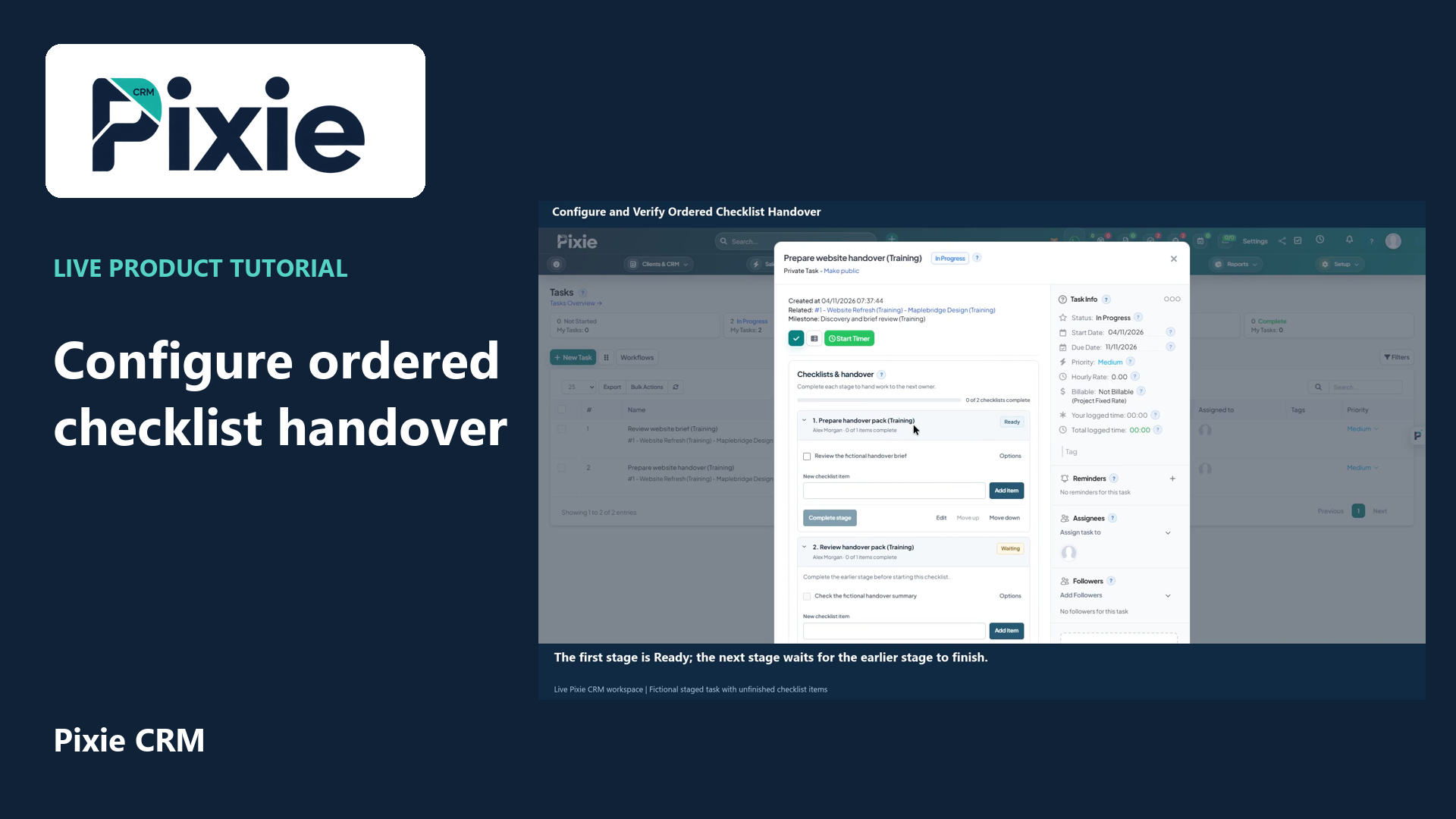 Configure and verify ordered checklist handover
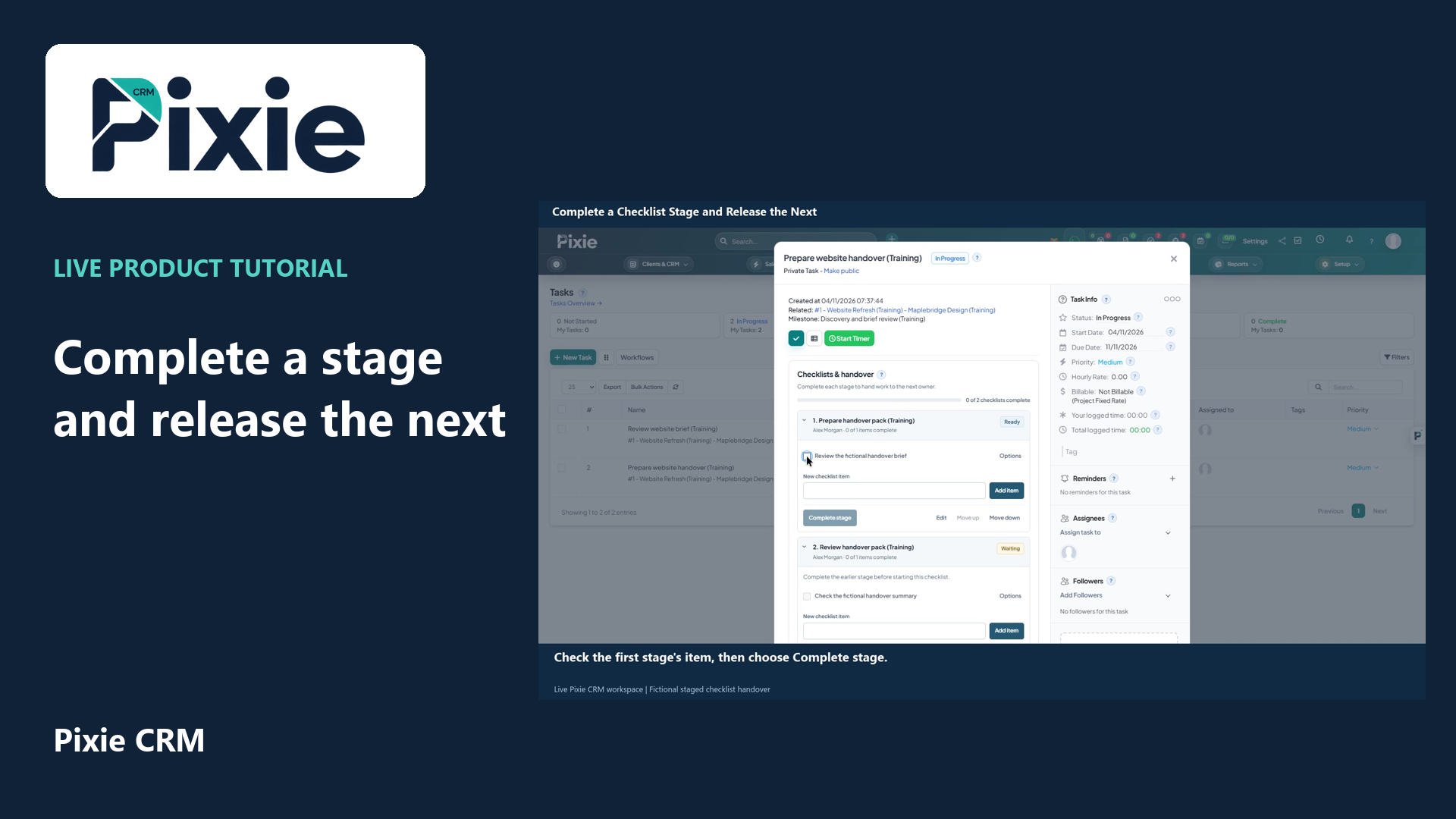 Complete a checklist stage and release the next
More videos in this category · Read the matching instructions
Require task checklist completion in Pixie CRM with live clicks. Save the workflow setting and reopen the task to verify it is retained.
Matching written guide · Download MP4 · English captions
The task and checklist are fictional training examples. The video saves the completion requirement; it does not change stage order, complete the task, demonstrate a multi-stage handover or contact a customer.
Watch this tutorial on YouTube ↗ · Related Pixie CRM tutorials ↗
Video chapters
- 0:00 — Open the task’s Workflow settings
- 0:15 — Enable the checklist completion requirement
- 0:31 — Save the completion rule
- 0:47 — Reopen and verify the saved setting
- 1:03 — Continue with related Pixie CRM tutorials
Read the video transcript
Require checklist completion in Pixie CRM. Open the training task and expand Workflow settings. The completion requirement controls whether the task can be finished before its checklists are complete.
Select Finish every checklist before completing the task. Keep checklist ordering unchanged in this example. Stage order should be configured before checklist work begins, because the system protects work that has already started.
Choose Save settings and check the confirmation. The checklist requirement is now saved. The task is marked complete separately after its checklists are finished; saving the rule does not complete the checklist or the task.
Close and reopen the task, then expand Workflow settings again. The completion requirement is retained, and the existing order setting is unchanged. Review the checklist before using the separate task completion control.
Follow the written instructions
Open the matching written guide ↗ · Browse all Pixie CRM video guides