
Pixie CRM guided video tutorial
Record and verify an expense
Recorded live · 2:03 · English captions
Record and verify an expense: live walkthrough
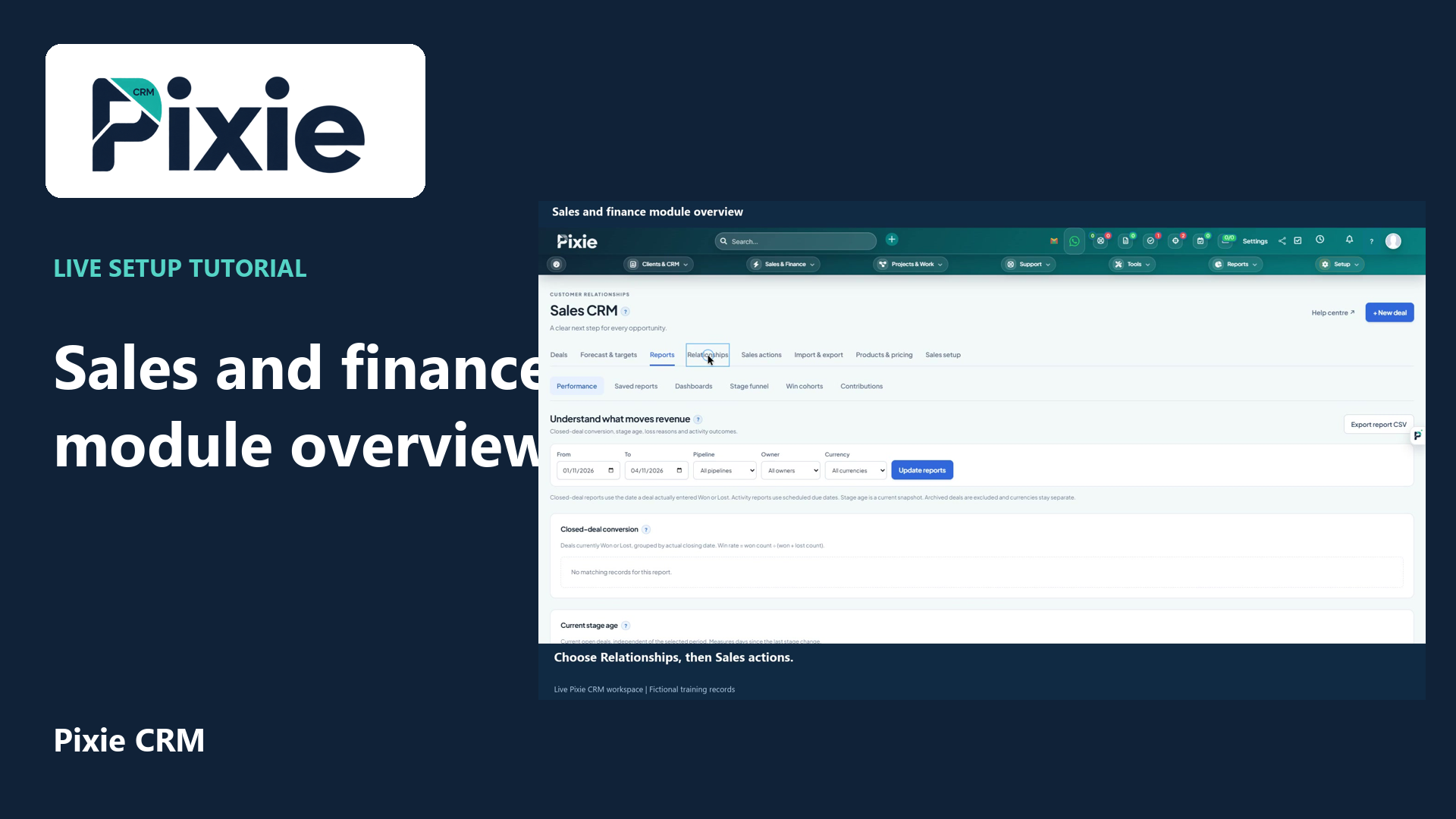 Sales and finance module overview
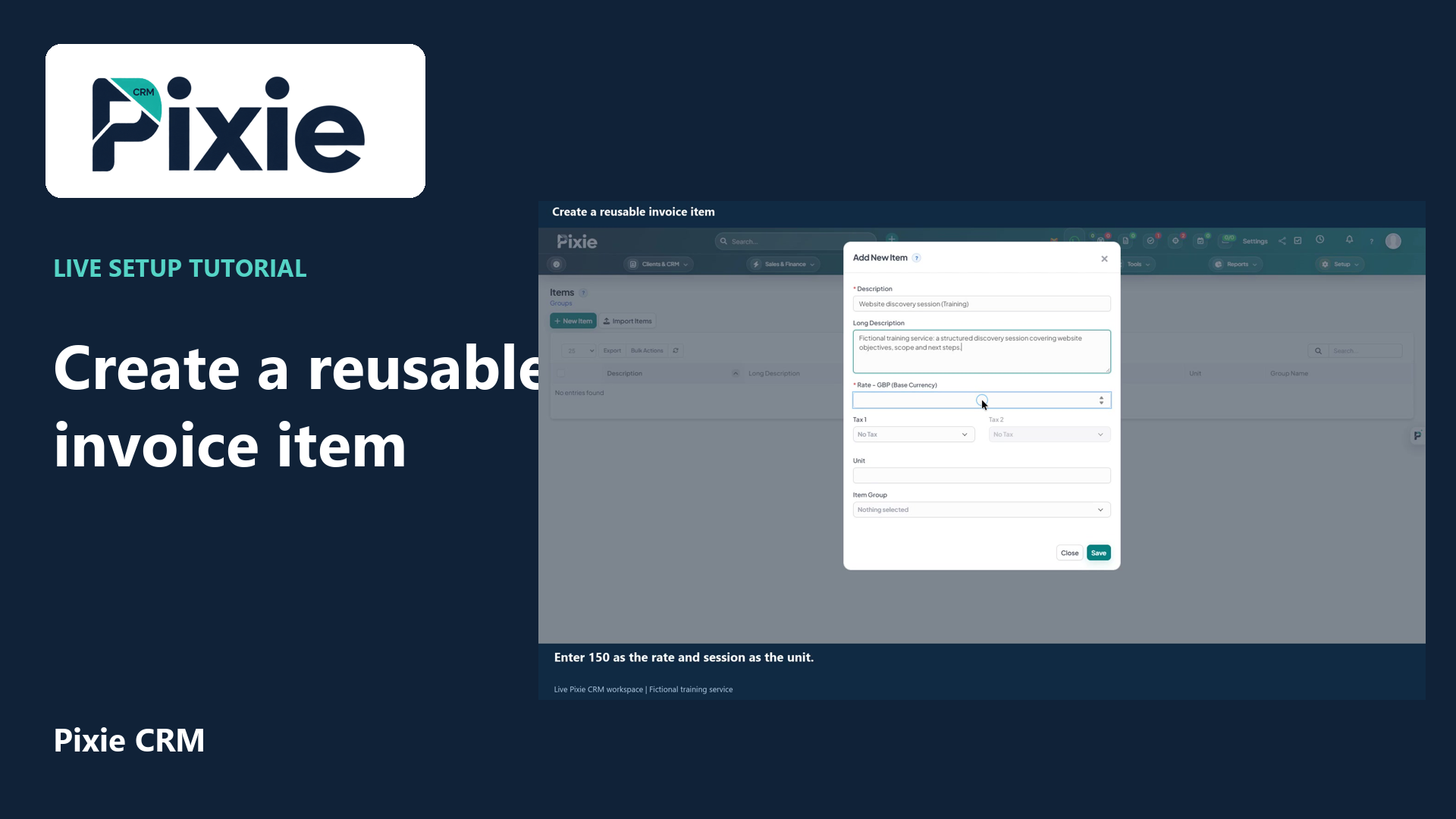 Create a reusable invoice item
More videos in this category · Read the matching instructions
Record an expense in Pixie CRM with live clicks. Add a name and reference, choose the category, check the date and currency, enter the amount and verify the saved record.
Matching written guide · Download MP4 · English captions
This is a fictional, non-billable expense record in a disposable training workspace. No real purchase, receipt, supplier payment, customer invoice or money movement is represented. No customer is linked in this example. Use the tax and payment settings that match your actual records.
Watch this tutorial on YouTube ↗ · Related Pixie CRM tutorials ↗
Video chapters
- 0:00 — Open Record Expense
- 0:17 — Add the expense name and reference
- 0:38 — Choose the saved category
- 0:52 — Review the date, amount and currency
- 1:09 — Add the training note
- 1:25 — Save and verify the expense record
- 1:43 — Continue with related Pixie CRM tutorials
Read the video transcript
Record a fictional expense in Pixie CRM. Open Expenses from Sales and Finance, then choose Record Expense. The form starts with the core fields, while optional links reveal a name, reference, note and other details.
Open the Name and Reference fields. Enter Workshop materials, Training, and the reference TRAIN, EXP, zero zero one. Clear identifiers make it easier to find an expense and relate it to supporting records.
Choose the Training and development category created in the setup tutorial. Use a consistent category for related expense types. This keeps your expense list and category reports easier to review.
Enter seventy-five pounds as the training amount. Check the fourth of November and pounds sterling as the currency. Recurrence, tax and payment mode are separate options; use the settings that match the underlying transaction in your real records.
Open Note and identify this as a fictional demonstration record. We are not linking a customer or making it billable in this example. No receipt, purchase or payment is being represented as a real event.
Choose Save, then review the saved expense. The name, category, seventy-five pound amount, reference and training note are retained. This stores a record inside the training workspace; it does not transfer money or pay a supplier.
Follow the written instructions
Open the matching written guide ↗ · Browse all Pixie CRM video guides