
Pixie CRM guided video tutorial
Preview and review a draft proposal
Recorded live · 1:49 · English captions
Preview and review a draft proposal: live walkthrough
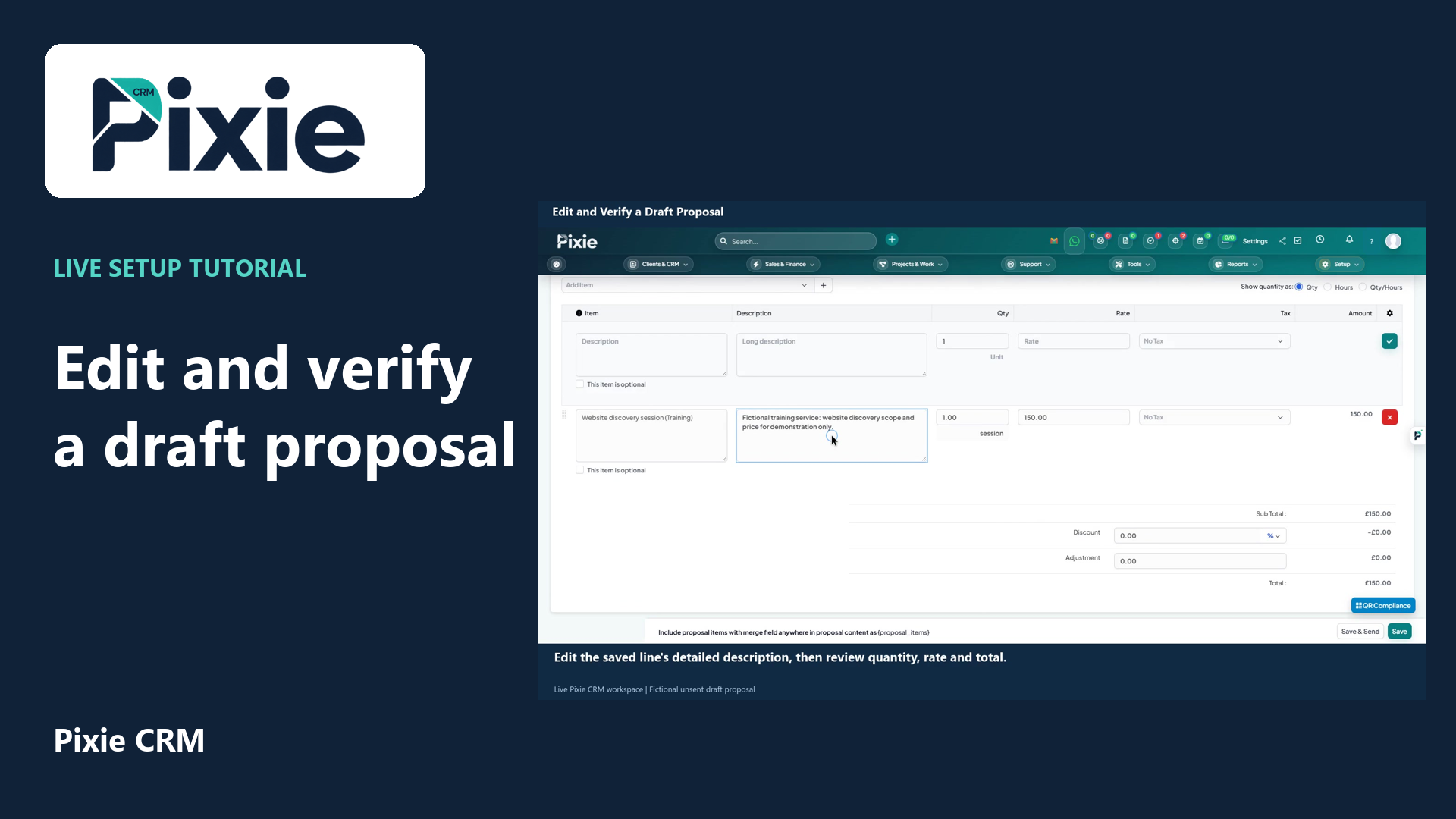 Edit and verify a draft proposal
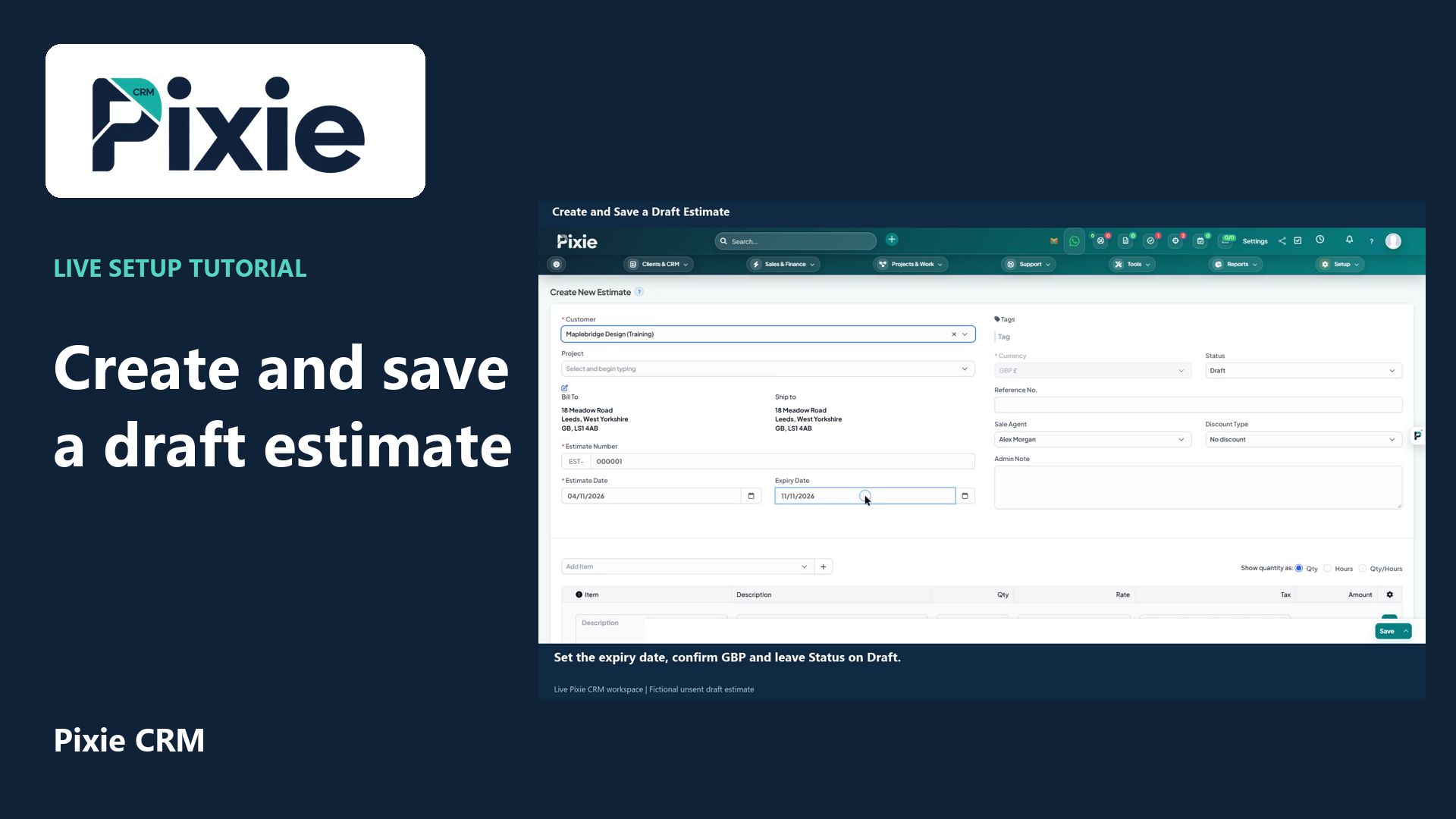 Create and save a draft estimate
More videos in this category · Read the matching instructions
Open a saved Pixie CRM proposal in its customer-facing preview with live clicks. Review its header, service line, total, recipient details, dates and discussion controls.
Matching written guide · Download MP4 · English captions
All proposal and customer records are fictional training examples. The private preview link is excluded from the published footage. No delivery, comment, acceptance, signature, payment or document conversion is performed.
Watch this tutorial on YouTube ↗ · Related Pixie CRM tutorials ↗
Video chapters
- 0:00 — Open the saved draft proposal
- 0:16 — Open More and View Proposal
- 0:26 — Review the proposal header and status
- 0:40 — Review the service and calculated total
- 0:56 — Check recipient details and dates
- 1:12 — Find Discussion and return to Summary
- 1:28 — Continue with related Pixie CRM tutorials
Read the video transcript
Preview a saved proposal in Pixie CRM. Open Proposals and select the Website planning training draft. Check the proposal number, customer, total and Draft status before opening the customer-facing view.
Open More and choose View Proposal. The customer-facing preview opens in a new tab, so you can review the rendered document.
Review the proposal number and title in the preview. Check the information panel as well: this training document remains Draft. The preview displays the proposal as a customer would see it.
Review the rendered service line, including its description, quantity and rate. Check the tax column and calculated total. This fictional example shows one discovery session with a total of one hundred and fifty pounds.
Check the customer name and address in Proposal Information. Review the document date and Open Till date before sharing a real proposal. These values should match the saved customer and the intended review period.
Open Discussion to find the proposal comment area, then return to Summary to review the document information. Complete your internal review before using delivery or acceptance controls. This walkthrough reviews the saved training draft.
Follow the written instructions
Open the matching written guide ↗ · Browse all Pixie CRM video guides