
Pixie CRM guided video tutorial
Integrations and administration overview
Recorded live · 3:00 · English captions
Integrations and administration overview: live walkthrough
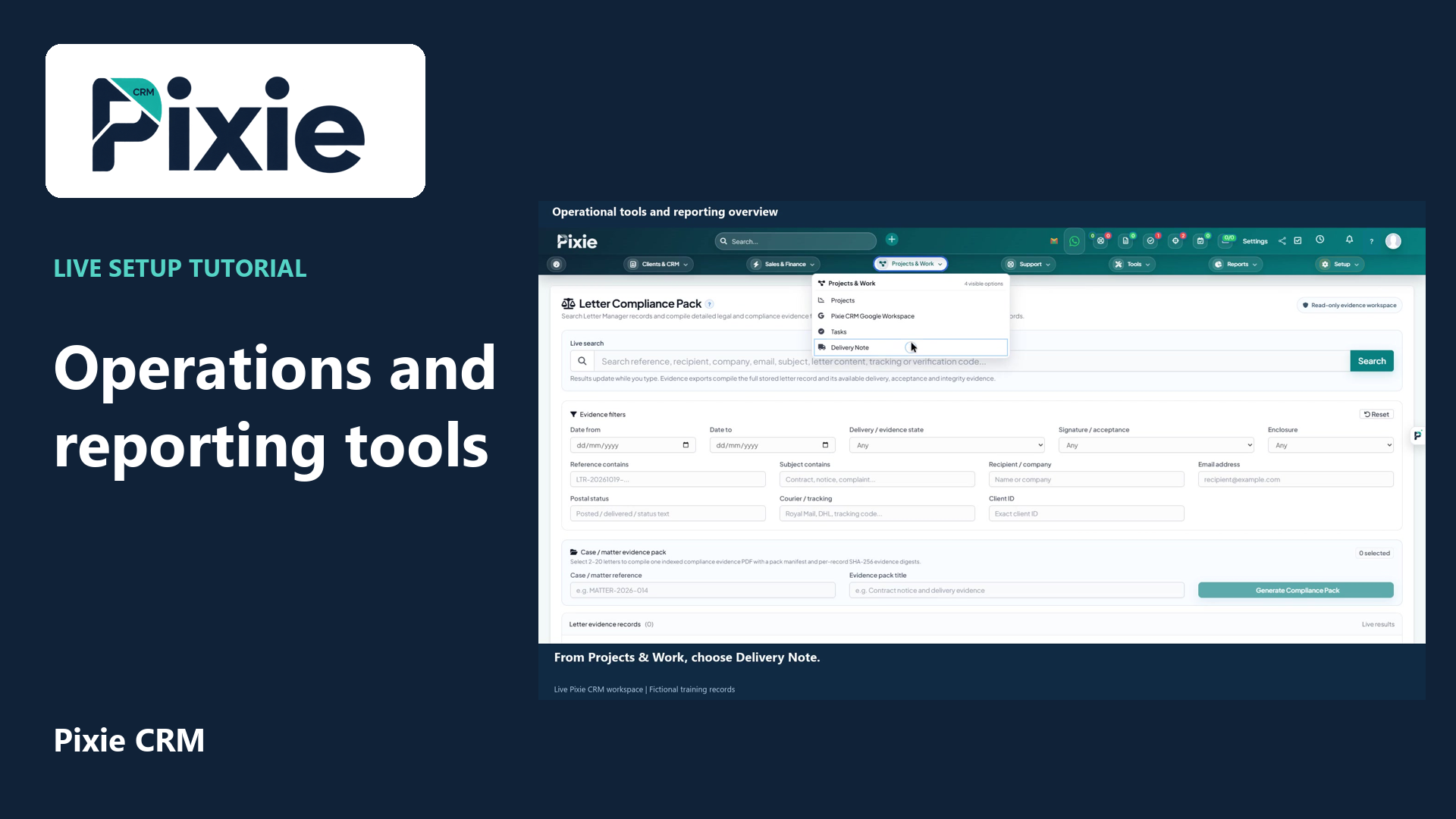 Operational tools and reporting overviewRead the matching written guideFollow the instructions at your own pace
More videos in this category · Read the matching instructions
Locate Pixie CRM integrations and administration controls with live clicks. Review Xero, QuickBooks and Sage readiness, automation, staff, roles, custom fields, privacy settings and the solution catalogue.
Matching written guide · Download MP4 · English captions
Recorded in a fictional training workspace. No external-provider connection, consent, permission grant or financial synchronisation is completed. Catalogue availability depends on workspace configuration and the requested solution.
Watch this tutorial on YouTube ↗ · Related Pixie CRM tutorials ↗
Video chapters
- 0:00 — Review Xero integration readiness
- 0:22 — Review QuickBooks integration readiness
- 0:42 — Review Sage integration readiness
- 1:02 — Find the automation workspace
- 1:22 — Locate staff and role administration
- 1:41 — Locate custom fields and privacy controls
- 1:59 — Distinguish the catalogue from configured modules
- 2:19 — Return to the dashboard and choose your next guide
- 2:40 — Continue with related Pixie CRM tutorials
Read the video transcript
Open the Xero integration dashboard. Its navigation includes invoice sync, reconciliation, bank activity, document intake, mappings, exceptions and compliance evidence. This workspace shows Not Configured. Complete the provider connection privately before expecting data synchronisation.
The QuickBooks integration has its own dashboard and corresponding synchronisation, reconciliation, document and evidence tools. Review connection readiness and exceptions for the correct provider. This training workspace does not claim a completed connection or successful external transfer.
Open Sage Accounting to locate its provider-specific synchronisation and reconciliation workspace. The dashboard keeps connection status and queued work visible. Follow the dedicated integration guide and complete account authorisation privately before using it with real accounting records.
Open Pixie CRM Automations to review the available Zapier capabilities and workspace-specific connection information. Read the requested capabilities before authorising an external automation. This overview only locates the controls and does not grant a connection new access.
Setup contains Staff and Roles for team administration. Review the intended person, role and required access before making changes in a live workspace. This overview shows where the controls are; the training recording does not add a user or change permissions.
Custom Fields extends the information captured against supported records. GDPR provides privacy-related controls. Configure these for your actual organisational process and review the consequences of any data or retention action before applying it.
Solution Catalogue lists configurable capabilities and integration options. Catalogue entries are options to explore or request; they are not a claim that every listed solution is installed in this trial. Use the configured workspace menus and the relevant guide to understand current availability.
Choose the Pixie logo to return to the dashboard. You have followed the setup, customer, lead, project and task workflows, and located the wider business tools. Continue with the dedicated feature videos for detailed saved-result instructions, using the same matching help pages.
Follow the written instructions
Open the matching written guide ↗ · Browse all Pixie CRM video guides