
Pixie CRM guided video tutorial
Create and save a draft estimate
Recorded live · 2:43 · English captions
Create and save a draft estimate: live walkthrough
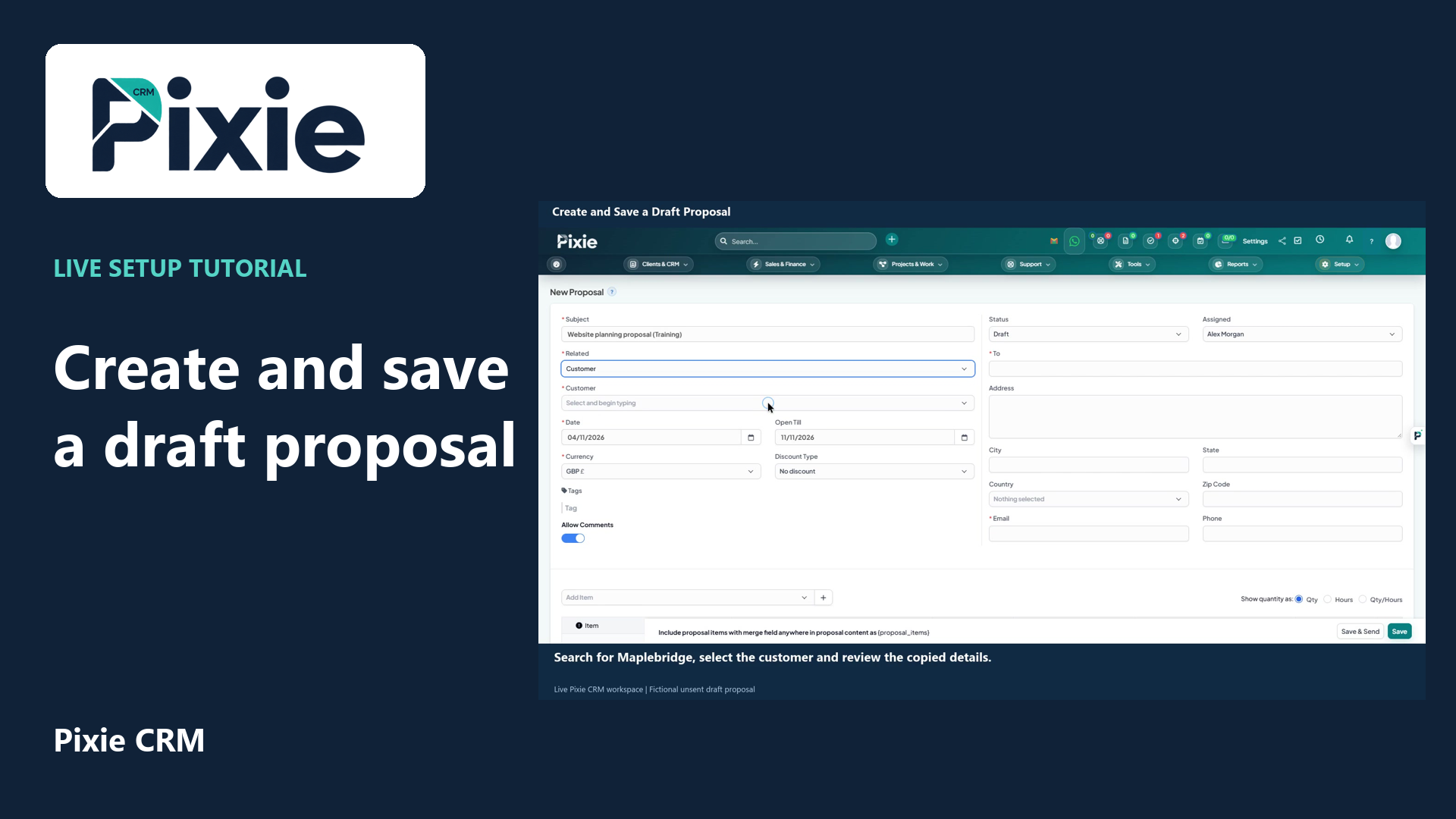 Create and save a draft proposal
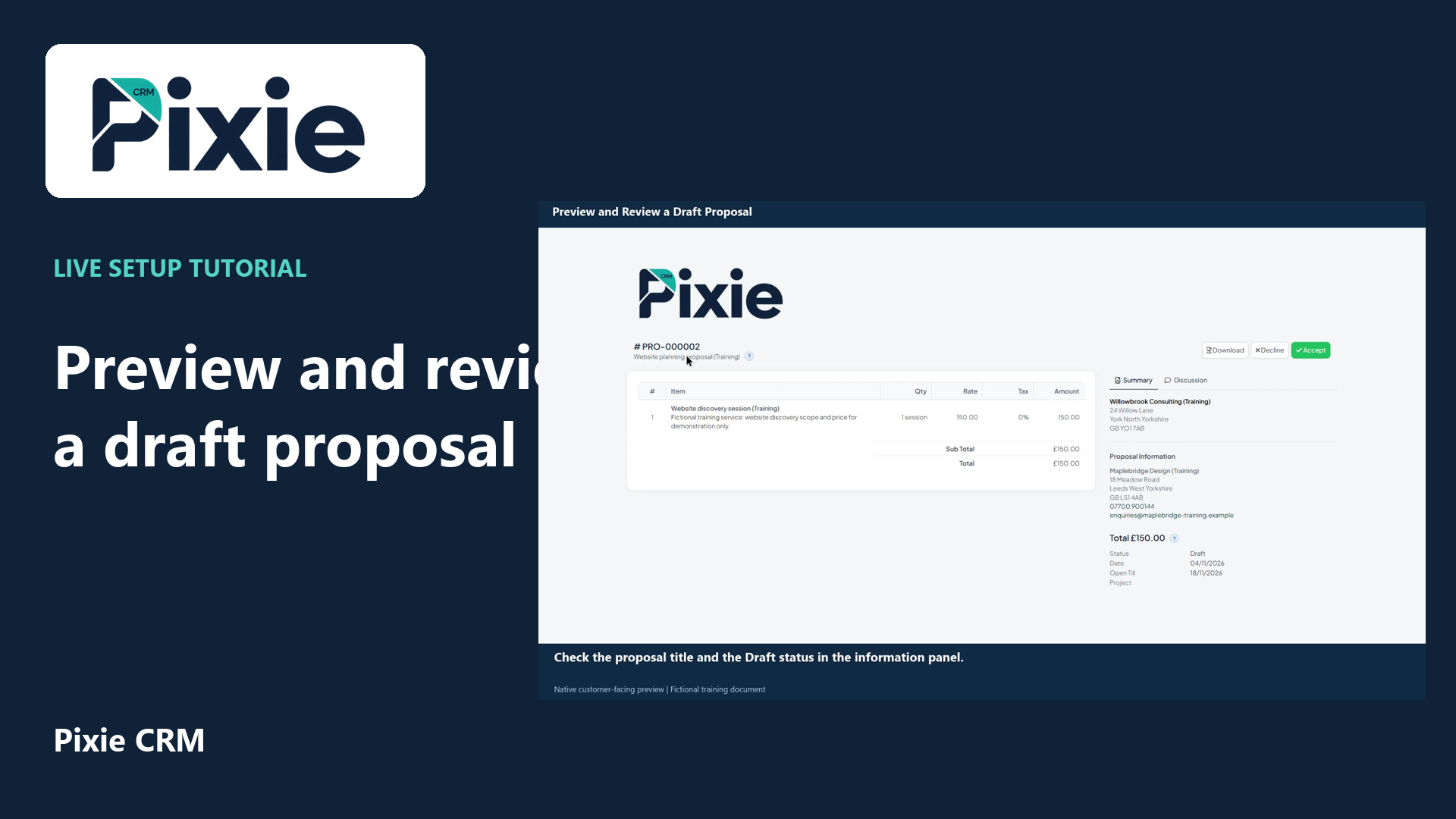 Preview and review a draft proposal
More videos in this category · Read the matching instructions
Create a draft estimate in Pixie CRM with live clicks. Select the customer, review dates, GBP and status, add a reusable service item, save and verify the stored draft.
Matching written guide · Download MP4 · English captions
All customer, service and estimate records are fictional training examples. The estimate is an unsent draft. No offer, agreement, customer message, acceptance, payment request or invoice is created.
Watch this tutorial on YouTube ↗ · Related Pixie CRM tutorials ↗
Video chapters
- 0:00 — Create a new estimate
- 0:15 — Select the customer
- 0:31 — Check dates, currency and draft status
- 0:47 — Choose the reusable service item
- 1:02 — Review and add the priced line
- 1:19 — Add clear draft notes
- 1:40 — Save the estimate as a draft
- 1:57 — Verify the saved draft
- 2:23 — Continue with related Pixie CRM tutorials
Read the video transcript
Create a draft estimate in Pixie CRM. Open Estimates from Sales and Finance, then choose Create New Estimate. We will prepare a fictional service estimate and save it as a draft for review.
Choose the customer before adding prices. Search for Maplebridge and select the saved training record. The estimate uses the customer details already stored in Pixie CRM; check the billing information before continuing.
Review the estimate number and date. Set the expiry date to the eighteenth of November, using the workspace date format. Confirm G B P currency, keep Status on Draft and enter a clear internal reference.
Choose the reusable Website discovery session item. Its saved description, rate and unit fill the item entry. Review these values for this estimate before adding the line to the document.
Enter a brief description of the proposed training service. Keep quantity at one and review the one hundred and fifty pound rate. Add the item to the estimate and check the calculated total. This example has no tax line.
Add a clear client note identifying this as a fictional training draft. Use Admin Note for the separate internal review instruction. Check your own commercial terms before sharing any real estimate.
Confirm that Status still reads Draft, then choose Save. This stores the estimate for review. Saving this draft does not email it, record acceptance or create an invoice.
Review the saved estimate and its Draft status. Check the customer, service line, total, reference and training note against what you entered. The draft is ready for an internal review; sending, acceptance and conversion are separate workflows.
Follow the written instructions
Open the matching written guide ↗ · Browse all Pixie CRM video guides