
Pixie CRM guided video tutorial
Configure and verify WhatsApp reply visibility
Recorded live · 1:53 · English captions
Configure and verify WhatsApp reply visibility: live walkthrough
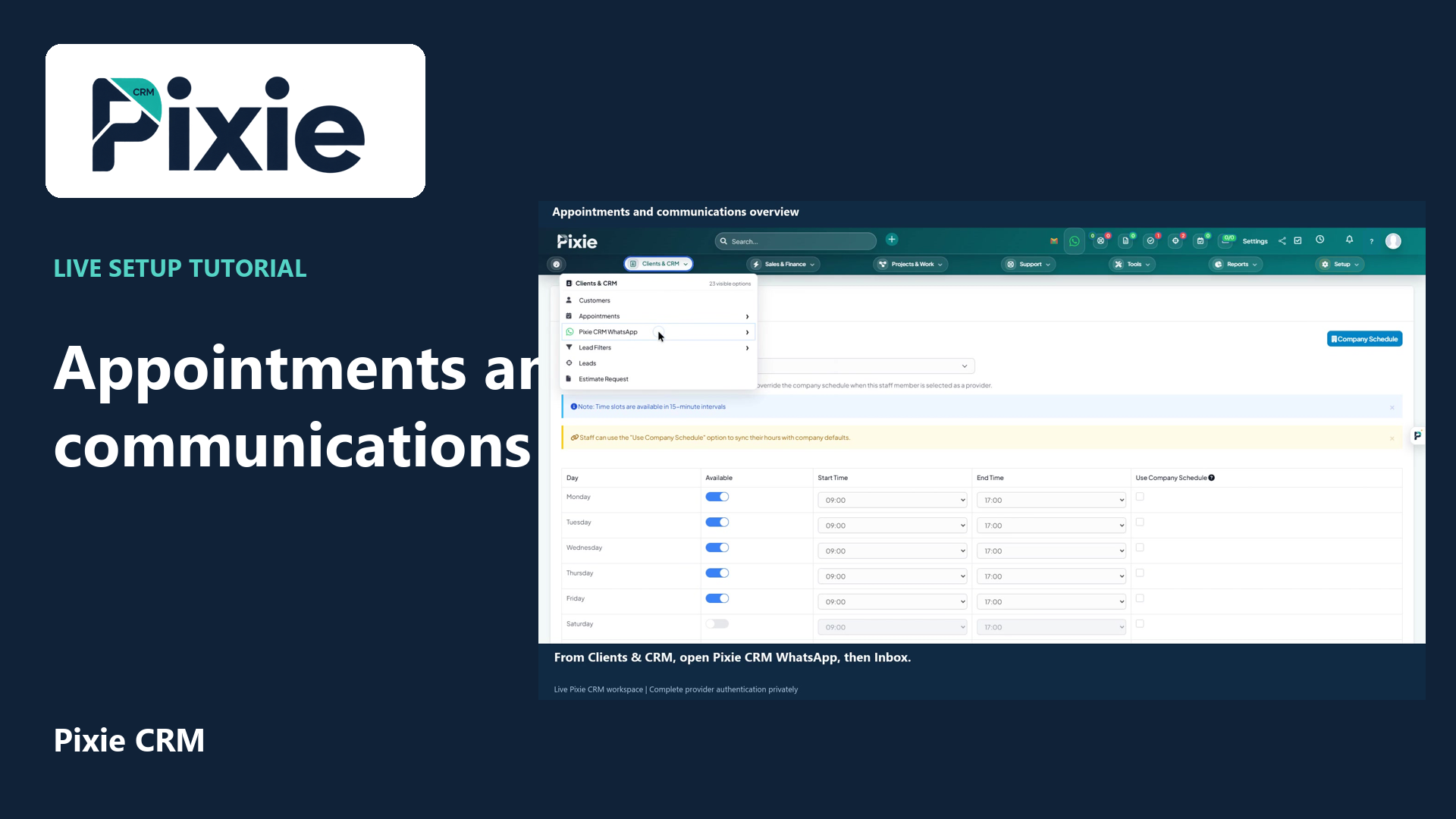 Appointments and communications overview
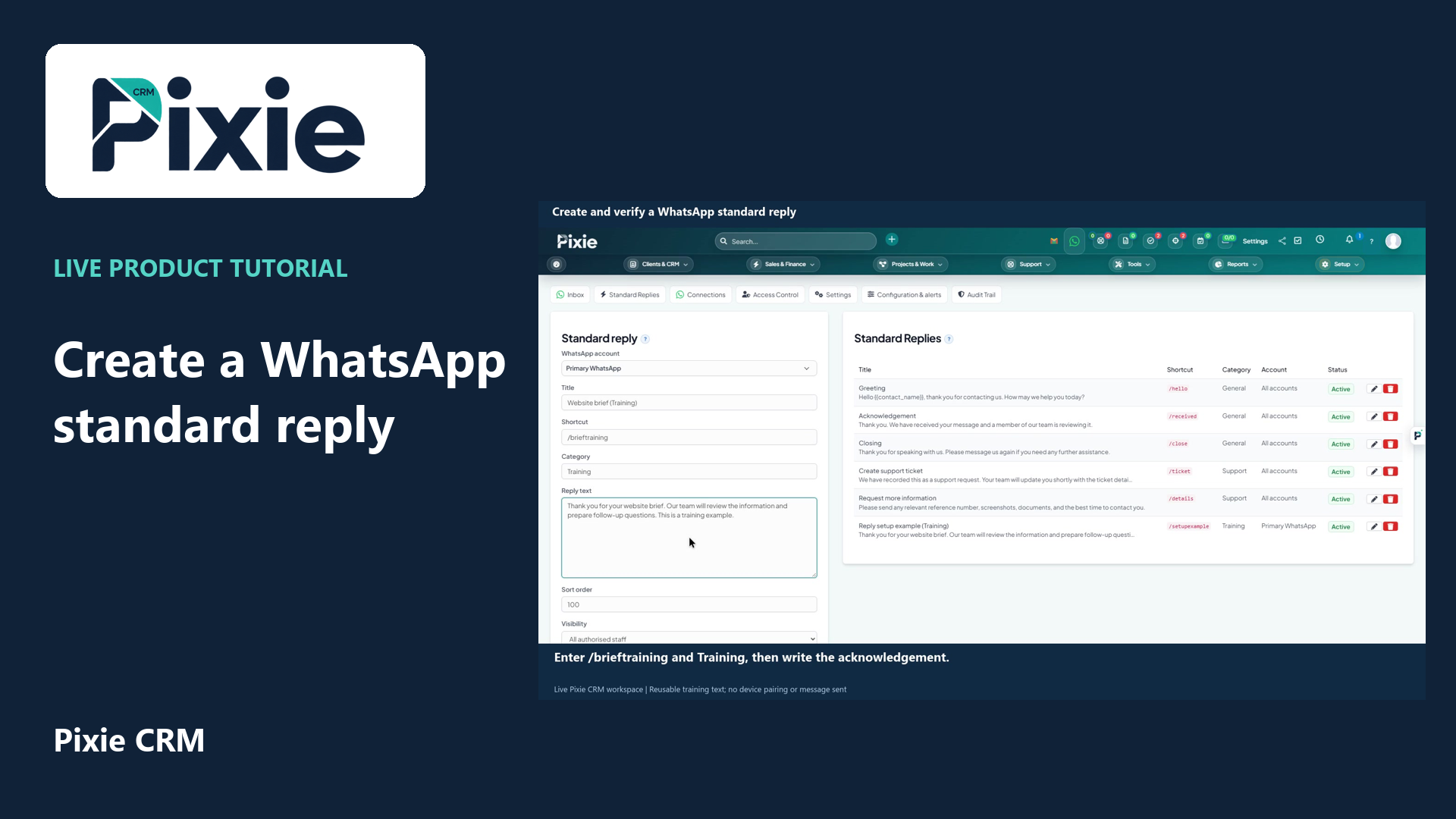 Create and verify a WhatsApp standard reply
More videos in this category · Read the matching instructions
Configure Pixie CRM WhatsApp standard-reply visibility with live clicks. Choose an existing staff member, save and verify the restriction, then restore and verify the original visibility.
Matching written guide · Download MP4 · English captions
The existing fictional training staff member is the only selected colleague. No staff member, WhatsApp account permission, device pairing or customer message is created. The reply returns to its original visibility by the end.
Watch this tutorial on YouTube ↗ · Related Pixie CRM tutorials ↗
Video chapters
- 0:00 — Review the existing reply visibility
- 0:19 — Choose selected staff only
- 0:38 — Save and verify the staff restriction
- 0:57 — Restore the original visibility
- 1:12 — Reopen and verify the retained settings
- 1:32 — Continue with related Pixie CRM tutorials
Read the video transcript
Configure who can use a WhatsApp standard reply in Pixie CRM. Open Standard Replies and edit the saved training reply. Review All authorised staff in Visibility. This setting controls this reply and does not grant access to an account or its conversations.
Choose Selected staff only in Visibility. Select the existing Alex Morgan entry in the staff field. Use this option when reusable wording should be limited to named authorised colleagues. This training example adds no staff member or account permission.
Choose Save standard reply, then reopen the same record. Verify Selected staff only and Alex Morgan are retained. Check the account, title, shortcut and sort order as well. Saving a visibility change sends no customer message.
For this training workspace, restore the original All authorised staff setting and save again. The staff selection is no longer used by that visibility mode. The same reply record remains in the library.
Reopen Edit to verify that All authorised staff was saved. Confirm the selected WhatsApp account and the active state. The training reply retains its identity and wording throughout. Review reply visibility alongside your existing account access policy before real use.
Follow the written instructions
Open the matching written guide ↗ · Browse all Pixie CRM video guides