
Restrict a reply to selected staff
Pixie CRM guidance. Follow the route for your workspace, check your role and enabled modules, and verify the result before moving on.
Follow this guide to choose Selected staff only and select the allowed staff members.
Learn with Pixie CRM
Watch this workflow
Follow real application screens at your own pace, with English captions and a matching written guide.
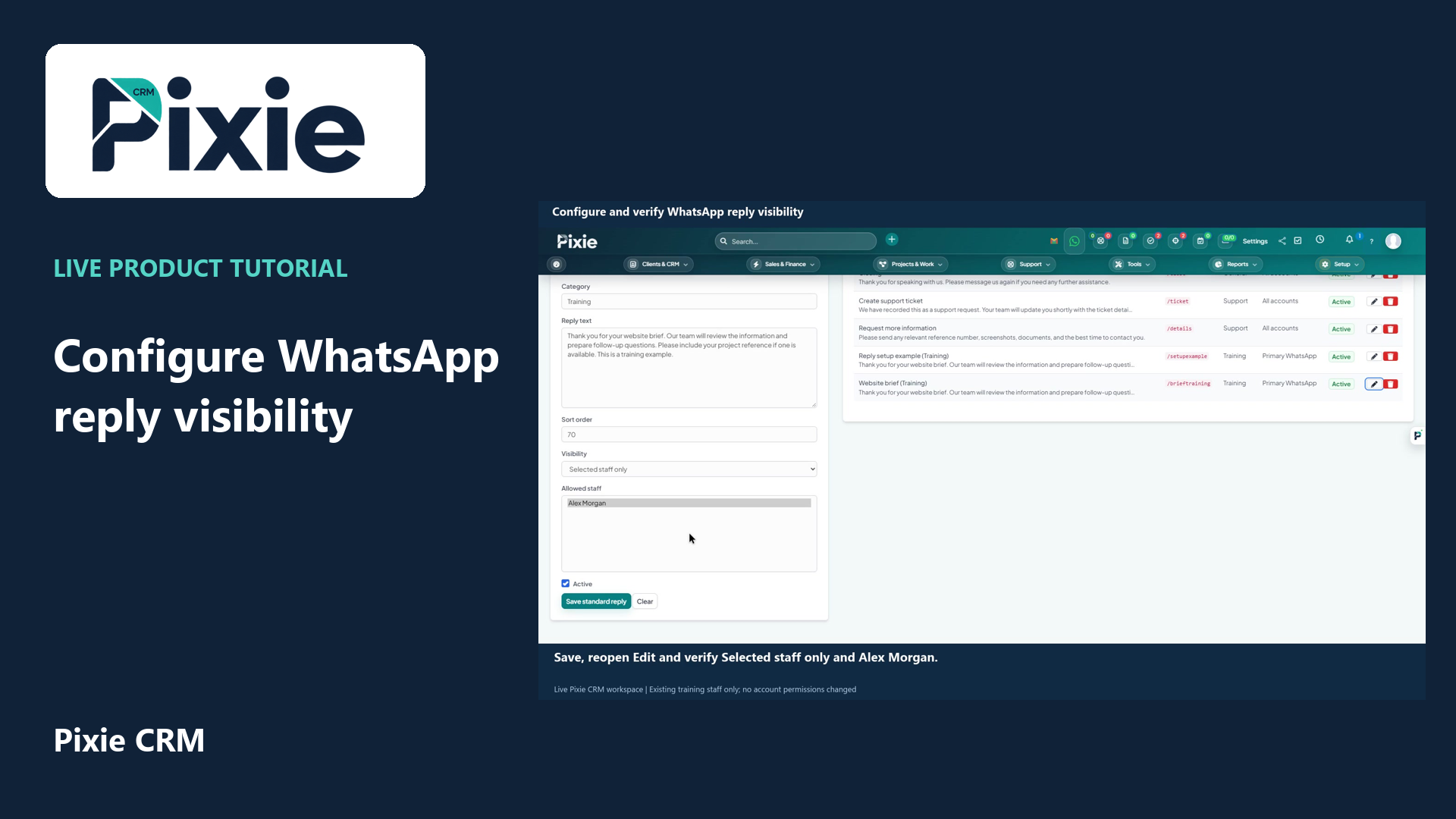
Configure and verify WhatsApp reply visibility
Configure Pixie CRM WhatsApp standard-reply visibility with live clicks. Choose an existing staff member, save and verify the restriction, then restore and verify the original visibility.
Recorded in a demonstration workspace; available options depend on your plan and permissions.
Visit the Pixie CRM YouTube channel
- Verify the module is active and select the intended WhatsApp account before changing any operational record.
- Use an account with the stated native CRM capability and per-account access.
- Test with controlled customer/contact data before relying on live verification, email or CRM automation.
What this guide helps you do
Choose Selected staff only and select the allowed staff members. These instructions follow the supplied r20.5 controller, model, view, installer, connector and automation flow.
Follow these steps
- Go to Admin Area → WhatsApp → Standard Replies.
- Select the relevant record or setting.
- Follow the supported controls described below.
- Save or confirm once.
- Check the result.
Fields and options
Rules and limits
- Only administrators can create global All accounts replies.
- A non-administrator must have the native Manage standard replies capability and Manage access to the applicable account.
- The Inbox shows active global and selected-account replies that the current staff member is allowed to see.
- Choose Selected staff only and select the allowed staff members.
Check it worked
- The requested action completes without a permission, validation, connector or native CRM error.
- The selected account or conversation shows the expected state without changing another account’s data.
- Where the action creates evidence, confirm the message, native record, verification event, portal history or audit entry is present.
Security, privacy and troubleshooting checks
- Never expose connector tokens, loopback ports, authentication directories or raw customer verification replies.
- Use the supported Connections, Access Control, Settings and Audit Trail pages rather than editing runtime or database records directly.
- If the expected control is missing, verify both native capability and per-account permission before treating it as an installation fault.