
Pixie CRM guided video tutorial
Add GBP and set your base currency
Recorded live · 2:07 · English captions
Add GBP and set your base currency: live walkthrough
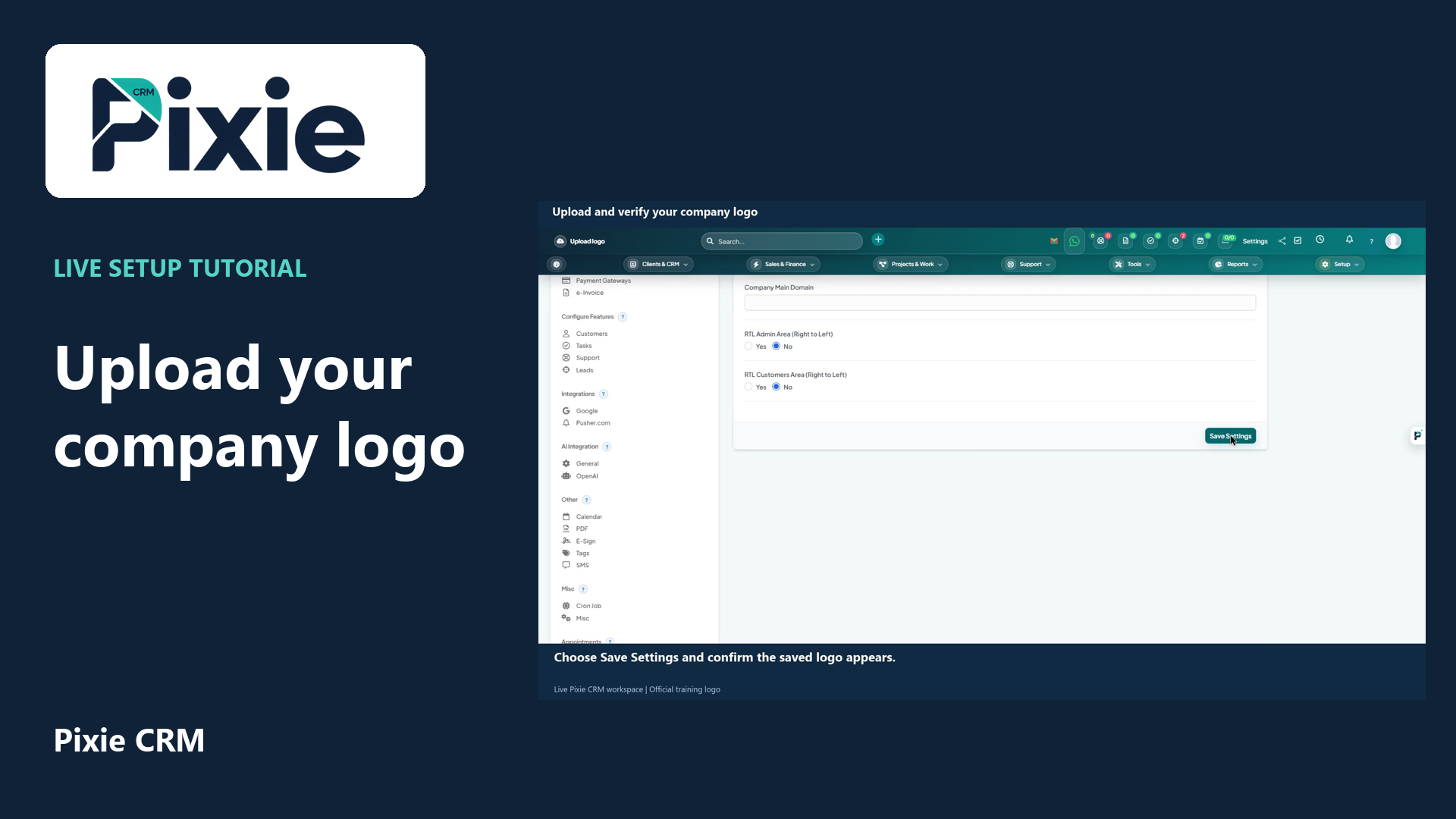 Upload and verify your company logo
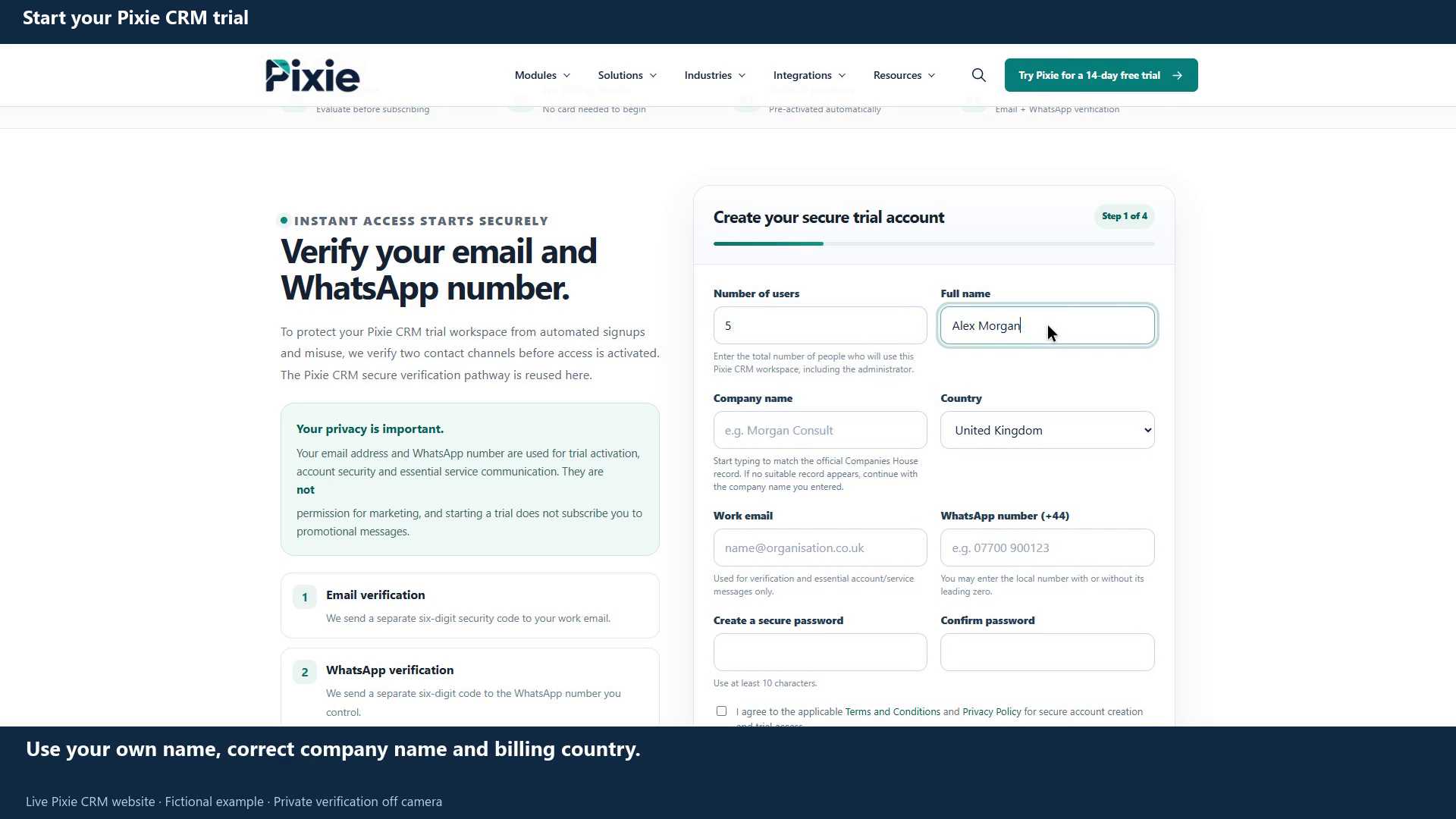 Start your Pixie CRM trial
More videos in this category · Read the matching instructions
Configure GBP in Pixie CRM with live clicks. Add the currency code and pound symbol, review number formatting, save the currency and confirm the Base Currency label.
Matching written guide · Download MP4 · English captions
Recorded in an empty fictional training workspace. No invoices, payments or currency conversions are created. Choose the base currency appropriate to your organisation and review existing financial records before changing settings in an established workspace.
Watch this tutorial on YouTube ↗ · Related Pixie CRM tutorials ↗
Video chapters
- 0:00 — Open the currency settings
- 0:17 — Add the currency code and symbol
- 0:33 — Review number formatting
- 0:47 — Save and confirm GBP
- 1:02 — Make GBP the base currency
- 1:22 — Continue customer and finance setup
- 1:47 — Continue with related Pixie CRM tutorials
Read the video transcript
From your Pixie CRM dashboard, open Setup, choose Finance and then Currencies. This list shows the configured currencies and identifies the current base currency. Our fictional training workspace has no invoices or payments.
Choose New Currency. Enter the currency code G B P and the pound symbol. Use the correct code and symbol for the currency you need. Adding a currency is separate from making it the workspace's base currency.
Review the decimal and thousand separators. We are keeping a decimal point and a comma for thousands, with the symbol before the amount. Check these formatting choices before saving the currency.
Choose Save and wait for the list to update. Confirm that G B P and the pound symbol appear in the new row. The currency is now configured and available for the workflows that use this currency list.
For this empty training workspace, choose Make base currency on the G B P row. Confirm that its Base Currency label appears. Review existing records before changing this setting in your own workspace; the system can prevent a change when currency-linked transactions already exist.
Continue with the matching company, customer and finance guides linked in the description. This walkthrough configures the training workspace's currency. It does not perform a currency conversion, create a financial document or move any money.
Follow the written instructions
Open the matching written guide ↗ · Browse all Pixie CRM video guides