
Pixie CRM guided video tutorial
Change and verify a task status
Recorded live · 1:19 · English captions
Change and verify a task status: live walkthrough
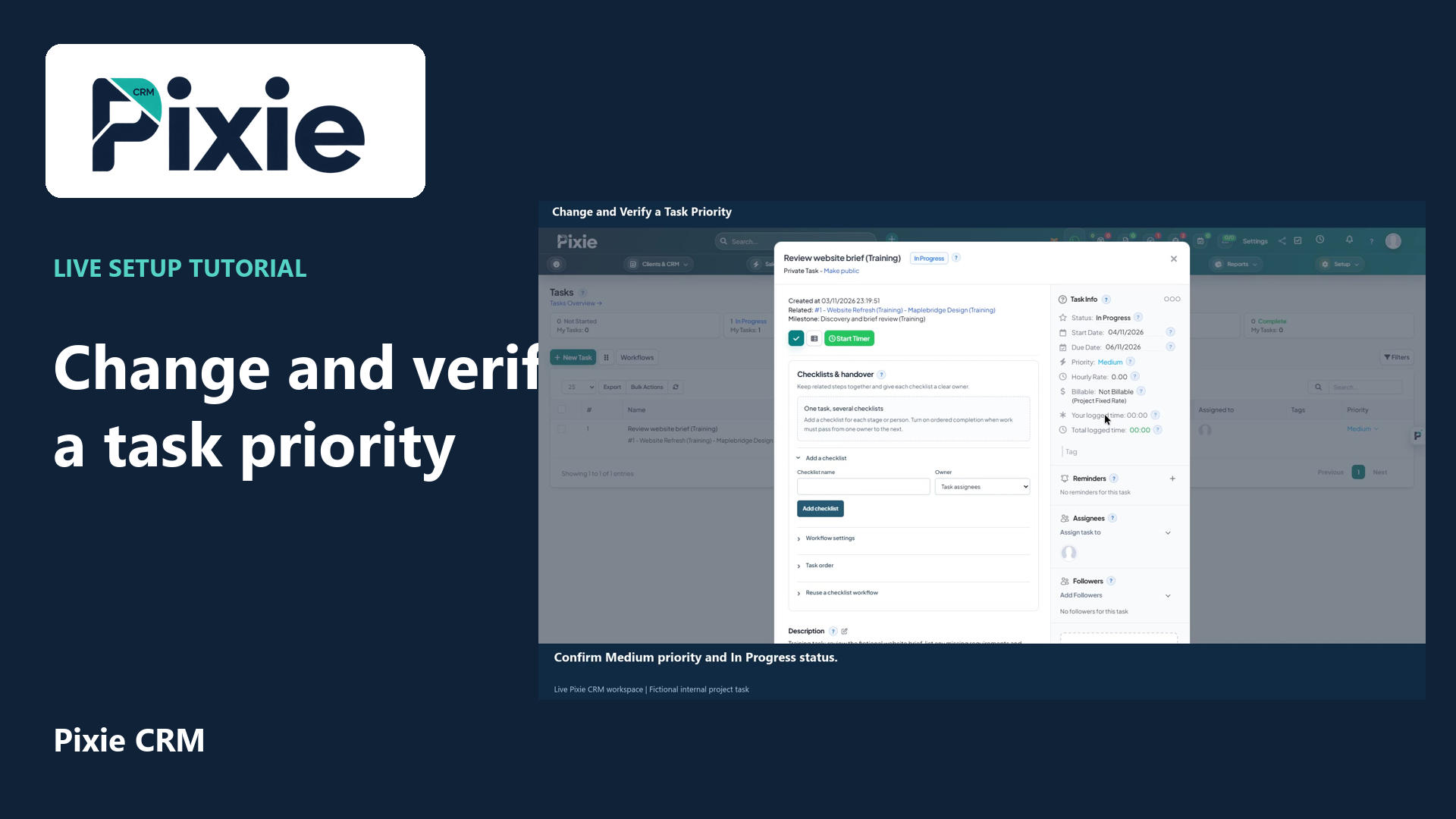 Change and verify a task priority
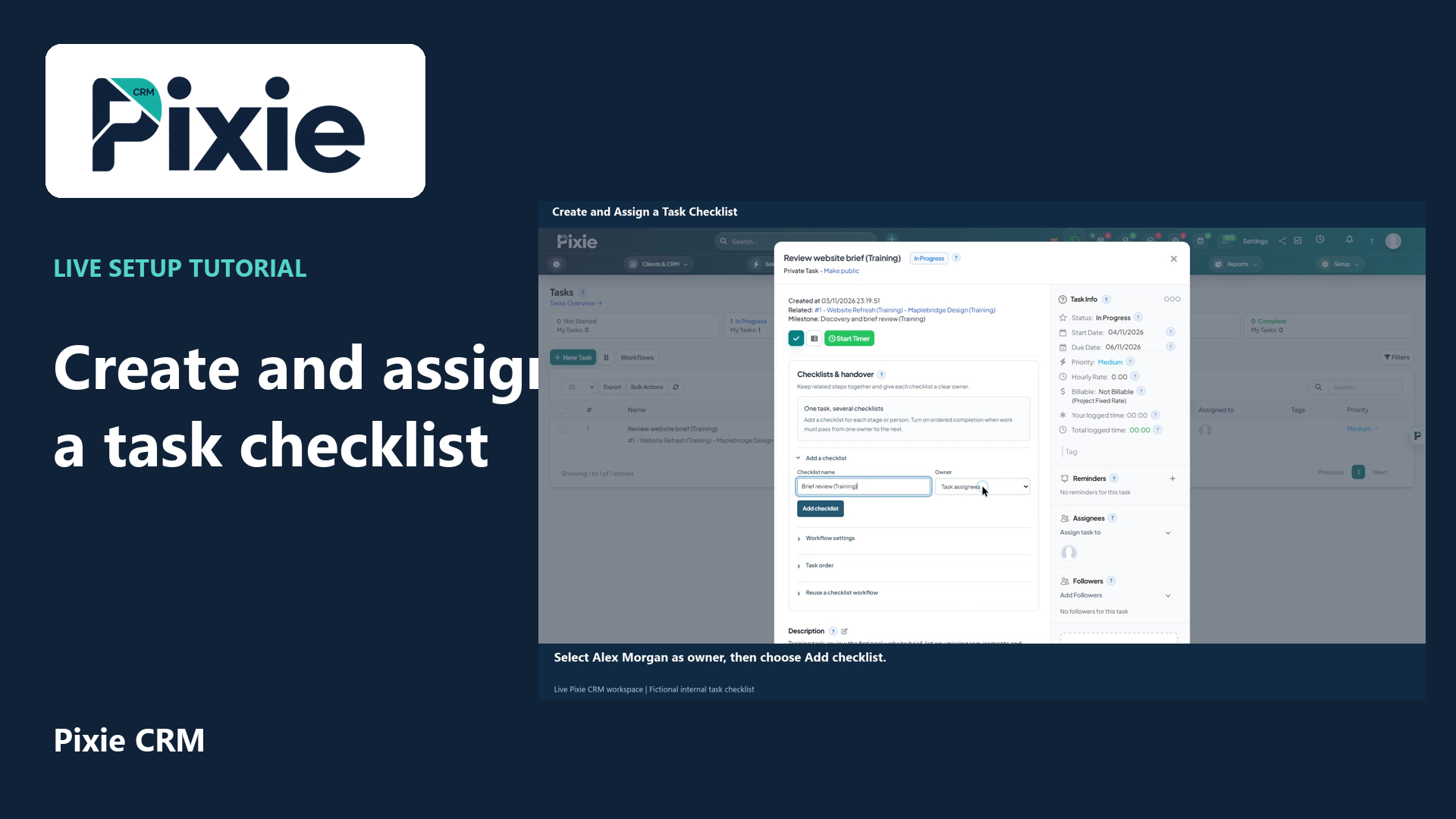 Create and assign a task checklist
More videos in this category · Read the matching instructions
Change a task status in Pixie CRM with live clicks. Open an internal project task, select In Progress, review the result, then reopen the same task to verify the saved status.
Matching written guide · Download MP4 · English captions
All records are fictional training examples in a disposable workspace. The task remains internal and unbilled. This walkthrough does not record time, complete real work or contact a customer.
Watch this tutorial on YouTube ↗ · Related Pixie CRM tutorials ↗
Video chapters
- 0:00 — Open the project task
- 0:13 — Choose In Progress
- 0:29 — Review the updated task status
- 0:44 — Reopen and verify the retained status
- 0:58 — Continue with related Pixie CRM tutorials
Read the video transcript
Change a task status in Pixie CRM. Open Tasks and choose Review website brief, Training. Check its project and current status before updating the record.
Open the current status in Task Info and choose Mark as In Progress. The status updates immediately, so there is no separate Save button for this control. Choose the state that reflects the actual stage of work.
Check that Task Info now shows In Progress. The task is still an internal training record. Time recording uses the separate timer and timesheet controls, and completion is a different status.
Close the task and open the same record again. In Progress is retained, confirming that the update was saved. Reopening is a useful check when several people are maintaining a shared task list.
Follow the written instructions
Open the matching written guide ↗ · Browse all Pixie CRM video guides