
Pixie CRM guided video tutorial
Upload and verify your company logo
Recorded live · 1:35 · English captions
Upload and verify your company logo: live walkthrough
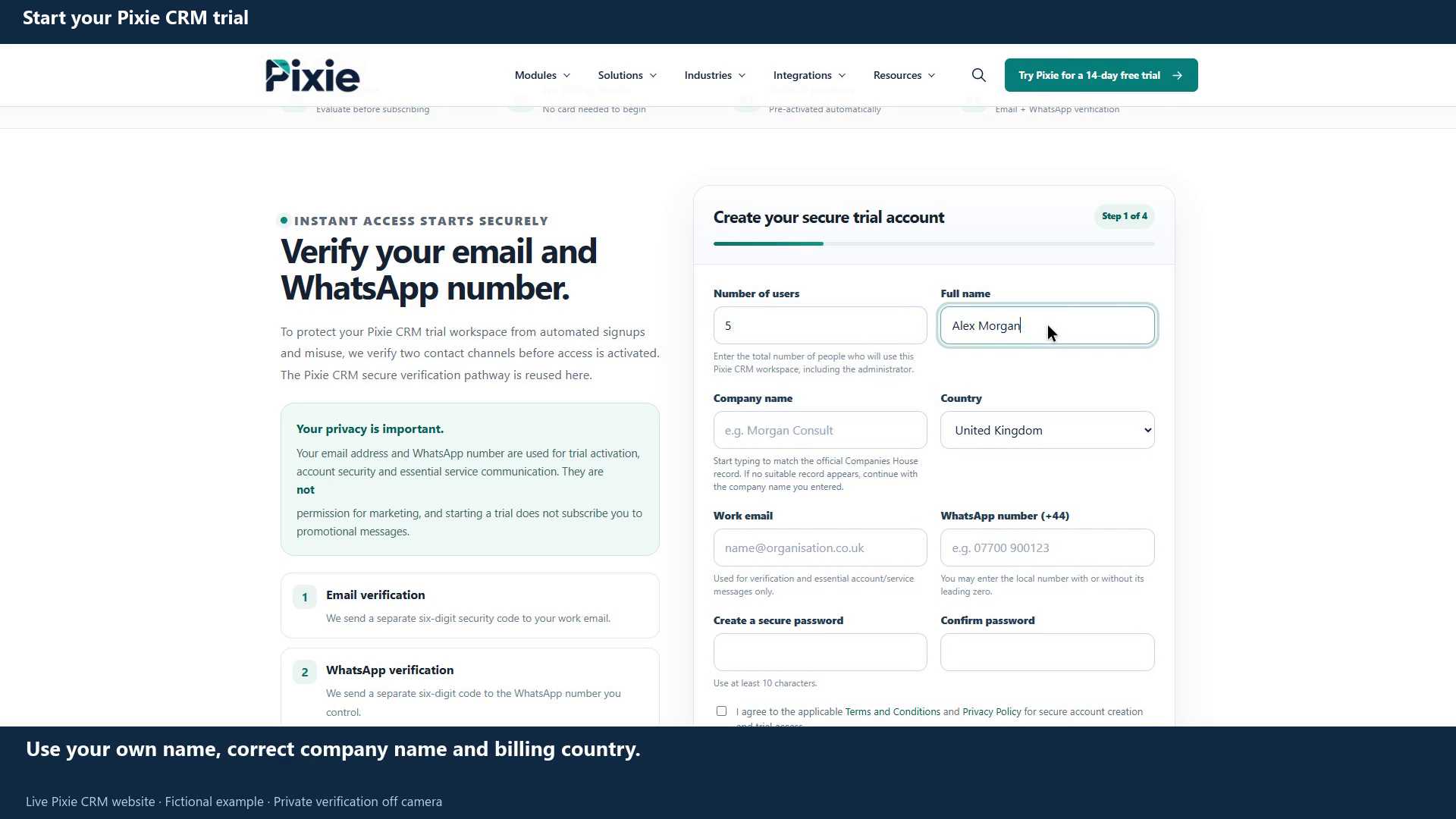 Start your Pixie CRM trial
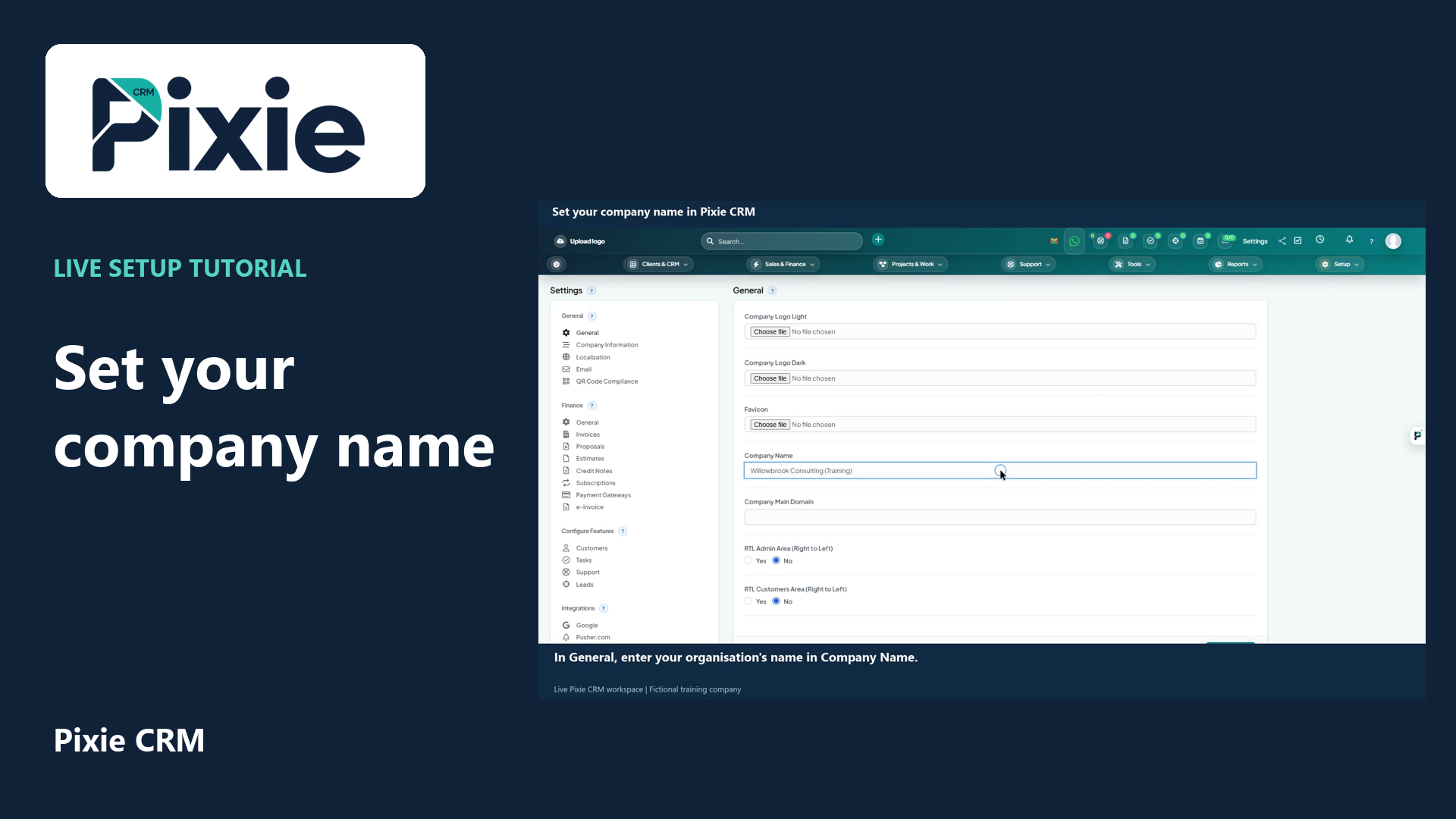 Set your company name in Pixie CRM
More videos in this category · Read the matching instructions
Upload a company logo in Pixie CRM with live clicks. Open General settings, choose the image file, save the settings and confirm the logo appears in the workspace header and preview.
Matching written guide · Download MP4 · English captions
Recorded in a fictional training workspace using the unmodified official Pixie logo as the demonstration image. Use a logo you own or have permission to use. Company-logo settings do not change a connected external service's branding.
Watch this tutorial on YouTube ↗ · Related Pixie CRM tutorials ↗
Video chapters
- 0:00 — Open the company branding settings
- 0:17 — Choose your company logo file
- 0:34 — Save and check the logo
- 0:48 — Continue your company setup
- 1:15 — Continue with related Pixie CRM tutorials
Read the video transcript
Open Settings in Pixie CRM, then choose General. The company logo identifies your organisation in the workspace and supported documents. This training workspace uses the official Pixie logo as the demonstration image.
Under Company Logo, choose the prepared image from your computer. Check that you own or have permission to use the logo. Confirm the selected filename before saving. The dark-logo and favicon fields are separate choices.
Choose Save Settings. Wait for the page to return and confirm the logo appears in the workspace header and the settings preview. This confirms the image was uploaded and saved for this training workspace.
Review the image at its displayed size. Continue with company information, localisation and document settings using the linked guides. Uploading a company logo changes the workspace's company branding; it does not change the branding of a connected external service.
Follow the written instructions
Open the matching written guide ↗ · Browse all Pixie CRM video guides