
Pixie CRM guided video tutorial
Set and verify vendor billing and shipping addresses
Recorded live · 1:48 · English captions
Set and verify vendor billing and shipping addresses: live walkthrough
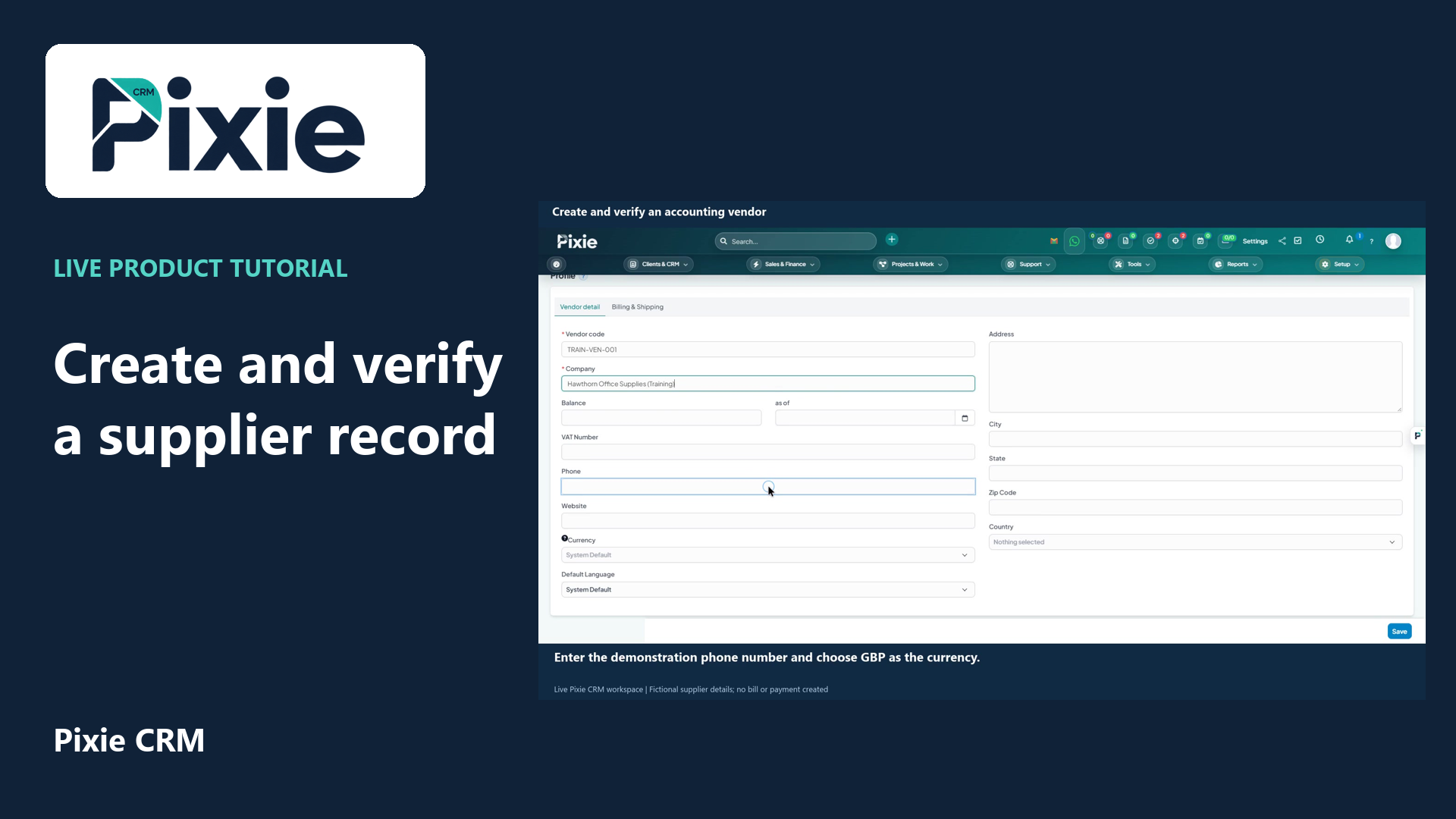 Create and verify an accounting vendorRead the matching written guideFollow the instructions at your own pace
More videos in this category · Read the matching instructions
Set Pixie CRM vendor billing and shipping addresses with live clicks. Copy the main supplier address to billing, copy billing to shipping, save and reopen both address blocks to verify the retained details.
Matching written guide · Download MP4 · English captions
The supplier and address details are fictional training data. Copy an address only when it is correct for that purpose. This tutorial creates no supplier bill, purchase order, payment instruction or delivery note.
Watch this tutorial on YouTube ↗ · Related Pixie CRM tutorials ↗
Video chapters
- 0:00 — Open the vendor address settings
- 0:15 — Copy the main vendor address to billing
- 0:33 — Copy billing details to shipping
- 0:51 — Save the supplier address changes
- 1:09 — Reopen and verify both saved addresses
- 1:28 — Continue with related Pixie CRM tutorials
Read the video transcript
Set a vendor billing and shipping address in Pixie CRM. Open the saved Hawthorn Office Supplies record from Vendors, then choose Billing and Shipping. These fields are separate from the main vendor contact address.
Choose Same as Vendor Info. Review the copied street, city, county, postcode and country in Billing Address. Use this shortcut only when the billing address matches the supplier information; otherwise enter the correct billing details separately.
Choose Copy Billing Address. Review the shipping fields before saving. Billing and shipping can have different destinations in a real supplier record. This example uses the same fictional address for both, and does not create a delivery or a purchase order.
Choose Save to store the billing and shipping addresses. Confirm that the vendor returns to the saved list. These changes update the supplier record only; no bill, payment instruction, delivery note or customer communication is generated.
Reopen the saved vendor and return to Billing and Shipping. Verify that both address blocks retain the expected details and United Kingdom. Check the main vendor information separately whenever a supplier changes its contact or delivery details.
Follow the written instructions
Open the matching written guide ↗ · Browse all Pixie CRM video guides