
Pixie CRM guided video tutorial
Operational tools and reporting overview
Recorded live · 3:01 · English captions
Operational tools and reporting overview: live walkthrough
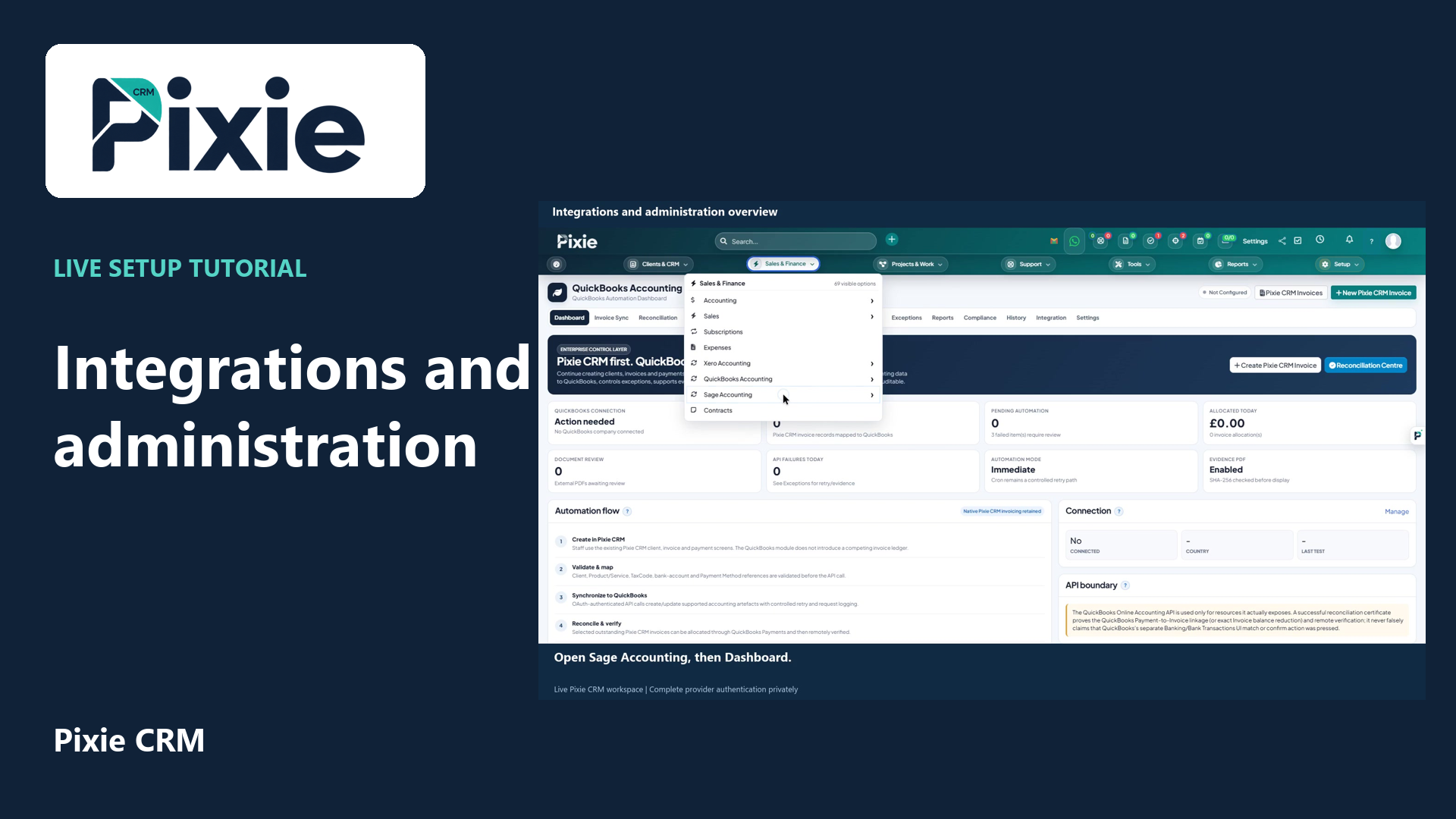 Integrations and administration overviewRead the matching written guideFollow the instructions at your own pace
More videos in this category · Read the matching instructions
Explore Pixie CRM operational tools with actual screens and guided clicks. Locate Letter Manager, evidence records, delivery notes, QR compliance, knowledge base, calendar, advanced filters and reporting.
Matching written guide · Download MP4 · English captions
All records shown are fictional training examples. No letter delivery, signature, completed inspection or real financial result is represented.
Watch this tutorial on YouTube ↗ · Related Pixie CRM tutorials ↗
Video chapters
- 0:00 — Open Letter Manager
- 0:20 — Find letter templates and evidence tools
- 0:37 — Locate delivery notes
- 0:54 — Review QR compliance records
- 1:13 — Open the knowledge base
- 1:29 — Review the shared work calendar
- 1:46 — Open advanced task filters
- 2:03 — Open advanced lead filters
- 2:18 — Locate sales and operational reports
- 2:40 — Continue with related Pixie CRM tutorials
Read the video transcript
Open Letter Manager from Tools. The dashboard supports selecting a CRM recipient or using a separate manual recipient workflow. Templates and the Compliance Pack are separate sections. Review the recipient, document and delivery choices before sending a real letter.
Open Templates for reusable letter content. The Compliance Pack provides the available evidence records and controls. A saved template, a prepared letter and a delivered letter are different stages; use the dedicated guides to follow the complete workflow.
Choose Delivery Note to review delivery-note records and their reference, invoice, recipient, delivery date and status. The training list is empty. Use the related document workflow when a real delivery needs to be recorded.
Open QR Compliance Records to find document QR records, signature status and scan evidence. Review the recorded evidence and verification state for the specific document. An empty list does not represent a completed signature or verified delivery.
Open Knowledge Base to manage articles and their groups. New Article starts an article, while the list shows its group and publication date. Use clear article titles and review the intended audience before publishing guidance.
Open Calendar under Utilities. The monthly view brings scheduled work into context, including the fictional task and project dates already recorded in this walkthrough. Month, Week and Day provide different planning views.
Open Task Filters for a more focused view of work by staff member, status, billing and related record. Saved filter templates can help repeat a useful review. Choose filters that answer a specific operational question.
Lead Filters provides a focused view by owner, stage, source and other recorded lead information. Use it to identify enquiries requiring attention and keep the follow-up view consistent with the current lead data.
Open Sales under Reports for invoice, item, payment, proposal, estimate and customer reporting. Expenses versus Income provides a separate financial comparison. Reports reflect recorded data and the selected filters, so check the reporting period and currency context.
Follow the written instructions
Open the matching written guide ↗ · Browse all Pixie CRM video guides