
Pixie CRM guided video tutorial
Create and verify a WhatsApp standard reply
Recorded live · 2:19 · English captions
Create and verify a WhatsApp standard reply: live walkthrough
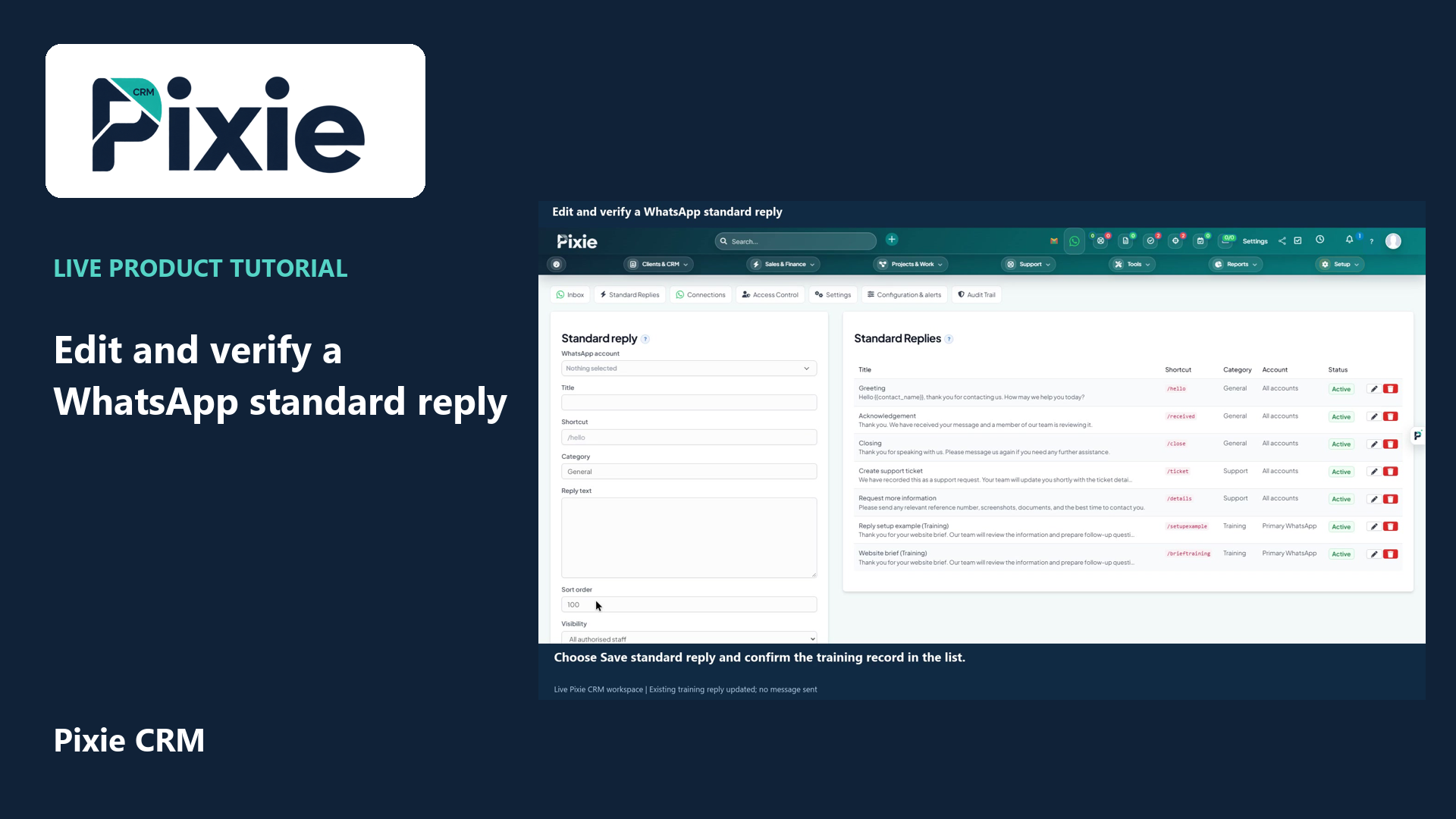 Edit and verify a WhatsApp standard reply
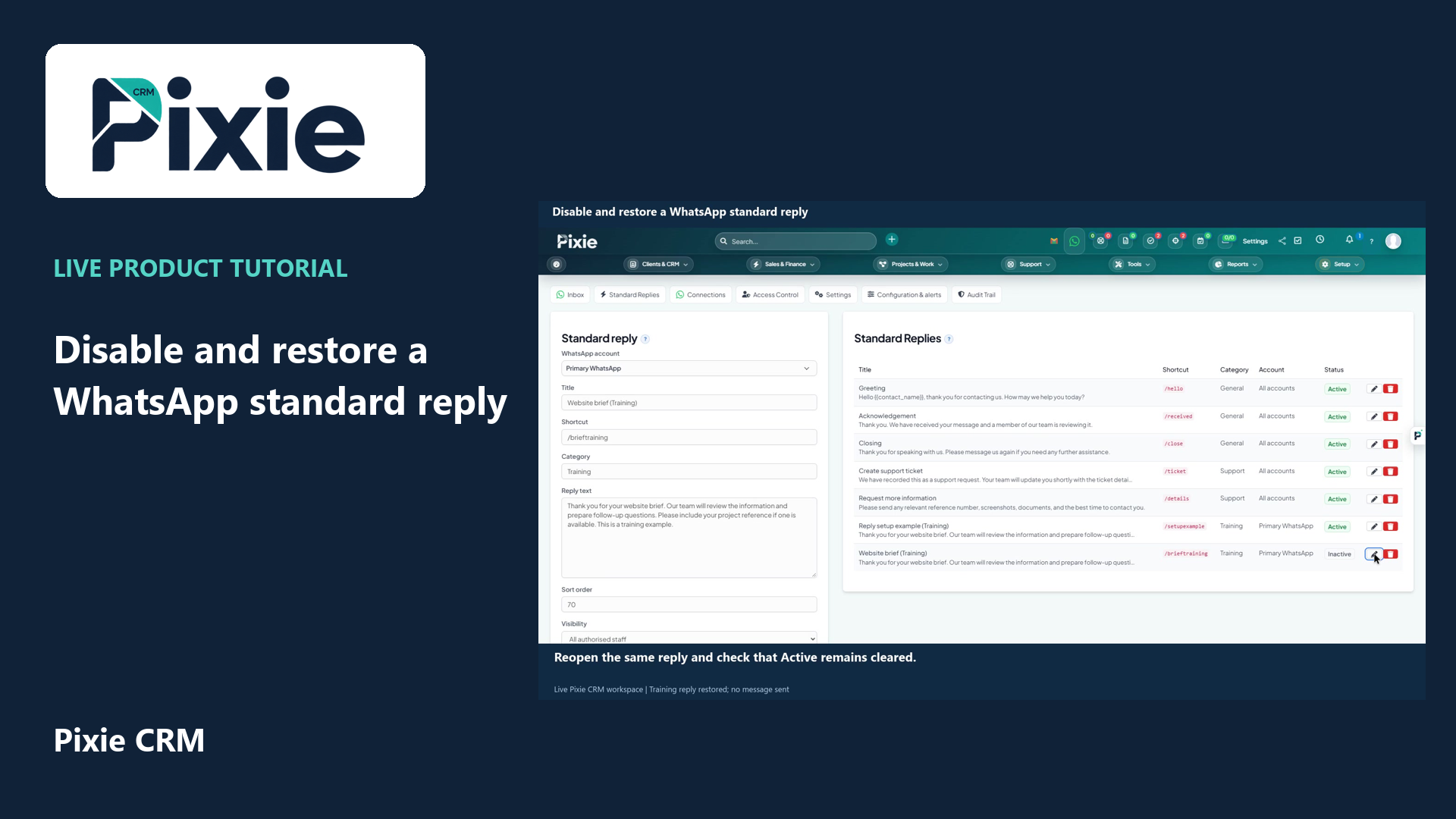 Disable and restore a WhatsApp standard reply
More videos in this category · Read the matching instructions
Create a Pixie CRM WhatsApp standard reply with live clicks. Choose its account, title, shortcut, category, text, order and visibility, save and reopen the record to verify every retained field.
Matching written guide · Download MP4 · English captions
The reply is fictional training content in the disposable workspace. Saving reusable text does not pair a device, verify a number, create a conversation, send a message or grant new account access. Review and adapt each reply before real use.
Watch this tutorial on YouTube ↗ · Related Pixie CRM tutorials ↗
Video chapters
- 0:00 — Open Standard Replies
- 0:18 — Choose the account and reply title
- 0:36 — Add a shortcut, category and reply text
- 1:01 — Review sort order, visibility and active status
- 1:20 — Save the standard reply
- 1:37 — Reopen and verify the stored reply
- 1:58 — Continue with related Pixie CRM tutorials
Read the video transcript
Create a WhatsApp standard reply in Pixie CRM. Open Standard Replies from the WhatsApp menu. This library stores reusable text that authorised staff can review before using it in a conversation. Creating a reply does not send a message.
Select Primary WhatsApp as the account, then enter Website brief, marked as Training. This associates the reusable text with the selected account. It does not pair a device, verify a phone number or connect a new WhatsApp service.
Enter the shortcut shown on screen and set the category to Training. Write the acknowledgement in Reply text. Keep reusable wording accurate and easy to adapt, then review it against the individual conversation before sending a real message.
Set the sort order to sixty. Keep visibility at All authorised staff and leave Active selected for this example. Review these choices with your support process. Reply visibility does not grant new access to the WhatsApp account or its conversations.
Choose Save standard reply. Confirm the training title, shortcut, category and selected account in the saved list. The text is stored in the reply library. This step creates no conversation and sends no customer message.
Use the saved row edit control to reopen the reply. Verify the account, title, shortcut, category, text, sort order, visibility and active status. The reply is ready for a later authorised workflow, with no device pairing or message sending completed in this tutorial.
Follow the written instructions
Open the matching written guide ↗ · Browse all Pixie CRM video guides