
Pixie CRM guided video tutorial
Create and verify a lead conversion goal
Recorded live · 2:28 · English captions
Create and verify a lead conversion goal: live walkthrough
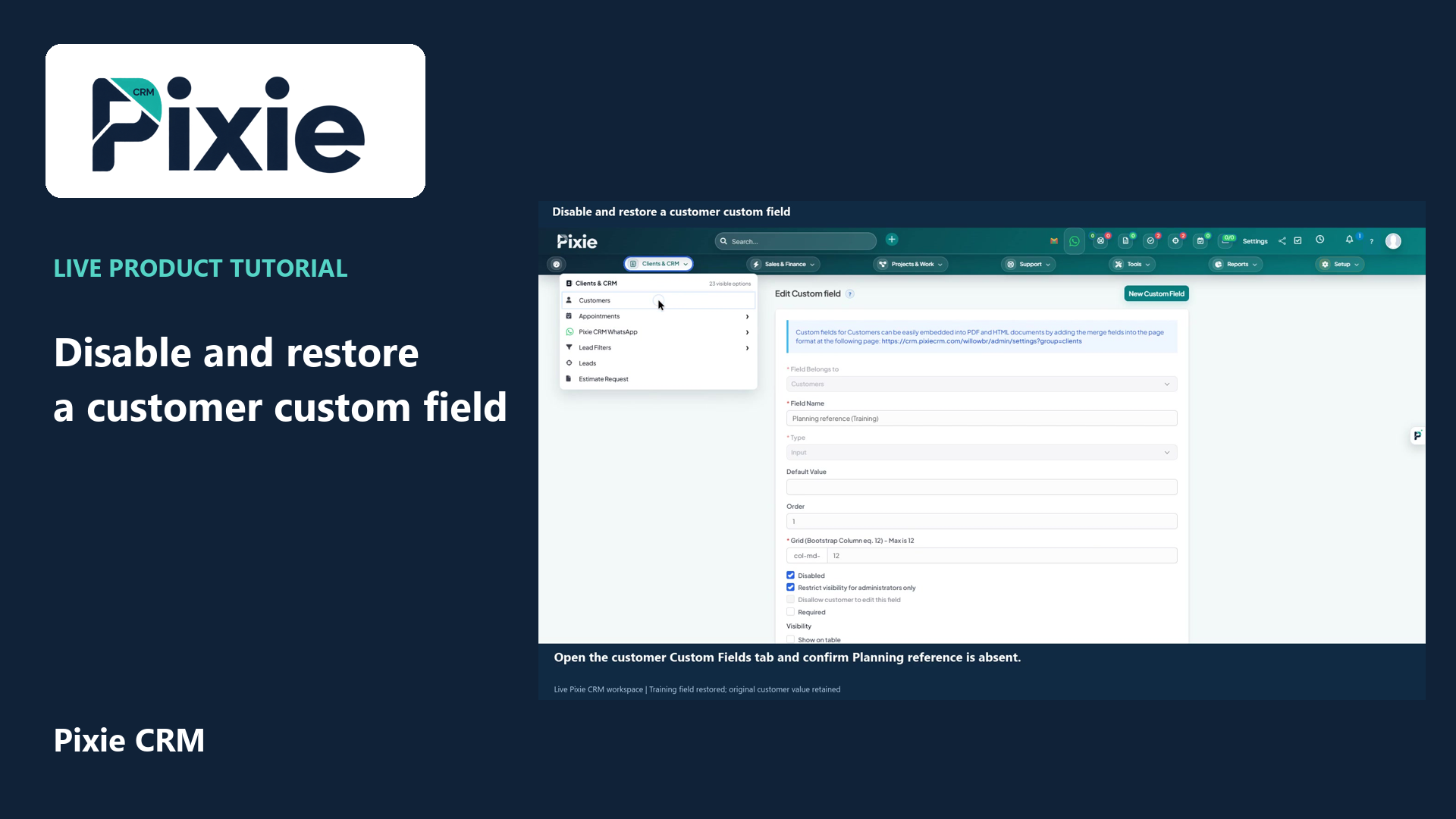 Disable and restore a customer custom field
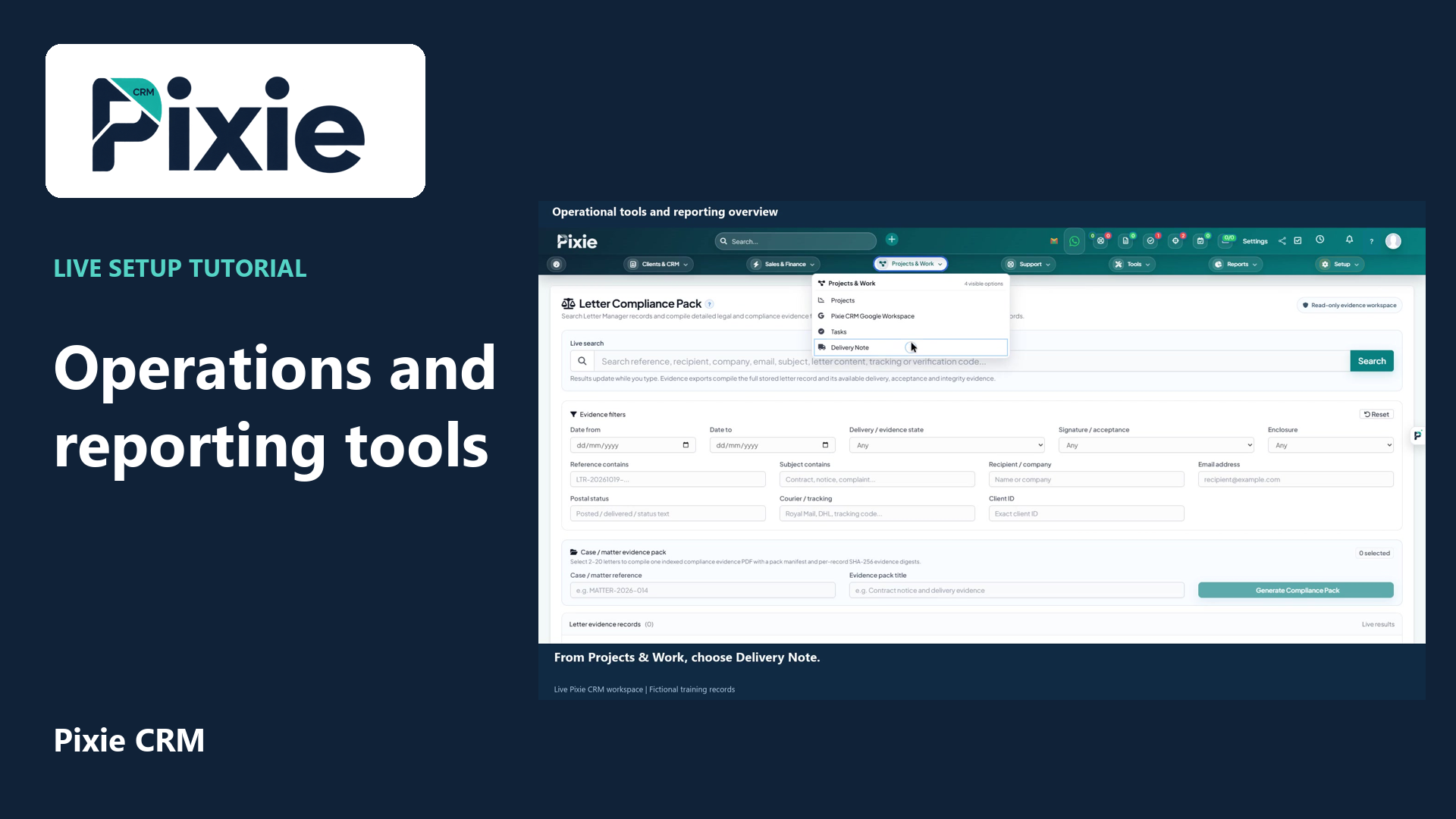 Operational tools and reporting overview
More videos in this category · Read the matching instructions
Create a Pixie CRM lead conversion goal with live clicks. Set the target type, staff member, achievement and dates, review notification choices, save and reopen the goal to verify the retained settings.
Matching written guide · Download MP4 · English captions
The goal is a fictional planning record in the disposable workspace. Both staff-notification options are cleared. No lead conversion, income, payment, document issue or customer communication is performed.
Watch this tutorial on YouTube ↗ · Related Pixie CRM tutorials ↗
Video chapters
- 0:00 — Open a new goal
- 0:19 — Name the goal and select its target
- 0:47 — Set the reporting period
- 1:03 — Describe the goal and review notifications
- 1:24 — Save and inspect the calculated result
- 1:45 — Reopen and verify the stored goal
- 2:07 — Continue with related Pixie CRM tutorials
Read the video transcript
Create a lead conversion goal in Pixie CRM. Open Goals, then choose New Goal. A goal defines a measurable target and displays calculated achievement from supported CRM records. Creating a goal does not perform the underlying sales work.
Enter Website enquiry conversion, marked as Training. Choose Convert X Leads, select Alex Morgan and set Achievement to three. The staff selection identifies the intended owner for this supported target; it does not create a new staff account or change account permissions.
Set the start date to the fourth of November and the end date to the eighteenth of November, twenty twenty-six. Use the date format shown in your workspace. The selected period determines which eligible records contribute to this goal.
Add a short description explaining this fictional planning target. Clear both notification checkboxes for the demonstration. This prevents the example from requesting achievement or failure notifications. Review notification settings with your team before using goals in a live process.
Choose Save. Review the retained subject, goal type, staff member, target and dates alongside the calculated result. The result reflects qualifying CRM activity. This tutorial does not convert a lead, record income, issue a document or send a customer message.
Return to Goals and open the saved subject. Verify the retained configuration before reviewing real progress. Keep target definitions, date periods and notification choices consistent so the team can interpret the results correctly. The training goal remains a planning record only.
Follow the written instructions
Open the matching written guide ↗ · Browse all Pixie CRM video guides