
Pixie CRM guided video tutorial
Disable and restore a customer custom field
Recorded live · 1:49 · English captions
Disable and restore a customer custom field: live walkthrough
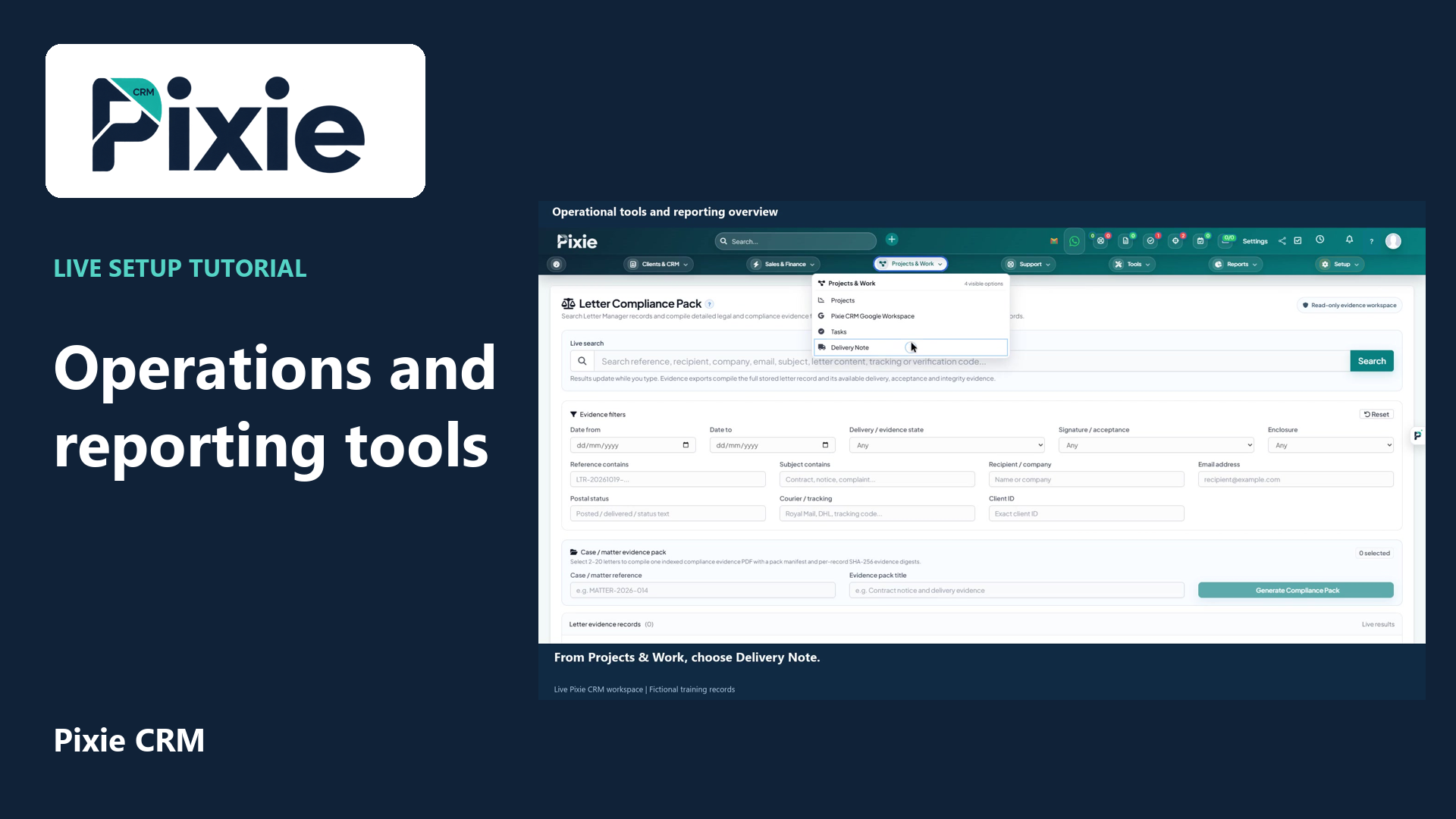 Operational tools and reporting overview
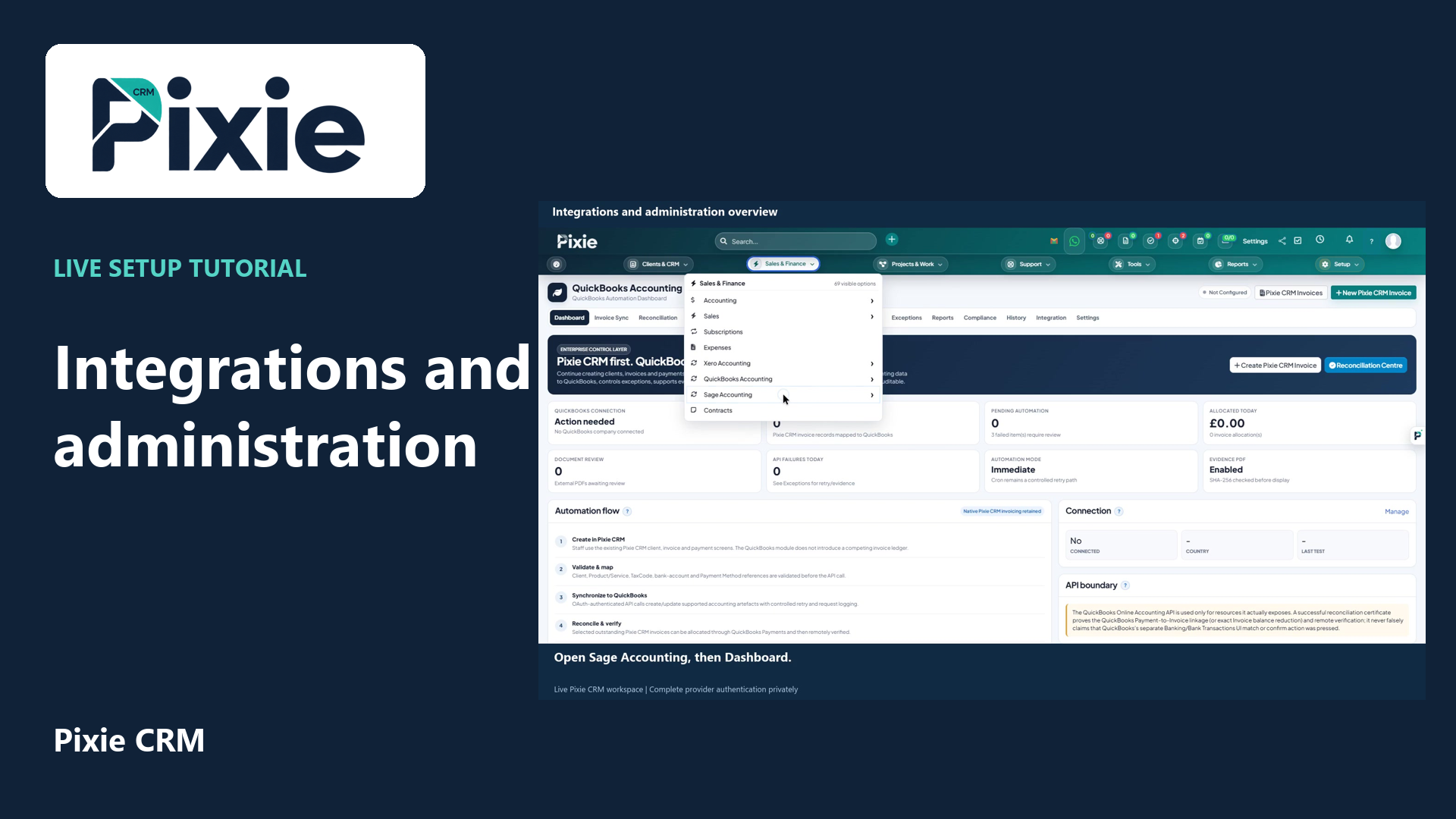 Integrations and administration overview
More videos in this category · Read the matching instructions
Disable and restore a Pixie CRM customer custom field with live clicks. Verify the field disappears from the customer form, restore it and confirm the original saved customer value is retained.
Matching written guide · Download MP4 · English captions
The field and customer value are fictional training data. The field is restored at the end, its administrator restriction is retained and client portal visibility remains off. No field or value is deleted and no message is sent.
Watch this tutorial on YouTube ↗ · Related Pixie CRM tutorials ↗
Video chapters
- 0:00 — Open the saved field definition
- 0:17 — Disable the field and save
- 0:36 — Verify the field is unavailable on the customer
- 0:54 — Restore the field definition
- 1:11 — Verify the original customer value is retained
- 1:29 — Continue with related Pixie CRM tutorials
Read the video transcript
Disable and restore a customer custom field in Pixie CRM. Open the saved Planning reference definition from Custom Fields. This example uses an optional field restricted to administrators, with an existing fictional customer value.
Select Disabled and choose Save. Verify that Disabled is retained while the administrator restriction remains selected. Disabling controls whether the field is available on supported records. It is separate from deleting the field and its stored values.
Open the training customer and choose Custom Fields. Planning reference is no longer available in this tab. The separate Verified WhatsApp Numbers field remains, so this setting affects the selected field rather than removing every custom field from the customer.
Return to the saved field definition, clear Disabled and choose Save. Keep the administrator-only restriction and client portal visibility unchanged. The field is restored with its existing definition, rather than creating a replacement field.
Reopen the customer Custom Fields tab. Verify that Planning reference has returned with its original value. The fictional reference is retained through this disable-and-restore workflow. No message is sent and client portal visibility remains off.
Follow the written instructions
Open the matching written guide ↗ · Browse all Pixie CRM video guides