
Edit customer profile and account information
Pixie CRM guidance. Follow the route for your workspace, check your role and enabled modules, and verify the result before moving on.
Follow this guide to update customer identity, address, website, currency, language and account settings.
Learn with Pixie CRM
Watch this workflow
Follow real application screens at your own pace, with English captions and a matching written guide.
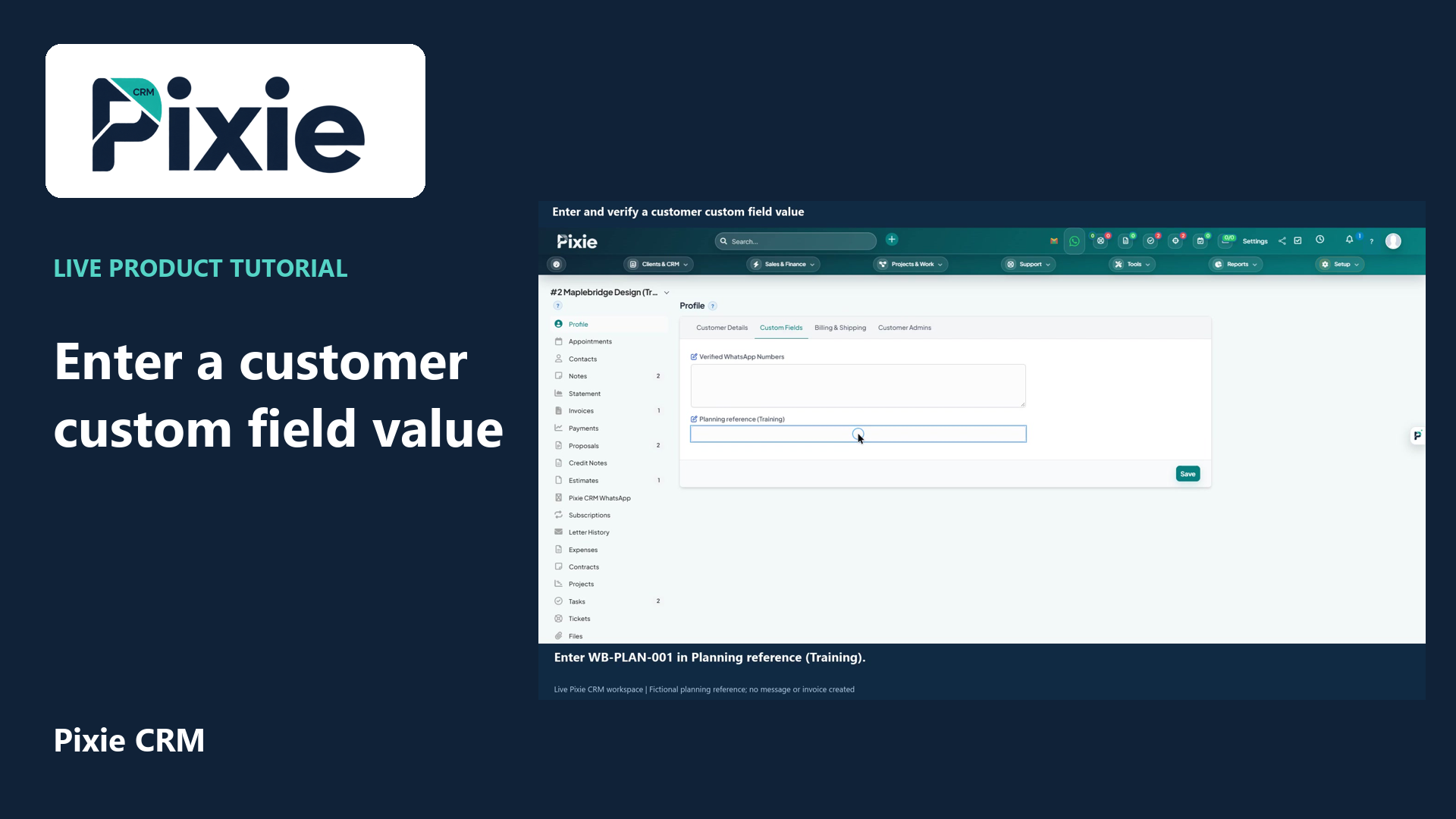
Enter and verify a customer custom field value
Enter a Pixie CRM customer custom field value with live clicks. Open the customer Custom Fields tab, enter the planning reference, save and reopen the record to verify that the value is retained.
Recorded in a demonstration workspace; available options depend on your plan and permissions.
Visit the Pixie CRM YouTube channel
What this guide helps you do
Update customer identity, address, website, currency, language and account settings. Pixie CRM keeps the result connected to the relevant customer, staff member and operational history where the feature supports those relationships. That connection is important for search, reporting, client portal visibility and future automation.
Follow these steps
- Go to Customers → Open customer → Profile and locate the existing record.
- Check status, activity, related transactions and client-visible history before editing.
- Change only the fields required by the current business event.
- Recalculate or recheck dates, totals, tax, ownership and visibility when those values are affected.
- Save and resolve any validation errors on the same form.
- Refresh or reopen the record and confirm the new value appears in the summary and activity history.
- Notify the customer or responsible team only when the edited information changes their action or obligation.
Settings to check
Checks before you finish
- Search for duplicates first.
- Use a shared business email only when appropriate.
- Check contact permissions before sending portal access.
- Check whether the result should be visible to a customer contact or only to staff.
- Confirm the final status, activity entry, generated document or notification before leaving the record.