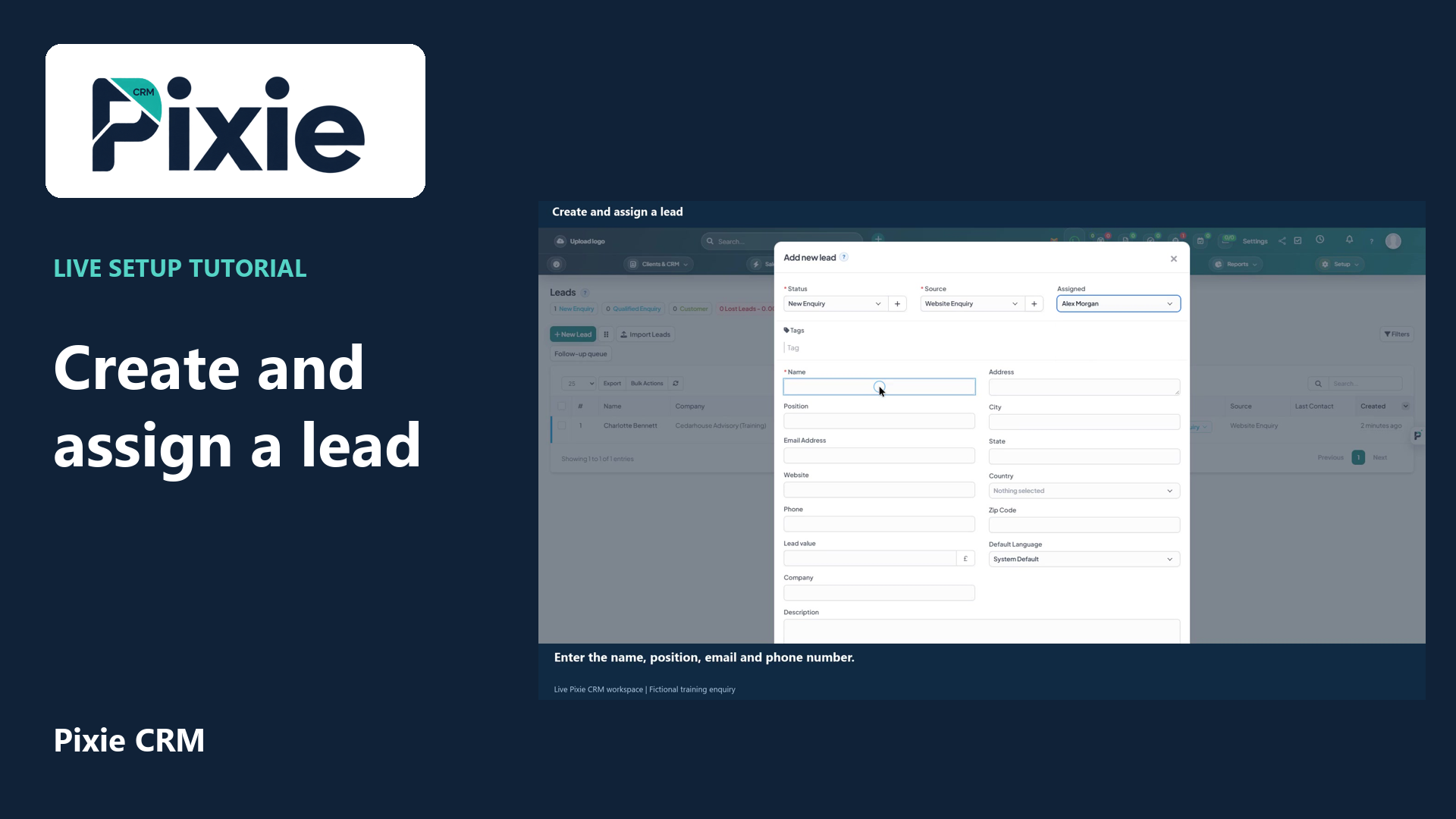
Create and assign a lead
Create a lead in Pixie CRM with live clicks. Select the status, source and owner, enter the enquiry details, review visibility and contact history, then save and verify the lead in the list.
Customer work, connected.

Clients & CRM
A promising enquiry should not depend on whoever happens to open the inbox first. Pixie CRM lead management helps a team capture the context, decide whether there is a fit and make the next action visible. It is useful for businesses receiving leads from more than one channel.
Keep the customer context, responsible person and next step together. Start with a familiar task, agree the information the team needs and check the result with the people who will use it.
Learn with Pixie CRM
Follow real application screens at your own pace, with English captions and a matching written guide.
Create a lead in Pixie CRM with live clicks. Select the status, source and owner, enter the enquiry details, review visibility and contact history, then save and verify the lead in the list.
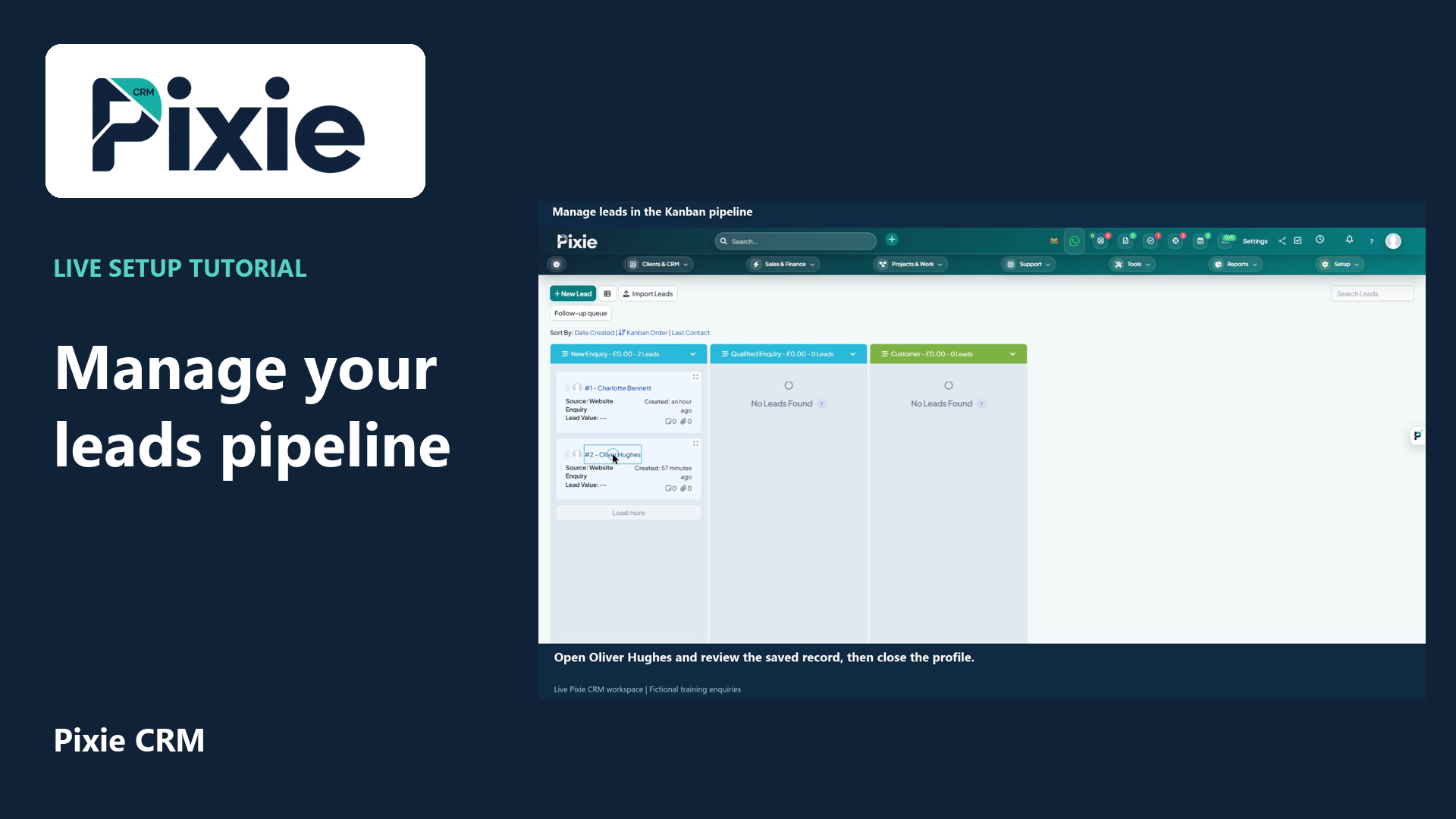
Use the Pixie CRM leads Kanban board with live clicks and cursor movement. Review a lead, move its card to the next stage and confirm the saved status in list view.
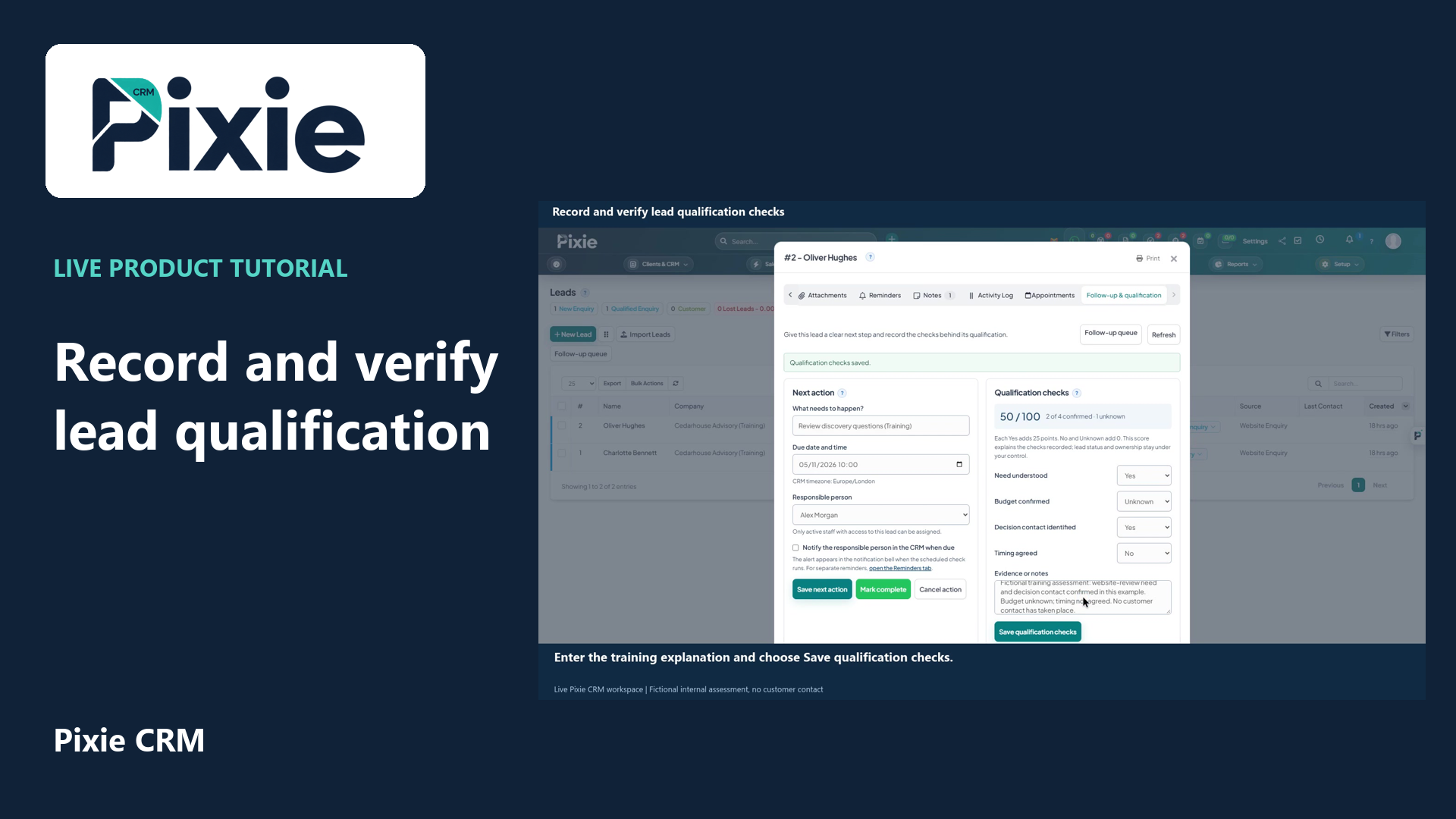
Record Pixie CRM lead qualification checks with live clicks. Set each check, add evidence, save and reopen to verify the retained values and score.
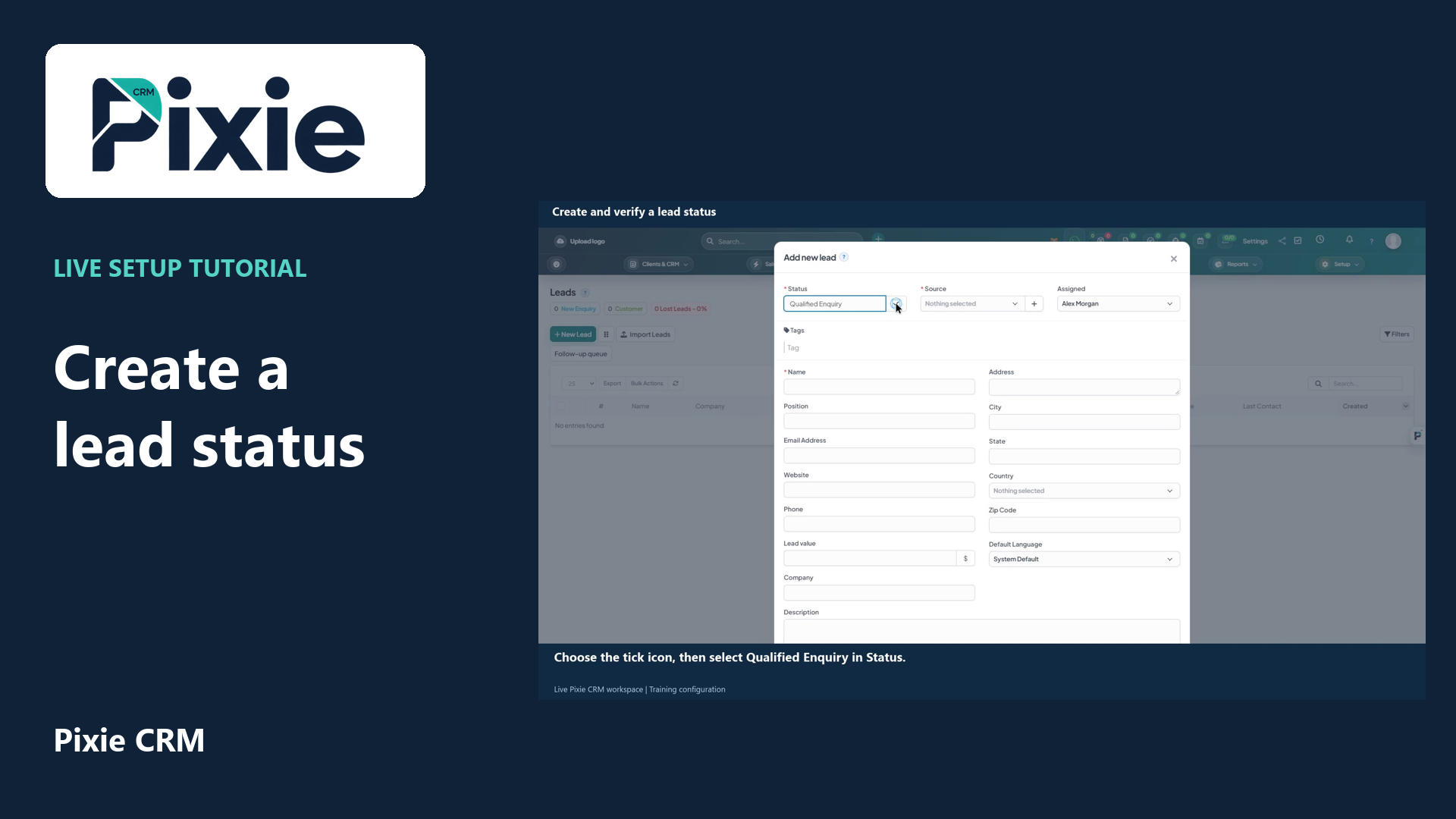
Create a lead status from the Pixie CRM New Lead form. Add the status name, save it with the tick icon and reopen the form to confirm the saved option is available.
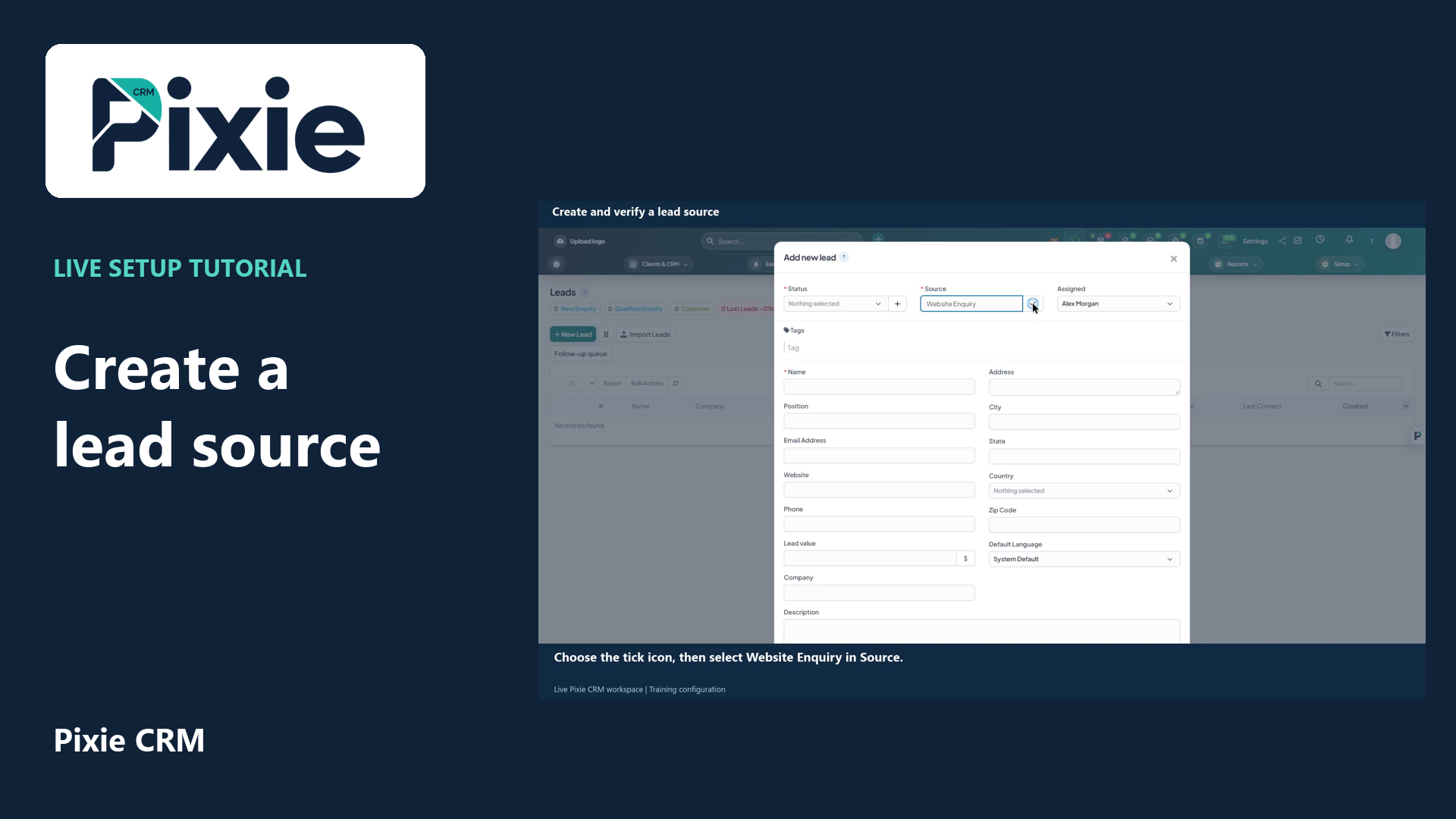
Add a lead source in Pixie CRM with live clicks. Enter Website Enquiry, save it using the tick icon and reopen New Lead to confirm the source remains available.
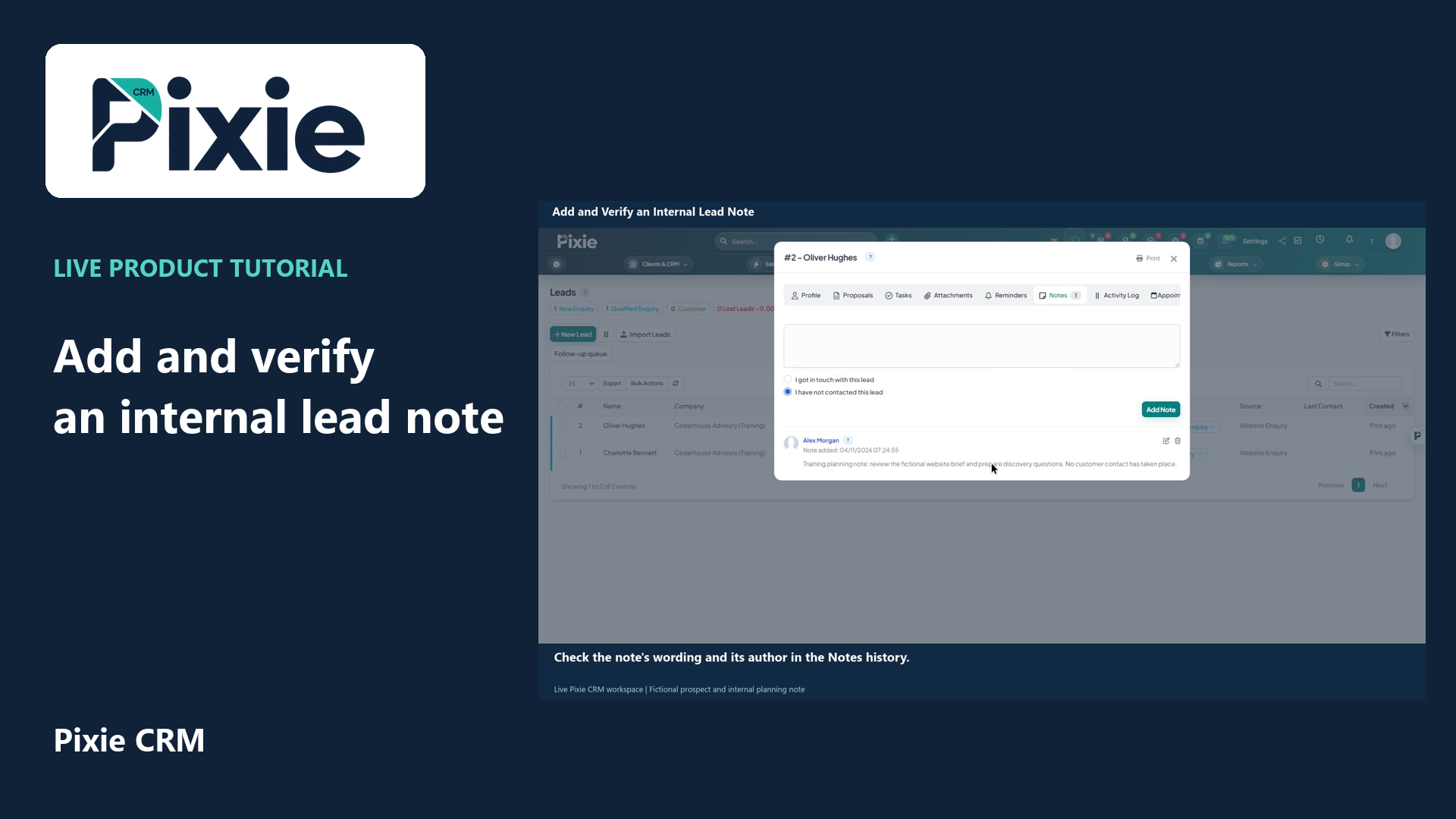
Add an internal note to a Pixie CRM lead with live clicks. Review the contact indicator, save the note and reopen the lead to verify the retained text.
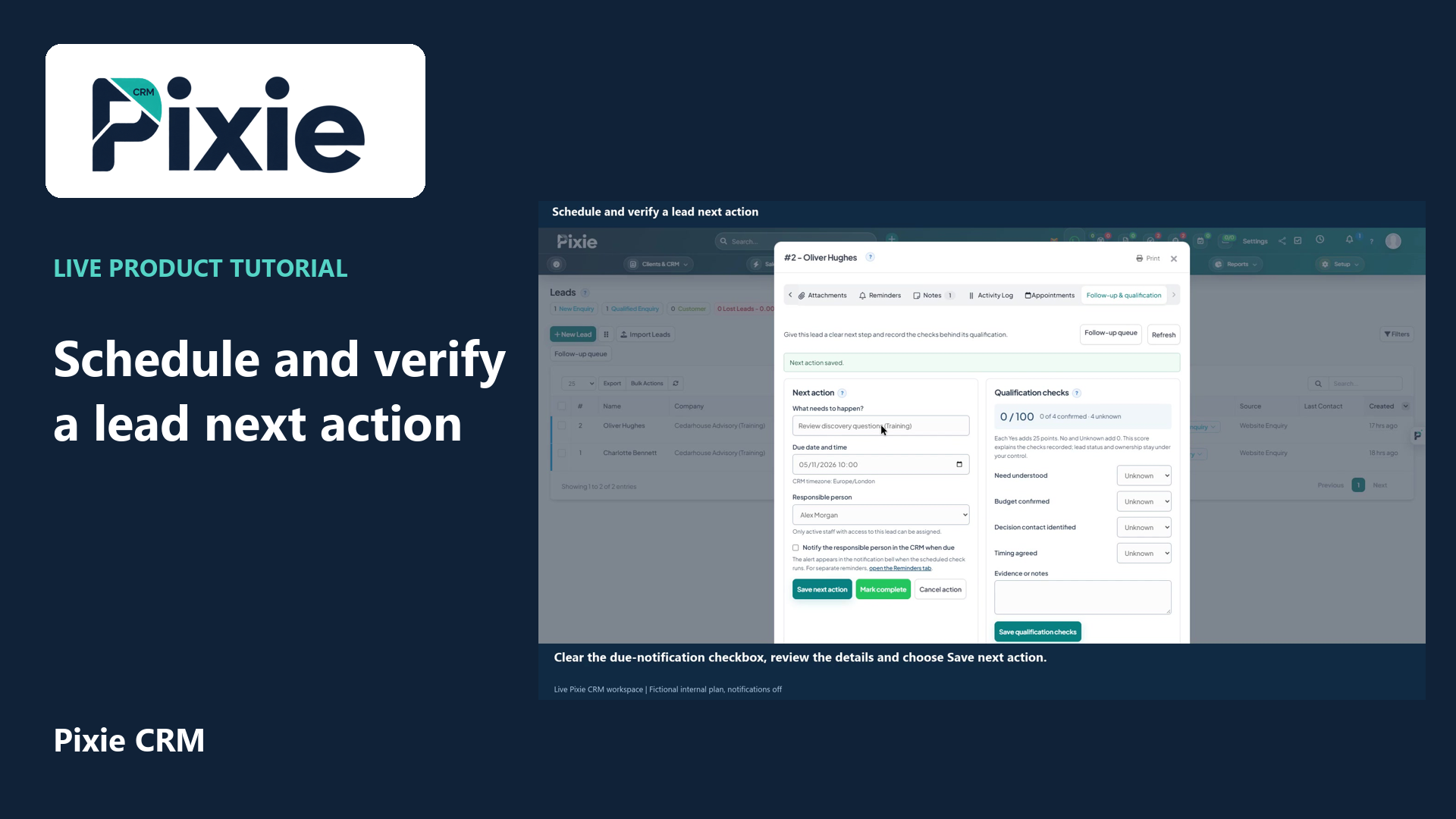
Schedule a Pixie CRM lead next action with live clicks. Set the title, due date and time, responsible person and notification choice, save and reopen to verify the plan.
Recorded in a demonstration workspace; available options depend on your plan and permissions.
Visit the Pixie CRM YouTube channel
Record where the lead came from, what they need and how they prefer to be contacted. Assign an owner who can qualify the request and agree a follow-up date. Use a small set of meaningful statuses, such as new, contacted and qualified, rather than stages that different people interpret differently. A lead that is not ready to buy can remain a useful relationship without being forced into an active sales opportunity. Source information helps explain which channels bring relevant enquiries.
The right questions depend on your service: scope, timing, decision process and existing systems may matter more than company size. Keep scoring and assignment rules understandable, and allow a person to correct an unsuitable allocation. Define how duplicates, unanswered enquiries and staff absence are handled. Before connecting a website form or another lead source, agree what information can be collected and who is responsible when an import or notification fails.
Useful answers
Practical details for a better informed conversation.
No. Lead qualification and customer onboarding are different activities. Keep exploratory enquiries in an appropriate stage, then create or connect the customer record when the relationship is ready.
The lead workflow supports web-to-lead capture. The form fields, verification, routing and connection method need to be configured for your website and agreed sales process.
Continue exploring
Your workflow is a good place to start
Bring your current tools, your priorities and the handovers you want to improve. We’ll help you define a useful next step.
Verify your email. Send your enquiry.
Keep your ticket reference.
Explore the tasks behind Lead Management. Check the guide against your enabled modules and role, then confirm the result in your workspace.